WiFi & BLE
Arduino based PLCs with WiFi and BLE incorporate an ESP32 as a secondary board, which provides the WiFi and BLE communication options to the PLC.
WiFi & BLE is an optional communication. Only the M-Duino and Ardbox PLCs with the additional communication board can use it.
Hardware
The WiFi and BLE functionalities are provided to the PLC by an added ESP32 module, which communicates with the Arduino main board of the PLC using Serial TTL. In order to use the WiFi and BLE, both the Arduino board and the ESP32 need to be programmed separately.
Each of the boards has its own port and connector, you will need:
- A USB type B to USB cable, used to program the PLC. The port for the USB type B input is located on the top zone of the PLC.
- A micro USB type B to USB cable, used to program the WiFi&BLE board. The port for the micro USB input is located on the left side of the PLC.
Remember to properly power the PLC with a 12-24V power supply.
Software
As it is needed to load a program into the Arduino and into the ESP32, make sure that you have installed the last version of the corresponding boards. For that, go to Tools > Board > Boards Manager and search by industrialshields-avr and industrialshields-esp32. You will also need our arduino-SimpleComm library, which is used in the examples.
For the software implementation there are needed two different codes, one for the Arduino and another one for the ESP32. Follow the next steps to program both for WiFi and BLE implementations.
WiFi
BLE
Serial Bluetooth App
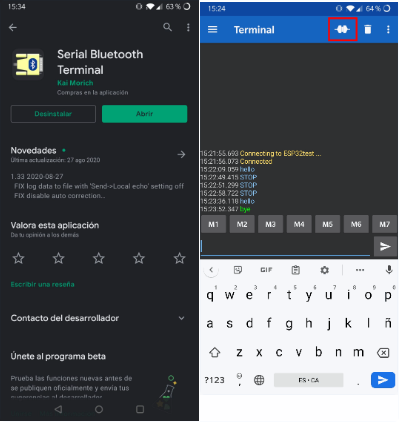
To send send messages via Bluetooth from your mobile to the PLC you can use the app Serial Bluetooth Terminal, which is available on the store. Once the Bluetooth Terminal application is installed on your mobile, establish a connection with the Bluetooth device named ESP32test, which is the name the PLC takes with the example programs. To establish the connection, go to Menu (three horizontal lines) > Devices > ESP32test and then click on the Connect button on the top of the screen.
After connecting establishing the connection with the PLC you can already start sending messages via the terminal of the application. The blue messages are the sent ones, whereas the green ones are the received.
There are no comments for now.
to be the first to leave a comment.