Lesson 7. Email alarms with Node-RED
#7 Alarms Manager by Email
The content of chapter number 7 is focused on generating alarms with Node-RED. Basically we will see how to create a module that will send an email if some parameter exceeds the desired value.
The prerequisite of this chapter is to have an email server with valid credentials.
Installation
Run the following command in your Node-RED user directory - normally as we already know ~/.node-red:
cd .node-red
npm install node-red-node-email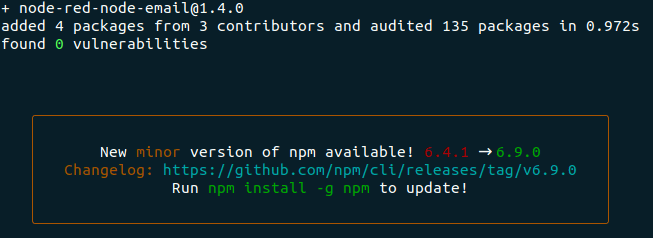
Once the block is installed, take a look at the social blocks on the Node-RED application. You will see an output node called "email". Take it to your flow, also add an inject block.
In our inject node we will configure a topic and a payload. The topic will be our Email subject and the payload will be the content of our Email. Next, it is showed an example:
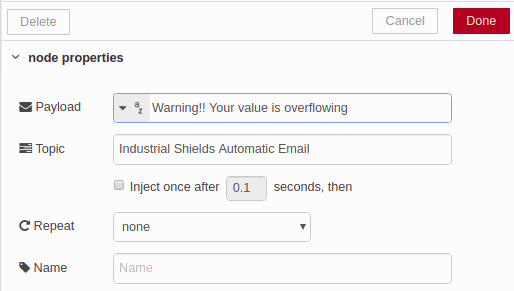
After that, we just have to connect it to our email output block and configure it. You must have a valid email and the security well configured. Configure your block as follows, remember that To is the email ID where you want to send the email and User Id and Password are for the email from where you want to send the email:
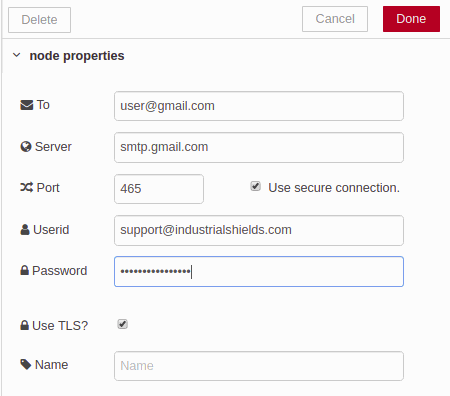
When you click the block, the email must be sent to the destination. If you want to automate that you just need to create a function that controls the flush of the email data.
If you see the following error:
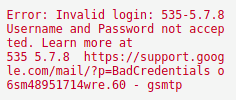
In this example we have used Gmail. Gmail no longer accepts your normal account password (the less secure apps option has been removed). Turn on 2-Step Verification in your Google account, create an App Password and use it as the Password in the email node, with server smtp.gmail.com and port 465. With other providers, check their SMTP settings and whether they require an app password.
Commenting is not enabled on this course.