Eclipse Mosquitto: install a broker and secure it
Eclipse Mosquitto: your first broker
Eclipse Mosquitto is an open source message broker that implements MQTT 5.0, 3.1.1 and 3.1. It also provides a C library for MQTT clients and two very useful command-line tools, mosquitto_pub and mosquitto_sub, which let you publish and subscribe from a terminal. It is light enough to run on a Raspberry PLC itself, so a machine can have its own local broker.
1. Installation
Install the broker and the clients on the Raspberry PLC, and the clients on your PC (see the Mosquitto website for other systems):
sudo apt install mosquitto mosquitto-clientsThe package starts a broker in the device automatically, so you do not need an external broker to test. Since version 2.0, Mosquitto accepts only local connections by default. To let other devices connect over the network, you need a configuration file, and a broker reachable from the network must require authentication: an open broker lets anyone on the network read your machine data and publish commands.
2. Configure a network listener with authentication
Create a password file (it asks for the password):
sudo mosquitto_passwd -c /etc/mosquitto/passwd plcuserCreate /etc/mosquitto/conf.d/network.conf with:
listener 1883 0.0.0.0
allow_anonymous false
password_file /etc/mosquitto/passwd
Restart the service:
sudo systemctl restart mosquitto.service3. Test with publish and subscribe
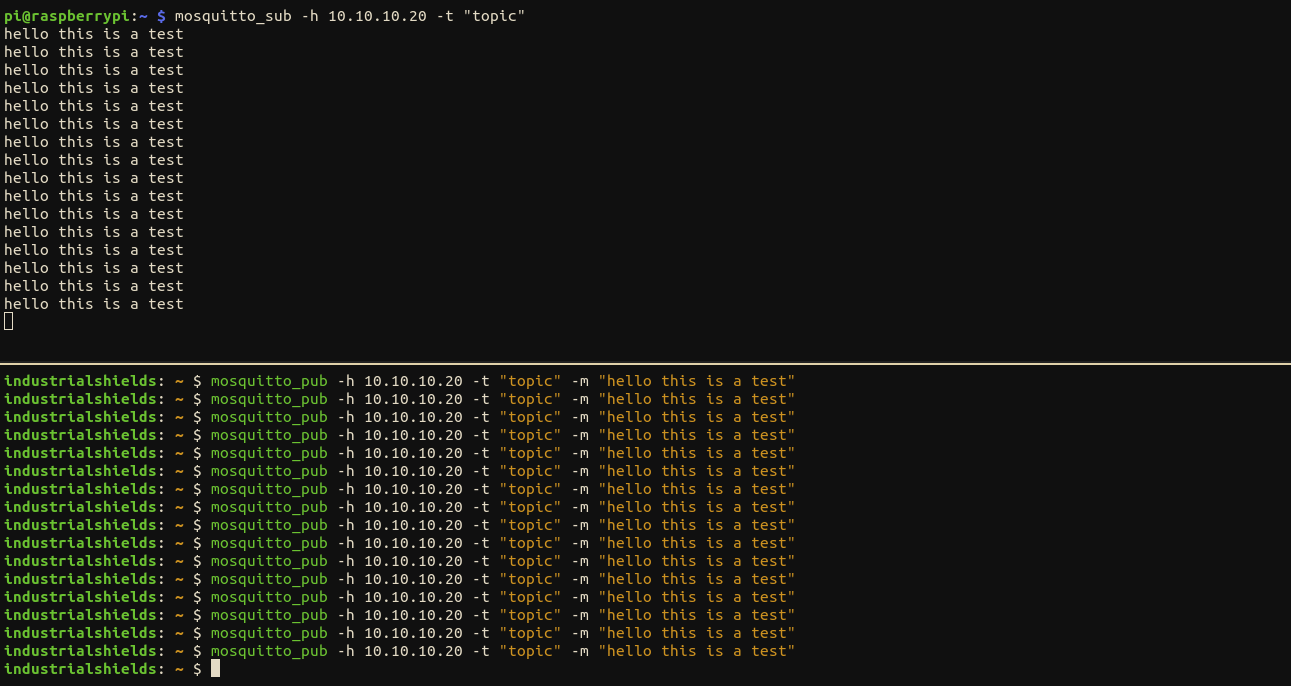
Connect the PC to the Raspberry PLC through Ethernet (the PLC uses 10.10.10.20 by default; give the PC another address in the same network). On the PC, subscribe to a topic:
mosquitto_sub -h 10.10.10.20 -u plcuser -P 'your-password' -t "topic"From another terminal, publish a message:
mosquitto_pub -h 10.10.10.20 -u plcuser -P 'your-password' -t "topic" -m "hello this is a test"The subscriber shows the message, which proves that the communication works:
Troubleshooting
- Connection refused: check that the
listenerline is in a file inside/etc/mosquitto/conf.d/, that the service restarted without errors (systemctl status mosquitto) and that the PC and the PLC are in the same network. - Not authorised: check the user and password, and that
password_filepoints to the file you created.
For traffic that leaves the machine network, add TLS (port 8883). Discover the Raspberry PLC at www.industrialshields.com.
There are no comments for now.
to be the first to leave a comment.