
To run CODESYS on a Raspberry PLC, install the CODESYS Development System V3.5 on a Windows PC, add the CODESYS Control for Raspberry Pi SL package, and deploy the runtime to the PLC over Ethernet. The PLC answers at 10.10.10.20 by default, and its inputs and outputs are read from the CODESYS project with the Industrial Shields templates on GitHub.
CODESYS is an IEC 61131-3 programming environment: Structured Text, Ladder Diagram, Function Block Diagram, Sequential Function Chart and more. This guide covers the runtime license terms, the network, the login, the I/O function blocks and the direct GPIOs of the Raspberry PLC. The steps were done with CODESYS V3.5 SP19 Patch 3.
- Step 1CODESYS on the PCDevelopment System V3.5, SP19 Patch 3 or later, on Windows.
- Step 2Raspberry Pi packageCODESYS Control for Raspberry Pi SL, installed from its .package file.
- Step 3NetworkPC and PLC in 10.10.10.0/24. The PLC is 10.10.10.20.
- Step 4Runtime on the PLCTools → Update Raspberry Pi installs and starts it over SSH.
- Step 5Login and I/OScan, log in, and use the GPIOs blocks or the rpiplc library.
What do you need to run CODESYS on a Raspberry PLC?
You need five parts. Two come from CODESYS, one comes from Industrial Shields, and two are your own PC and network.
| Part | What it does | Where it runs |
|---|---|---|
| CODESYS Development System V3.5 | Programming tool: editor, compiler, download and online debugging. | Windows PC |
| CODESYS Control for Raspberry Pi SL | The runtime that executes the compiled PLC program. The package also adds the Update Raspberry Pi command to CODESYS. | Raspberry PLC (Linux) |
| Industrial Shields templates (Projecte-CodeSys) | Function blocks and a library to read and write the inputs and outputs of the PLC. | Inside your CODESYS project |
| Ethernet cable and a static IP on the PC | The PC talks to the PLC in the 10.10.10.0/24 network. | PC and PLC |
| CODESYS Edge Gateway for Linux | Optional. Gives the CODESYS Automation Server and its clients access to the runtime. | Raspberry PLC or another device in the network |
CODESYS Control for Raspberry Pi SL: versions, demo mode and license
Without a license, the runtime works with all functions for two hours. Then it stops, and you must restart it. This demo mode is enough to follow this guide and to test a program on the bench.
A license is valid for one device. CODESYS stores it in a soft container on the PLC or on a CODESYS Key, a USB dongle that you can move from one controller to another.
Read the license terms before you use CODESYS in a commercial project, such as a machine you sell or a production line. The CODESYS Store page of this product says that the combination of Raspberry Pi and this runtime is for private use, tests and teaching, and that commercial use needs application based licenses. It also says the runtime is not released for containers or virtual machines. Check the current terms with CODESYS for your project.
Use version 4.11 or later of CODESYS Control for Raspberry Pi SL. In our tests with older versions, the runtime application stopped after a few seconds on the PLC.
The Industrial Shields template projects were made with CODESYS V3.5 SP19 Patch 3. Older CODESYS versions return compile errors with them. A later version can open them, but CODESYS may ask you to update the libraries and devices of the project.
Install CODESYS and the Raspberry Pi package on the PC
- Download CODESYS Development System V3.5 from the CODESYS Store. We use 3.5.19 Patch 3 (64-bit). Run the installer and follow the steps.
- Download CODESYS Control for Raspberry Pi SL in the version you need. It comes as a .package file.
- Run the .package file, or install it from the package manager of CODESYS, and follow the installation process.
- Restart CODESYS. The Tools menu now has the Update Raspberry Pi command, and the device list has the Raspberry Pi devices.
Newer versions of the package install the runtime with the CODESYS Deploy Tool plug-in, so some menus can look different from the screenshots in this guide.
Connect the Raspberry PLC to the PC over Ethernet
The Raspberry PLC has two Ethernet ports, and each one has a fixed IP address for service access. Use the side port when you can.
| Port | Interface | PLC address | Example PC address |
|---|---|---|---|
| Side Ethernet port (recommended) | eth0, the native Ethernet of the Raspberry Pi | 10.10.10.20/24 | 10.10.10.60/24 |
| Front Ethernet port | eth1, from a W5500 controller on the SPI bus | 10.10.11.20/24 | 10.10.11.60/24 |
Give the PC a static address in the same network, with mask 255.255.255.0. Then test the link from a terminal on the PC:
ping 10.10.10.20checks that the PLC answers.nmap -sn 10.10.10.0/24lists the devices that answer in the network, if you are not sure of the address.
The default Linux user of the Industrial Shields images is pi, with the password raspberry. Change it before the PLC goes on a plant network. If the PLC does not answer, see how to check the Ethernet configuration of the Raspberry PLC.
Install the CODESYS runtime on the PLC with Update Raspberry Pi
The runtime goes from the PC to the PLC over SSH. You do it once, and again each time you want to change the runtime version.
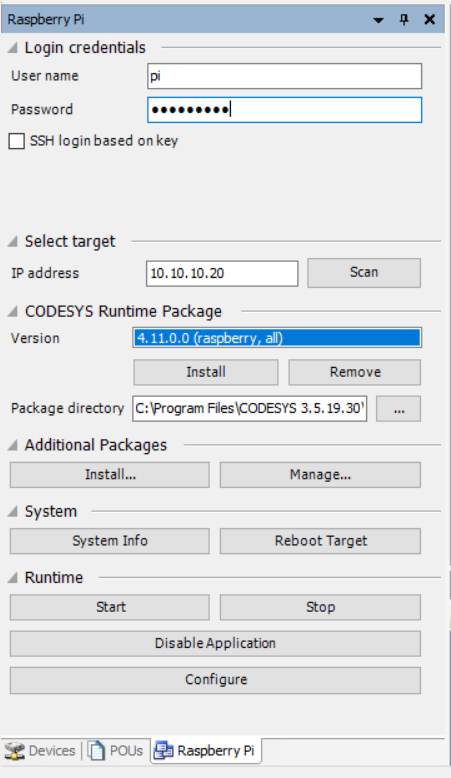
- In CODESYS, open Tools → Update Raspberry Pi.
- Enter the Linux user and password of the PLC, and the IP address of the PLC, for example 10.10.10.20.
- Choose the Runtime Package version and press Install. Follow the installation process.
- The same window shows information about the runtime on the PLC, and lets you start and stop it.
The installer also asks if you want to install the CODESYS Edge Gateway for Linux. You do not need it for a direct cable from the PC to the PLC. It is useful when the CODESYS Automation Server, or a client that connects through it, must reach the runtime. Read more on the CODESYS Edge Gateway for Linux page.
Scan the network and log in to the Raspberry PLC
Logging in is what lets you download the program to the PLC, start and stop it, and watch the variables online.
- Double-click the device in the Devices tree to open the device window, and press Scan Network.
- Select the Raspberry PLC in the list.
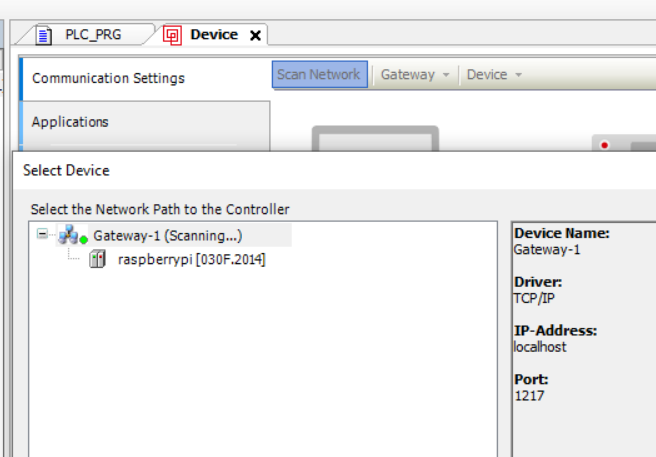
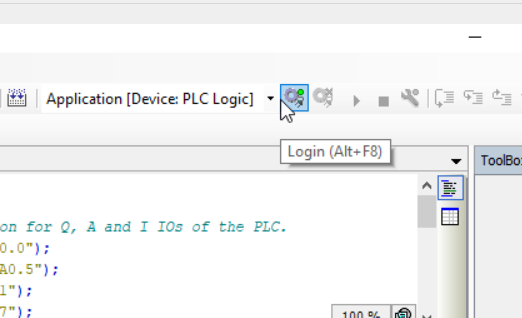
- Press Login in the toolbar.
- Enter the device user. The first time you connect to a new runtime, CODESYS asks you to create this user. It belongs to the CODESYS runtime, and it is not the Linux user that you used in Update Raspberry Pi.
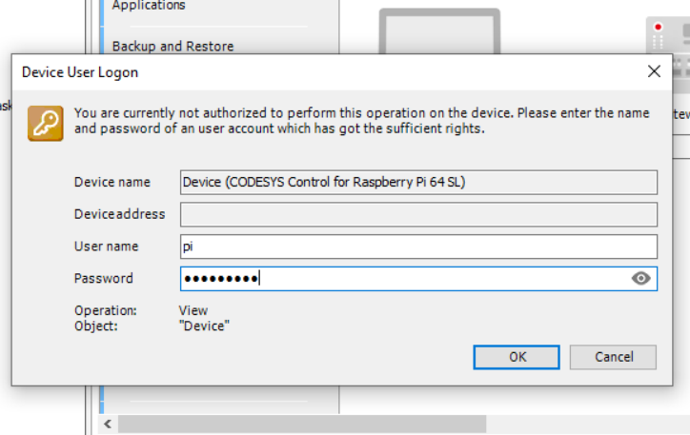
You are now connected to the PLC. You can download the application and start or stop it at any time.
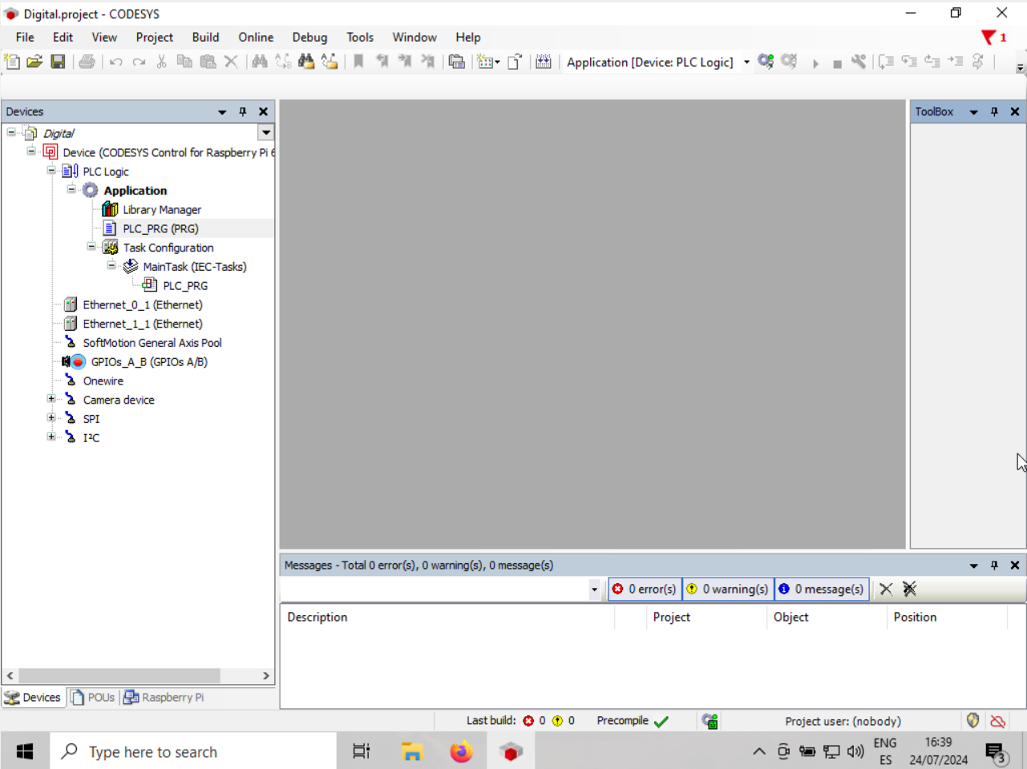
The CODESYS project window: Devices, POUs and Messages
When you open a template project, you see the code editor and three panes that you use all the time.
- Devices holds the device tree: the Raspberry Pi device, the application and its program, the task configuration, the communication interfaces such as I2C, and the devices under them.
- POUs (Program Organization Units) holds programs, function blocks and functions that the main program can call.
- Messages is the build and run log. It shows syntax errors and inconsistent declarations. CODESYS does not download a program with errors, so this is where you find them.
The Raspberry Pi window of Tools → Update Raspberry Pi opens in the same group of panes as Devices and POUs.
Raspberry PLC inputs and outputs in CODESYS: two methods from the templates
A Raspberry PLC is not a plain Raspberry Pi. Most of its inputs and outputs are on I/O expander chips on the I2C bus, so the standard GPIO device of CODESYS does not see them. The Projecte-CodeSys repository gives two ways to reach them. The templates are written in Structured Text, and there is a Ladder template too.
| GPIOs and GPIOsR function blocks | rpiplc library (rpiplc_IS_codesys 0.1.8) | |
|---|---|---|
| Where | Function blocks in the POUs of the project templates (Presets/Old) | Compiled library in the Libraries folder, used by Presets/v0.1.8 |
| How it reaches the I/O | Through the I2C master device of the Raspberry Pi | It runs the Industrial Shields test tools of the PLC for each read and write |
| Raspberry PLC version | V6, according to the repository README | Also V4. You declare the model and the version, for example RPIPLC_21 and V4 |
| Speed | Direct I2C access | Slow, according to the README. Use it for tests and slow signals |
Check the version of your PLC before you choose. The guide to install the operating system of the Raspberry PLC explains the V4 and V6 images.
The README of the repository says that these methods are not standard CODESYS I/O drivers and that they are not recommended for a commercial environment. Use them to learn, to test and to build prototypes, and measure the cycle time with your own program.
GPIOs and GPIOsR function blocks: setup and methods
These steps make the I/O of an Industrial Shields Raspberry PLC work in a CODESYS project:
- Activate the I2C interface. The expanders of the PLC need the I2C bus. In CODESYS it appears as a master I2C device.
- Add the I2C_master device under the I2C interface in Devices. All methods of the blocks use it.
- Copy the GPIOs function blocks from the template project into the POUs window. From there they are available in the whole project.
- Call
i2c_init()once, each time the PLC program starts. Without it, the blocks do not reach the I/O.
Use GPIOs for the models with analog and digital I/O, and GPIOsR for the relay models. Each instance is one input or output. You give its name as a WSTRING when you declare it, for example "I0.7", "Q0.0", "A0.6" or "R0.5". The name has 4 or 5 characters.
| Method | What it does | Input | Returns | Block |
|---|---|---|---|---|
FB_init(WSTRING) | Runs at declaration. Sets the I2C chip address and register of the I/O name | WSTRING | GPIOs, GPIOsR | |
read_analog() | Analog read | UINT | GPIOs, GPIOsR | |
read_digital() | Digital read | BOOL | GPIOs, GPIOsR | |
write_analog(UINT) | Analog write | UINT | BOOL | GPIOs, GPIOsR |
write_digital(BOOL) | Digital write | BOOL | BOOL | GPIOs, GPIOsR |
read_relay() | Relay state as set by the program. It is not a voltage reading on the relay terminals | BOOL | GPIOsR | |
write_relay(BOOL) | Relay write | BOOL | BOOL | GPIOsR |
Structured Text example: copy a digital input to an output
This program for a model with digital I/O reads input I0.7 and writes its state to output Q0.0 in every cycle. The declaration syntax is the one of the template README.
PROGRAM PLC_PRG
VAR
    setup  : BOOL := TRUE;
    in_07  : GPIOs := GPIOs("I0.7");   // digital input I0.7
    out_00 : GPIOs := GPIOs("Q0.0");   // digital output Q0.0
    state  : BOOL;
    ack    : BOOL;
END_VAR

// Body: runs in every PLC cycle
IF setup THEN
    i2c_init();          // once, each time the program starts
    setup := FALSE;
END_IF

state := in_07.read_digital();
ack := out_00.write_digital(state);
Two details avoid most compile errors. WSTRING literals use straight double quotes, not typographic quotes. And the type of the variable must match the method: read_digital() returns a BOOL, read_analog() returns a UINT.
To program the same I/O in Ladder, see programming in Ladder with CODESYS and Raspberry PLC.
Direct GPIOs: inputs wired straight to the Raspberry Pi
Some inputs of the Raspberry PLC are not on the I2C expanders. They go straight to GPIO pins of the Raspberry Pi, and they are the interrupt inputs of the PLC. The GPIOs and GPIOsR blocks cannot declare them. They are IX.5 and IX.6 on the models with analog and digital I/O, and IX.0 and IX.1 on the relay models:
| Analog and digital models | Relay models | Raspberry Pi GPIO (BCM number) |
|---|---|---|
| I0.5 | I0.0 | 13 |
| I0.6 | I0.1 | 12 |
| I1.5 | I1.0 | 27 |
| I1.6 | I1.1 | 5 |
| I2.5 | I2.0 | 26 |
| I2.6 | I2.1 | 4 |
To use a direct GPIO:
- Declare a BOOL variable in the program, for example
direct_in : BOOL;. - In Devices, update the device GPIOs A/B to GPIOs B+/Pi2.
- Open GPIOs_A_B. In GPIOs Parameters, set the Value of the GPIO to Input or Output.
- In GPIOs I/O Mapping, find the GPIO in the inputs or outputs list, click the Variable field and press [...]. Go to Application → PLC_PRG → direct_in and select it. The mapping shows
Application.PLC_PRG.direct_in.
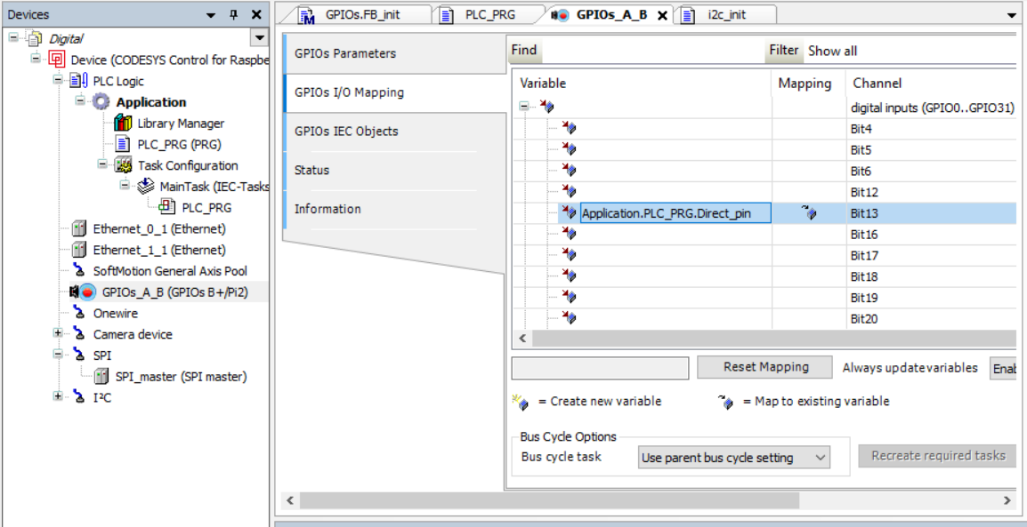
The variable now follows the pin mode. For an input, read it like any other variable: state := direct_in;
CODESYS does not start on the PC: delete CODESYSProjectDefaults.opt
Sometimes the CODESYS Development System does not start. A common cause is a damaged project defaults file, as described in this CODESYS Forge thread. Close CODESYS, delete C:\ProgramData\CODESYS\CODESYSProjectDefaults.opt and start it again. CODESYS creates the file again, so you only lose your project preferences, not your projects.
| Symptom | What to check |
|---|---|
| The runtime stops after two hours | Demo mode without a license. Restart the runtime or add a license. |
| The runtime stops a few seconds after it starts | Versions of CODESYS Control for Raspberry Pi SL before 4.11. Install a later version. |
| Scan Network does not find the PLC | PC address and mask, cable on the right port, ping 10.10.10.20, and that the runtime is running in Update Raspberry Pi. |
| Inputs and outputs do not change | i2c_init() at start, the I2C_master device, the right block (GPIOs or GPIOsR) and the PLC version. |
| Compile errors in the template | A CODESYS version older than V3.5 SP19 Patch 3, or typographic quotes in WSTRING literals. |
Next steps with CODESYS on the Raspberry PLC
- Programming in Ladder using CODESYS and Raspberry PLC
- Setting up Modbus TCP and RTU on a Raspberry PLC with CODESYS
- PROFINET with CODESYS: trigger alarms from a Raspberry PLC IO-controller
- PROFINET on Linux: run the p-net IO-device stack on a Raspberry PLC
- Node-RED vs CODESYS vs Arduino IDE: which one fits your project
- Modbus TCP and RTU on Raspberry PLC with Python and Node-RED
Raspberry PLC in a real plant
One Raspberry PLC 58 runs the four process sections of a biogas plant, from substrate input to energy. It controls digester heating and reads gas pressure, a TouchBerry panel is the operator screen, and the data goes to a cloud server over Ethernet. See the architecture and the I/O in the case study.
Choose the model and the I/O mix in the Raspberry PLC family, or start from working code in the PLC Solution Library.
FAQ about CODESYS on a Raspberry PLC
Can I run CODESYS on a Raspberry Pi based PLC?
Yes. CODESYS Control for Raspberry Pi SL runs on the Linux of the Raspberry PLC, and you program it from the CODESYS Development System on a Windows PC. For the PLC I/O you also need the Industrial Shields templates or library.
Why does the CODESYS runtime stop after two hours?
Because it runs in demo mode. Without a license, CODESYS Control for Raspberry Pi SL works with all functions for two hours and then stops. Restart it, or install a license in a soft container or on a CODESYS Key.
Can I use CODESYS Control for Raspberry Pi SL in a commercial project?
Check the license terms first. The CODESYS Store says this product is for private use, tests and teaching, and that commercial use needs application based licenses. Ask CODESYS which license fits your project.
Which CODESYS version do I need?
The Industrial Shields templates were made with CODESYS V3.5 SP19 Patch 3, so use that version or a later one. Use CODESYS Control for Raspberry Pi SL 4.11 or later.
What is the default IP address of the Raspberry PLC?
10.10.10.20 on eth0, the side port, and 10.10.11.20 on eth1, the front port, both with mask 255.255.255.0. Give the PC an address in the same network, for example 10.10.10.60.
Why can't the standard CODESYS GPIO device read the PLC inputs?
Because most inputs and outputs of the Raspberry PLC are on I/O expanders on the I2C bus, not on Raspberry Pi pins. Use the GPIOs or GPIOsR blocks, or the rpiplc library. Only the direct GPIOs, the interrupt inputs, map through the GPIO device.