
To program a Raspberry PLC in Ladder with CODESYS, create a project with a PLC_PRG in Ladder Logic Diagram (LD), copy the POUs and the rpiplc folder from the Industrial Shields Ladder template on GitHub, and call i2c_init() once when the program starts. Then you read and write the inputs and outputs in two ways: EXECUTE blocks with Structured Text, or the rpiplc function boxes in the Ladder editor.
This guide continues Setting up CODESYS for Raspberry Pi PLC, which covers the installation, the runtime license and the login. Here you build the Ladder project, initialize the I/O and use each I/O function, with the screenshots of the template project.
What is Ladder logic in CODESYS?
Ladder Diagram (LD) is one of the IEC 61131-3 languages. It comes from relay control panels: each rung is a circuit between two vertical power rails, with contacts on the left and coils or function boxes on the right. The PLC evaluates the rungs from top to bottom in every cycle. Maintenance teams that know relay schematics can read it without knowing a text language.
| Element | Symbol | What it does |
|---|---|---|
| Normally open contact | --| |-- | Passes power when its BOOL variable is TRUE |
| Normally closed contact | --|/|-- | Passes power when its BOOL variable is FALSE |
| Coil | --( )-- | Writes the result of the rung to a BOOL variable |
| Set and reset coils | --(S)-- --(R)-- | Set the variable to TRUE or FALSE and keep it |
| Box | Rectangle with EN and ENO | Calls a function or function block when EN is TRUE |
| EXECUTE box | Box with text inside | Runs a few lines of Structured Text when EN is TRUE |
In CODESYS you find these elements in the ToolBox of the Ladder editor (ToolBox > General).
Before you start: CODESYS on the Raspberry PLC
- CODESYS Development System V3.5 SP19 Patch 3 or later on a Windows PC. The Industrial Shields templates were made with that version.
- CODESYS Control for Raspberry Pi SL 4.11 or later, installed on the PLC. Without a license it runs for two hours and then stops.
- The PC and the PLC in the same network (the PLC answers at 10.10.10.20 by default) and a working login.
- The I2C interface active and the I2C_master device added under it in Devices. The I/O blocks use it.
All of this is explained step by step in the CODESYS setup guide for the Raspberry PLC.
Create the Ladder project from the template
- Create a new CODESYS project for the Raspberry Pi device, with the main program PLC_PRG in Ladder Logic Diagram (LD). The editor then shows the Ladder ToolBox.
- Open the Ladder preset project from the Projecte-CodeSys repository on GitHub.
- Copy its POUs (Program Organization Units: the GPIOs and GPIOsR function blocks and the i2c_init function) to the POUs window of your project.
- Copy the rpiplc folder from the Devices view of the template into the Application of your project. It holds the functions that you place as boxes in the Ladder editor.
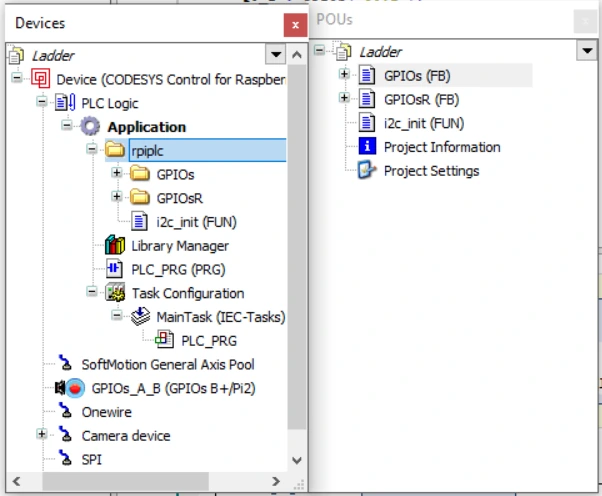
Initialize the I/O once with i2c_init()
Most inputs and outputs of the Raspberry PLC are on I/O expanders on the I2C bus. i2c_init() prepares that bus, and it must run once each time the program starts. Without it, the blocks do not reach the I/O. The usual pattern is a BOOL variable Init := TRUE that enables the call on the first cycle and is then set to FALSE. You can write it in two ways.
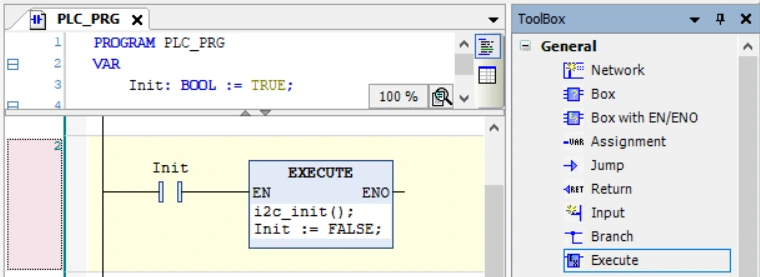
With an EXECUTE box. Add ToolBox > General > Execute after an Init contact, and write the two lines inside: the call and Init := FALSE;.
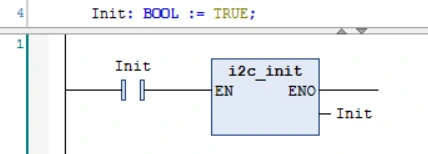
With the i2c_init box. Place the i2c_init function from the rpiplc folder after the Init contact and connect its output to Init. The function always returns FALSE, so the first call resets Init and the rung does not run again.
Method 1: EXECUTE boxes with Structured Text
An EXECUTE box runs Structured Text when its rung is TRUE. Inside it you use the GPIOs function blocks exactly as in Structured Text: you declare one instance per input or output, with its name as a WSTRING, and you call its methods.
In this example the declarations are Q0_1 : GPIOs("Q0.1"); and I0_11 : GPIOs("I0.11");. When Var1 is TRUE, the box writes i to output Q0.1, inverts i so that the output blinks at the cycle rate, and reads input I0.11 into Var2.
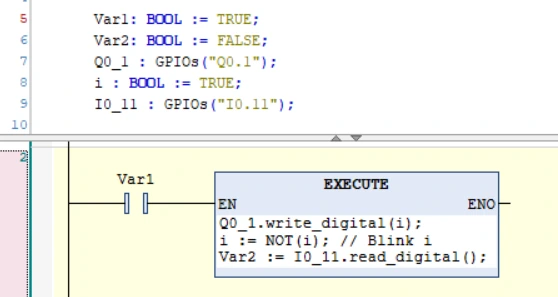
This method is useful when a rung needs more logic than a box, or to reuse code from a Structured Text program. The methods of the blocks (read_digital(), write_digital(), read_analog(), write_analog() and, for relay models, read_relay() and write_relay()) are listed in the CODESYS setup guide.
Method 2: rpiplc function boxes in the Ladder editor
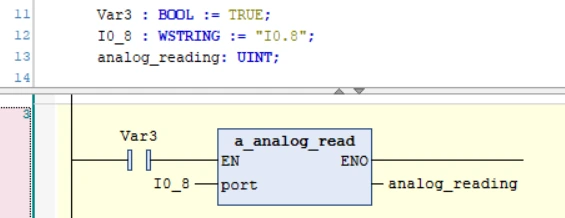
The functions of the rpiplc folder are Ladder boxes that read or write one input or output. Unlike the GPIOs blocks of method 1, you do not declare an instance per I/O: each box has an extra port input, a WSTRING variable with the name of the input or output, for example "I0.8".
In this rung, when Var3 is TRUE, a_analog_read reads input I0.8 and stores the value in the UINT variable analog_reading. The variable I0_8 is declared as WSTRING := "I0.8".
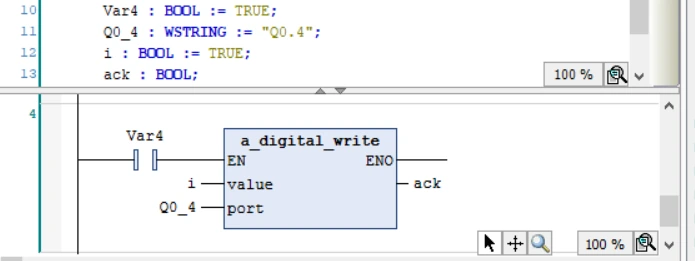
In this rung, a_digital_write writes the BOOL i to output Q0.4 (variable Q0_4 : WSTRING := "Q0.4") and returns the BOOL ack.
rpiplc functions for the Raspberry PLC I/O
Use the functions of rpiplc/GPIOs on the models with analog and digital I/O, and the functions of rpiplc/GPIOsR on the relay models.
| Function | Folder | Inputs | Returns |
|---|---|---|---|
i2c_init() | rpiplc | None | BOOL, always FALSE |
a_digital_read | rpiplc/GPIOs | port (WSTRING) | BOOL |
a_digital_write | rpiplc/GPIOs | value (BOOL), port (WSTRING) | BOOL |
a_analog_read | rpiplc/GPIOs | port (WSTRING) | UINT |
a_analog_write | rpiplc/GPIOs | value (UINT), port (WSTRING) | BOOL |
r_digital_read | rpiplc/GPIOsR | port (WSTRING) | BOOL |
r_digital_write | rpiplc/GPIOsR | value (BOOL), port (WSTRING) | BOOL |
r_analog_read | rpiplc/GPIOsR | port (WSTRING) | UINT |
r_analog_write | rpiplc/GPIOsR | value (UINT), port (WSTRING) | BOOL |
r_relay_write | rpiplc/GPIOsR | port (WSTRING), value (BOOL) | BOOL |
The names of the inputs and outputs are the ones printed on the PLC: "I0.7", "Q0.0", "A0.6" or "R0.5". Use straight double quotes in WSTRING values, not typographic quotes. Check the order of the inputs on the box in your template version: r_relay_write takes the port first.
Structure of a first Ladder program on the Raspberry PLC
With these pieces, a simple PLC_PRG in Ladder has four groups of rungs, in this order:
| Rungs | What they do | Elements |
|---|---|---|
| 1. Init | Initialize the I2C bus once | Init contact and i2c_init box, or EXECUTE |
| 2. Read inputs | Copy the inputs to BOOL or UINT variables | a_digital_read and a_analog_read boxes |
| 3. Logic | Contacts, coils, timers and counters on those variables | Contacts, coils, TON, CTU |
| 4. Write outputs | Copy the result variables to the outputs | a_digital_write or r_relay_write boxes |
Reading the inputs at the start and writing the outputs at the end keeps the same values during the whole cycle, as in a classic PLC scan. It also keeps the logic rungs free of port names, so they are easier to read.
Interrupt inputs are not on the I2C bus. The rpiplc functions do not manage them. On the models with analog and digital I/O they are I0.5, I0.6, I1.5, I1.6, I2.5 and I2.6 (I0.0, I0.1, I1.0, I1.1, I2.0 and I2.1 on the relay models). Map them through the GPIOs device of CODESYS, as shown in the CODESYS setup guide.
The README of the Projecte-CodeSys repository says that these blocks are not standard CODESYS I/O drivers and that they are not recommended for a commercial environment. Use them to learn, test and build prototypes, and measure the cycle time with your own program.
See a Raspberry PLC run a sequence. In the process plant simulator, a Raspberry PLC 42 starts a turbine or a pump step by step as a state machine and reads 4-20 mA transmitters. In the biogas plant case study, one Raspberry PLC 58 runs four process sections with a TouchBerry panel as operator screen.
Open the process plant simulatorRead the biogas plant case study
FAQ about Ladder with CODESYS on a Raspberry PLC
Can I program a Raspberry PLC in Ladder?
Yes, with CODESYS. CODESYS Control for Raspberry Pi SL runs the program on the PLC, and the Industrial Shields template gives the I/O functions for the Ladder editor.
Why do the inputs and outputs not change?
Check that i2c_init() runs once at start, that the I2C_master device is in the project, that you use the GPIOs functions on analog and digital models and the GPIOsR functions on relay models, and that the port name is written correctly.
Can I mix Ladder and Structured Text?
Yes. Use EXECUTE boxes inside a Ladder rung, or write other POUs in Structured Text and call them from the Ladder program.
Can I map the Raspberry PLC I/O to %IX and %QX addresses?
Not the I/O on the I2C expanders: you reach them through the functions of this guide. Only the direct GPIOs, the interrupt inputs, map through the GPIOs device of CODESYS.
Can I program Ladder on an Arduino or ESP32 based PLC?
Not with CODESYS. For M-Duino, Ardbox and ESP32 PLC, use OpenPLC, which also supports Ladder and the other IEC 61131-3 languages. See the OpenPLC guide for industrial PLCs.
More about CODESYS on the Raspberry PLC
- Setting up CODESYS for Raspberry Pi PLC in industrial automation
- Setting up Modbus on a Raspberry Pi PLC with CODESYS
- PROFINET and Raspberry PLC: trigger alarms with CODESYS
- Node-RED vs CODESYS vs Arduino IDE: which to pick
- Choosing an industrial controller
Choose the model and the I/O mix in the Raspberry PLC family.