
FUXA is an open-source, web-based SCADA and HMI editor that runs on Node.js. On a Raspberry PLC, FUXA does not read the I/O directly. Node-RED reads and writes the PLC pins with the Industrial Shields librpiplc nodes, and a Mosquitto MQTT broker on the same PLC carries the values between Node-RED and FUXA.
The result is an operator screen at http://<PLC IP>:1881 with switches for the outputs Q0.0 to Q0.7, a table for the digital inputs, and a gauge and charts for the analog inputs I0.7 to I0.12 of a Raspberry PLC 21.
This guide builds the full chain step by step: the Node-RED flow, the MQTT topics, the FUXA device and tags, the dashboard and a script. The Node-RED flow, the FUXA device file and the FUXA project are available to download, so you can import them and adapt them to your model.
What is FUXA and why use it on a Raspberry PLC?
FUXA is a process visualization tool for SCADA, HMI and dashboard screens. You draw the screens in a web editor and operators open them in a browser. It is released under the MIT license. Its drivers include Modbus RTU and TCP, OPC UA, Siemens S7, MQTT, BACnet IP and EtherNet/IP, and it has a built-in data historian (DAQ) with SQLite or InfluxDB. Source: the FUXA repository.
FUXA also has a GPIO driver for the Raspberry Pi, but it cannot reach most of the I/O of a Raspberry PLC. On a Raspberry PLC 21, the digital inputs I0.0 to I0.4 are on an MCP23008 expander, the analog inputs I0.7 to I0.12 on LTC2309 ADCs and the outputs Q0.0 to Q0.7 on a PCA9685 driver, all on I2C. Only I0.5 and I0.6 are direct GPIO (see the librpiplc pin mapping). The librpiplc library knows this mapping, and Node-RED uses it through its nodes. That is why this guide puts Node-RED between the PLC pins and FUXA.
If you only need a few indicators, the Node-RED Dashboard can be enough (see a Node-RED dashboard example with a Raspberry PLC). FUXA fits better when you need SCADA style screens:
| Need | Node-RED Dashboard | FUXA |
|---|---|---|
| How screens are made | Widgets placed in groups, built from the flows | Free drawing in a web editor: shapes, SVG, images, text |
| Data sources | Any Node-RED node (MQTT, Modbus, HTTP, databases) | Own drivers: MQTT, Modbus, OPC UA, S7, BACnet, EtherNet/IP |
| History | Needs extra nodes and a database | Built-in DAQ with SQLite or InfluxDB |
| Logic | In the flows | Scripts and events on screen objects |
| Typical use | Quick monitoring, test screens | Operator HMI, process synoptics, small SCADA |
FUXA is an HMI and supervision layer. The control logic and the interlocks stay in the PLC program, so the machine keeps working if the HMI stops.
FUXA, Node-RED and Mosquitto: how the parts connect
All three programs run on the same Raspberry PLC and talk over MQTT on localhost. Each one has its own port:
- 1 · FieldPLC I/OQ0.0 to Q0.7, I0.0 to I0.12 (Raspberry PLC 21)
- 2 · I/O bridgeNode-REDlibrpiplc nodes read and write the pins. Port 1880
- 3 · MessagesMosquitto brokerMQTT topics Q/... and I/... Port 1883
- 4 · OperatorFUXAHMI in the browser. Port 1881, editor at /editor
The MQTT topics are the contract between Node-RED and FUXA. The payload is JSON with the zone, the index of the pin in that zone, and the value:
| Direction | Topic | Payload example | Publisher | Subscriber |
|---|---|---|---|---|
| Command to an output | Q/Q0.0 | {"zone":0,"index":0,"value":1} | FUXA | Node-RED (topic Q/#) |
| State of an input | I/I0.7 | {"value":2048,"index":7,"zone":0} | Node-RED | FUXA (topic I/#) |
Digital inputs and outputs use 0 and 1. The analog inputs of a Raspberry PLC are 12-bit, so they return 0 to 4095 for 0 to 10 V (source: node-red-librpiplc documentation).
Hardware and software for the FUXA HMI
| Item | What this guide uses |
|---|---|
| PLC | A PLC of the Raspberry PLC family. The example uses the Raspberry PLC 21 (Node-RED model RPIPLC_21). Pin lists change with the model: check the technical features. |
| Storage | Micro SD card in the PLC |
| Test wiring | Wires and a 0 to 10 V source to test inputs and outputs |
| Operating system | Raspberry Pi OS. The Industrial Shields images come with most settings in place. |
| I/O library | librpiplc, if it is not installed yet |
| MQTT broker | Mosquitto |
| I/O bridge | Node-RED with @industrial-shields/node-red-librpiplc |
| HMI | FUXA from npm (@frangoteam/fuxa-min) |
Install Mosquitto
The broker, plus the command line clients for the tests at the end:
sudo apt install mosquitto mosquitto-clientsSince Mosquitto 2.0, a broker without a configuration file only accepts connections from the same machine. That is enough here, because Node-RED and FUXA run on the PLC. More options in how to install Mosquitto on a Raspberry PLC.
Install Node-RED
If Node-RED is not installed, run the official script as the normal user (see also how to install Node-RED on a Raspberry PLC):
bash <(curl -sL https://raw.githubusercontent.com/node-red/linux-installers/master/deb/update-nodejs-and-nodered)Install FUXA
Install FUXA globally with npm. The fuxa-min package leaves out the Siemens S7 library (node-snap7). The FUXA documentation warns that the installation on Linux can be difficult, and suggests fuxa-min if you do not need S7. Other installation options are in the FUXA documentation.
sudo npm install -g --unsafe-perm @frangoteam/fuxa-minThe FUXA documentation recommends Node.js 18 LTS. If the installation fails with the Node.js version that Node-RED installed, check the supported versions there.
Node-RED flow: PLC I/O to MQTT topics
Step 1: open Node-RED and install the PLC nodes
Open Node-RED in a browser:
http://<PLC IP>:1880Install the node-red-librpiplc nodes. They need librpiplc on the PLC.
- Go to Node-RED menu > Manage palette > Install.
- Search for @industrial-shields/node-red-librpiplc and install it.
One PLC configuration node only. The read and write nodes share a configuration node with the PLC version and model. Keep a single one in the whole Node-RED instance: two configuration nodes can interfere with each other.
Step 2: outputs, from MQTT to the PLC pins
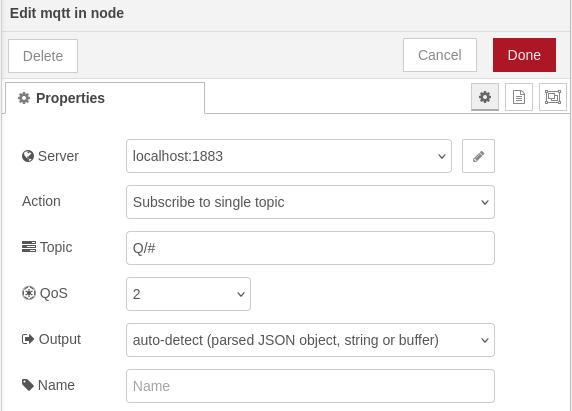
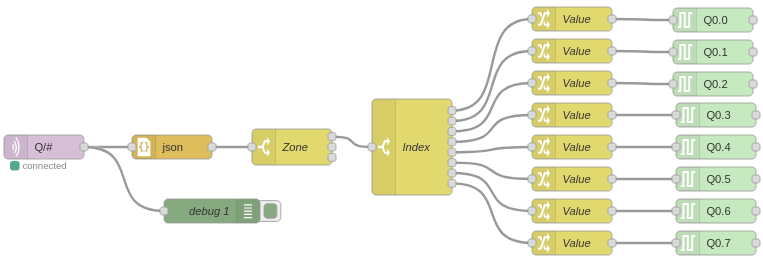
Add an MQTT in node connected to the broker on localhost:1883 (the default MQTT port).
Subscribe to the wildcard topic Q/#. It receives the commands for all the outputs.
Add a JSON node to parse the message and a Debug node to see it.
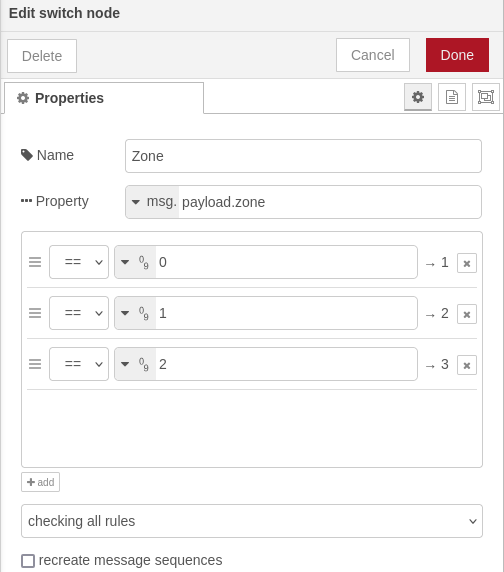
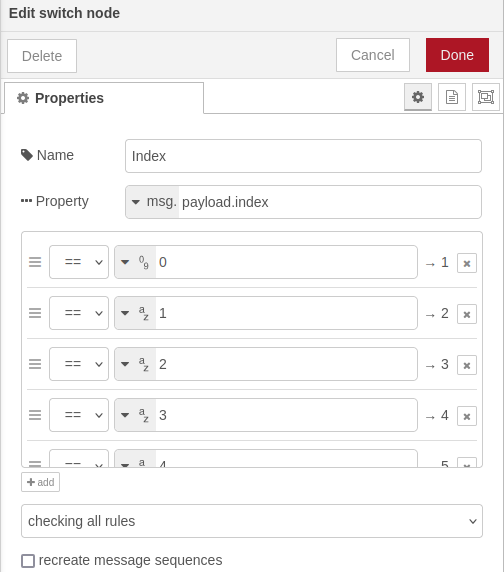
Add Switch nodes to route each message by zone and by index (for the RPIPLC_21: Q0.0 to Q0.7).
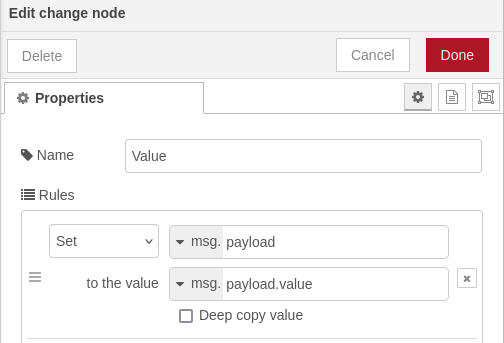
Add one Change node per output that sets msg.payload to msg.payload.value.
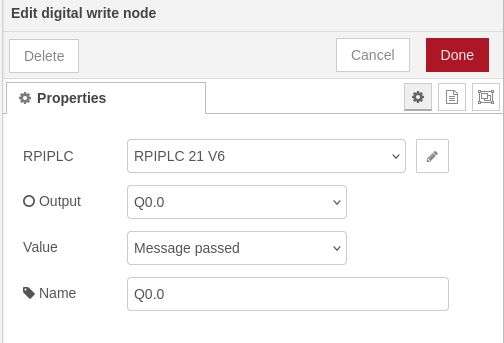
Add one Digital Write node per output. On the Raspberry PLC 21, Q0.5, Q0.6 and Q0.7 can also work as analog outputs (0 to 10 V, 12-bit). To use one of them as an analog output, use Analog Write instead, with values from 0 to 4095.
Connect the nodes as in the picture.
Step 3: inputs, from the PLC pins to MQTT
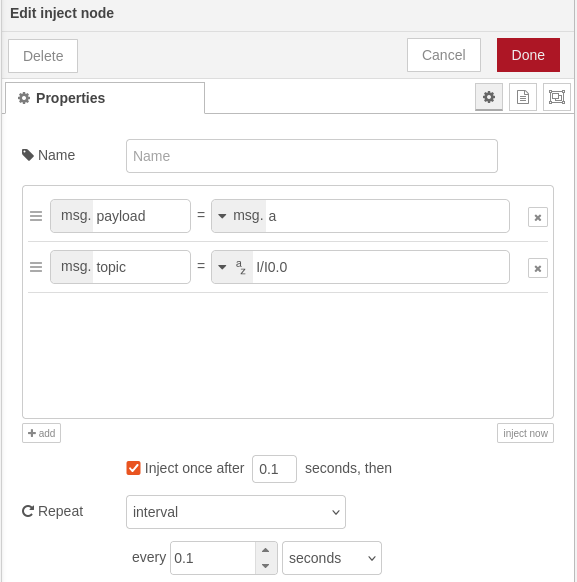
Add one Inject node per input, with the topic I/<pin name> (for example I/I0.0). Set it to repeat every 0.1 seconds, so the inputs refresh quickly.
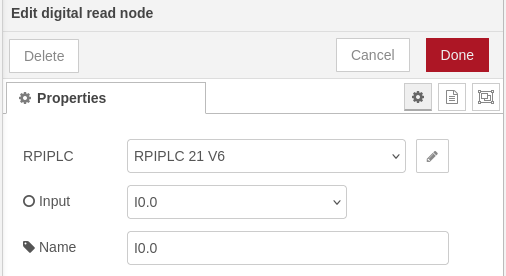
Add one Digital Read or Analog Read node per input. On the RPIPLC_21, I0.0 to I0.6 are digital and I0.7 to I0.12 are analog. Select the model and version of your PLC, then the pin of each node.
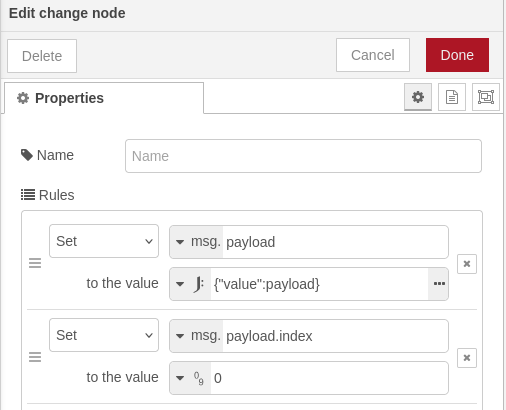
Add Change nodes to build the JSON payload of each input:
- In the first rule, set msg.payload to the JSON {"value":payload}.
- Add a second rule that sets msg.payload.index to the index of the input.
- Copy this node for each input and change the index.
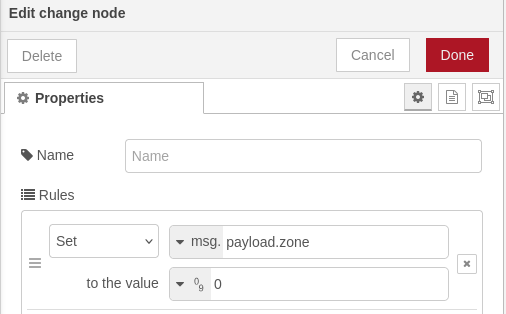
Add one more Change node that sets msg.payload.zone for the group of inputs, and connect all the input Change nodes to it.
Add a JSON node and a Debug node after the last Change node.
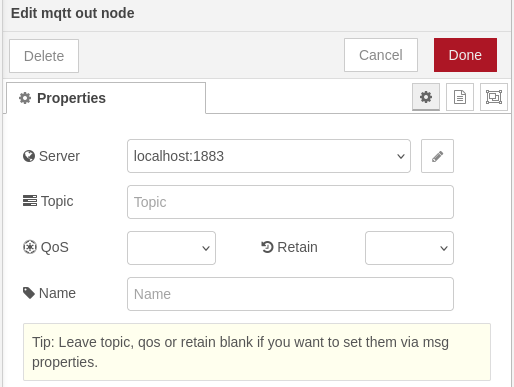
Add an MQTT out node on localhost:1883 and leave its topic empty. The node then publishes each message on the topic set by the Inject node (I/I0.0, I/I0.1...).
Connect all the nodes in the same pattern.
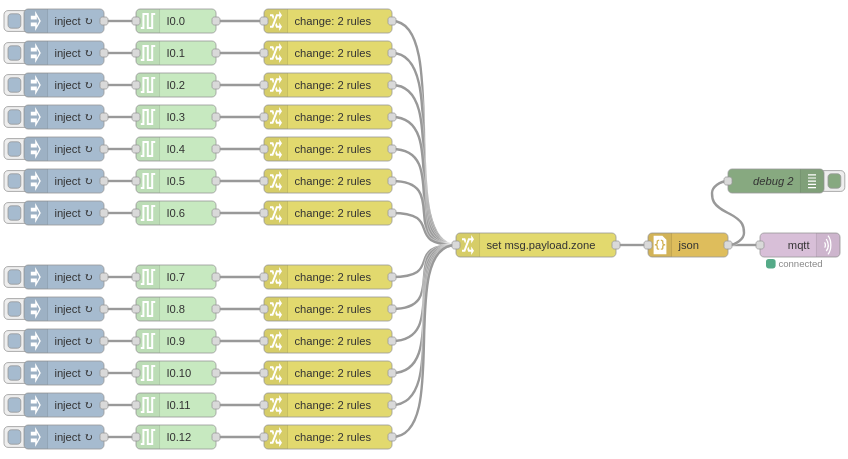
Complete Node-RED flow
With outputs and inputs, the flow looks like this:
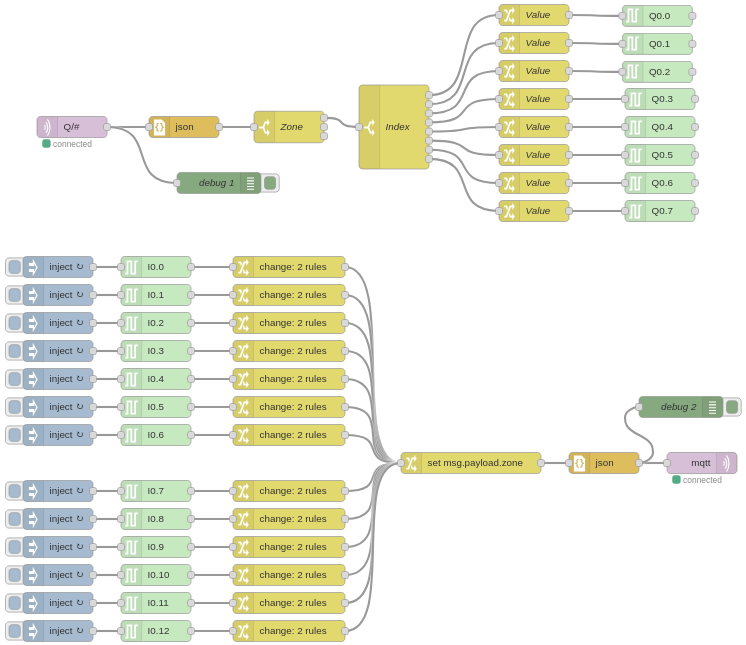
Node-RED flow (JSON). Import it from Node-RED menu > Import > select a file to import, then select the PLC model in the configuration node.
Message rate. With 13 inputs every 0.1 seconds, the flow publishes 130 messages per second, also when nothing changes. On localhost this is not a problem. To reduce the traffic, add a filter node (report by exception) after each read node, so a message goes out only when the value changes. For analog inputs, use a deadband.
FUXA MQTT device and tags for each PLC pin
Step 1: start FUXA
sudo fuxaThen open the FUXA editor:
http://<PLC IP>:1881/editorStep 2: connect FUXA to the MQTT broker
Open the Setup (Edit Project) menu with the gear button at the top left.
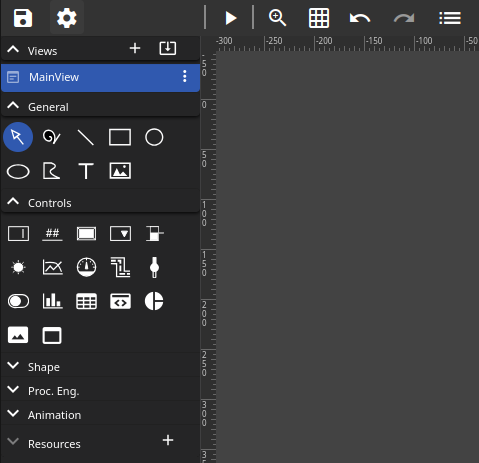
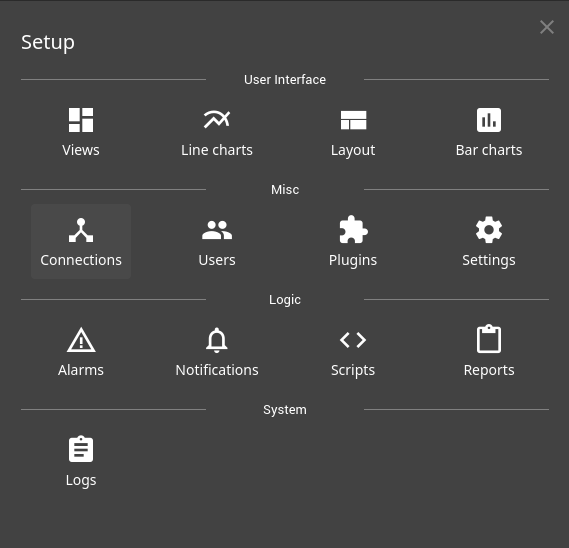
Select Connections.
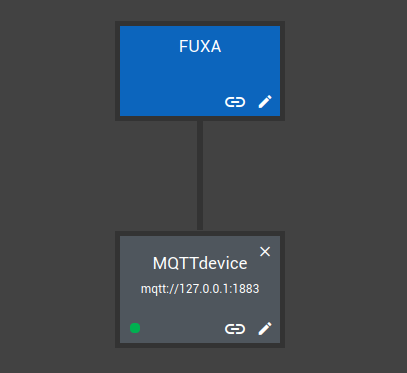
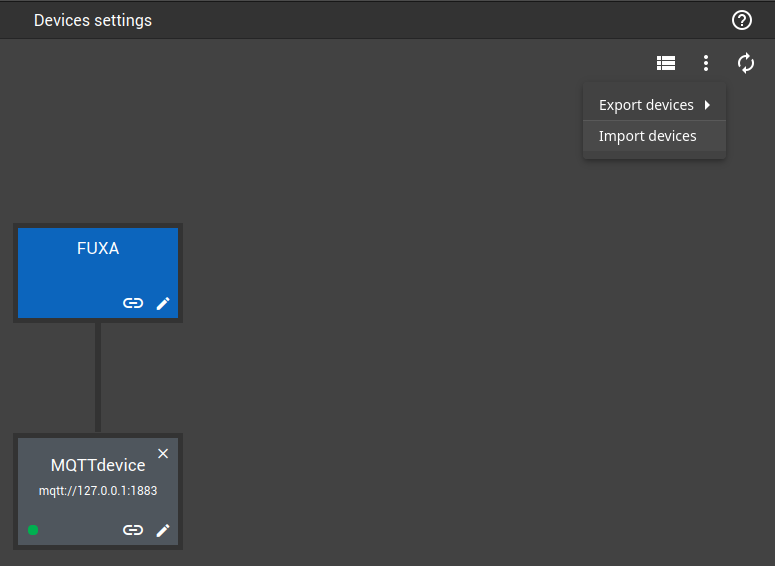
On the Device settings page, click the plus (+) button to add a device. Set the type to MQTTclient and the address to mqtt://127.0.0.1:1883, as in the picture.
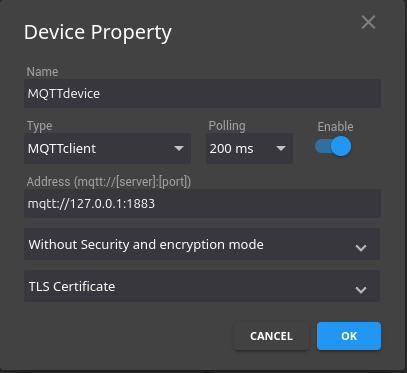
When the connection works, a green circle appears next to the MQTT device.
Step 3: add the output tags
Click Edit device tags next to the MQTT device (the button next to the pencil). Here you add the pins you want to use. This example uses the same pins as the Node-RED flow: Q0.0 to Q0.7 and I0.0 to I0.12.
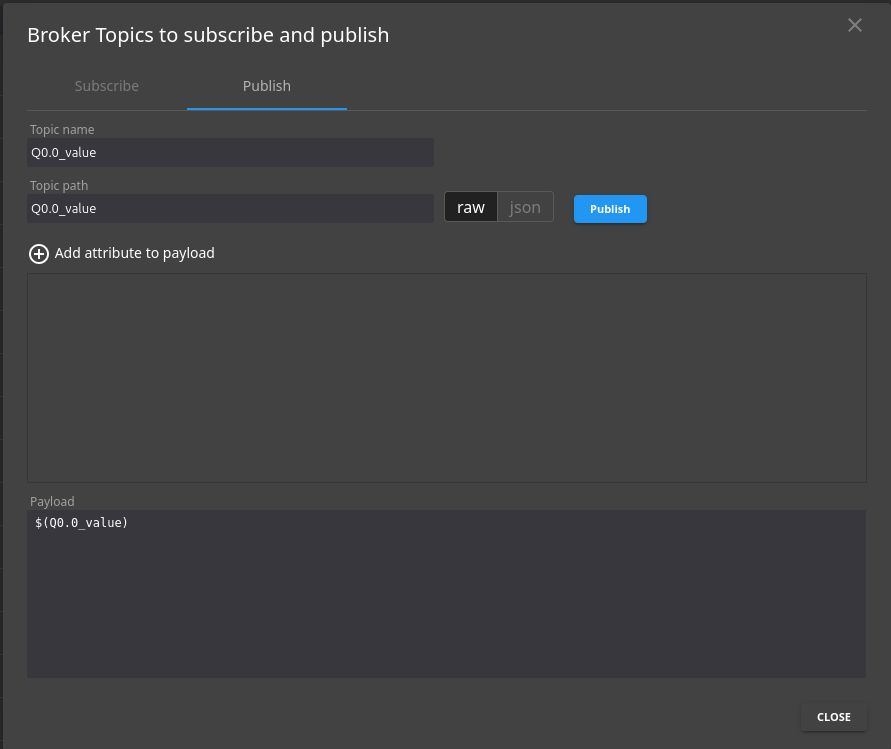
Click the plus (+) button at the bottom right. In Broker Topics to subscribe and publish, select Publish and enter Q0.0_value as the topic name and path. Click Publish, then Close. This tag holds the value that the switch will write.
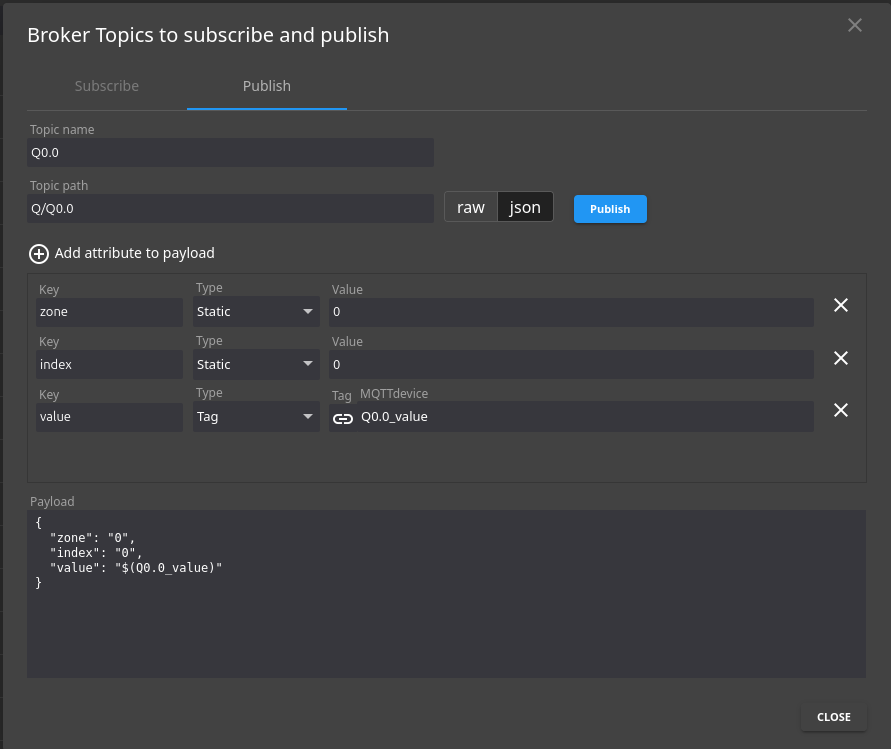
Add a second Publish connection with the topic name Q0.0 and the path Q/Q0.0. Click Add attribute to payload three times and then JSON. In the Key column enter zone, index and value. Set the type of the first two to Static with the value 0 (zone 0, index 0), and keep the third as Tag with the tag Q0.0_value.
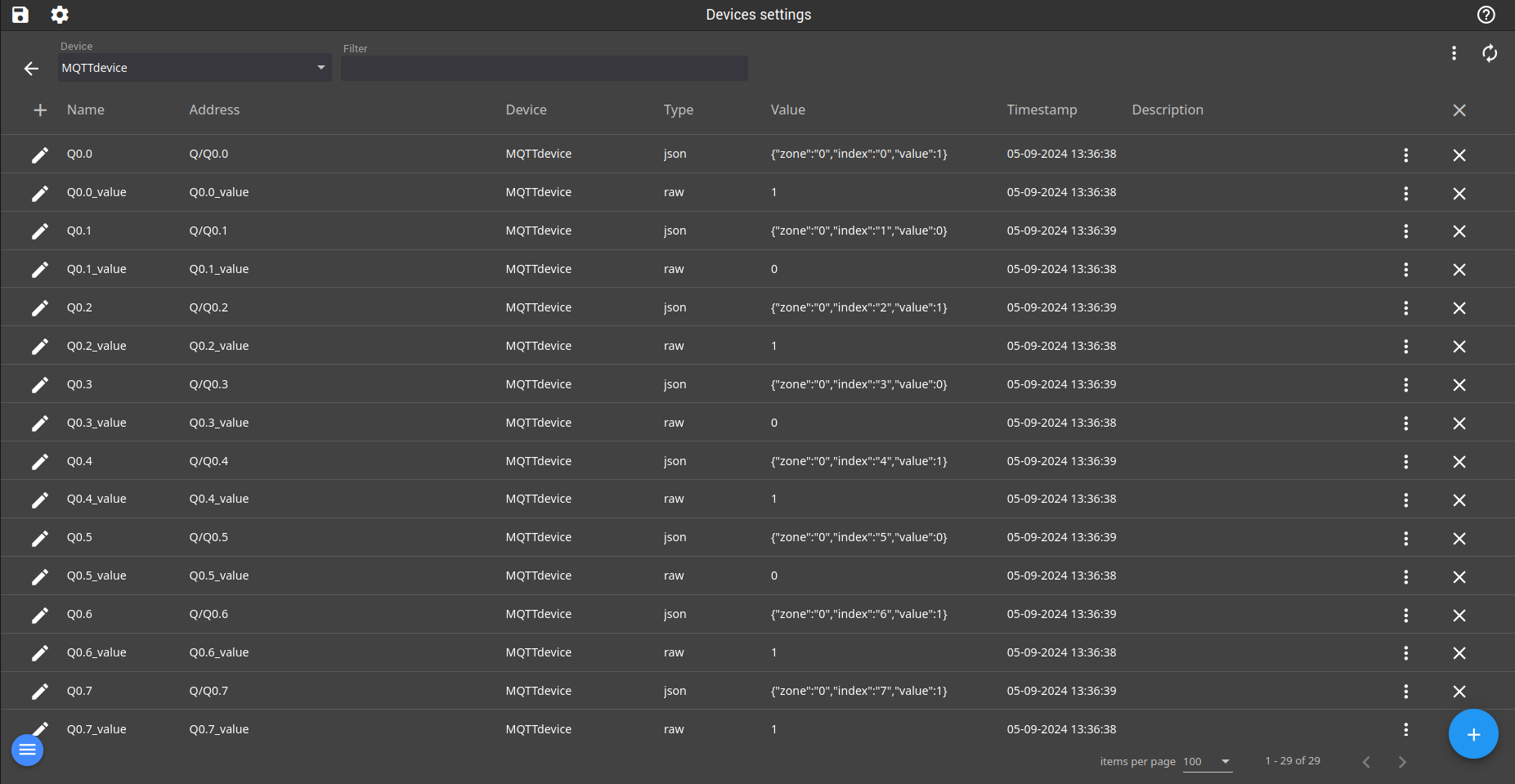
Repeat for Q0.1 to Q0.7, with the index of each output. The result looks like the picture.
Step 4: add the input tags
Create a new connection and keep the Subscribe option. Type I/# in the search bar and click the magnifying glass. FUXA lists the topics that the Node-RED flow publishes.
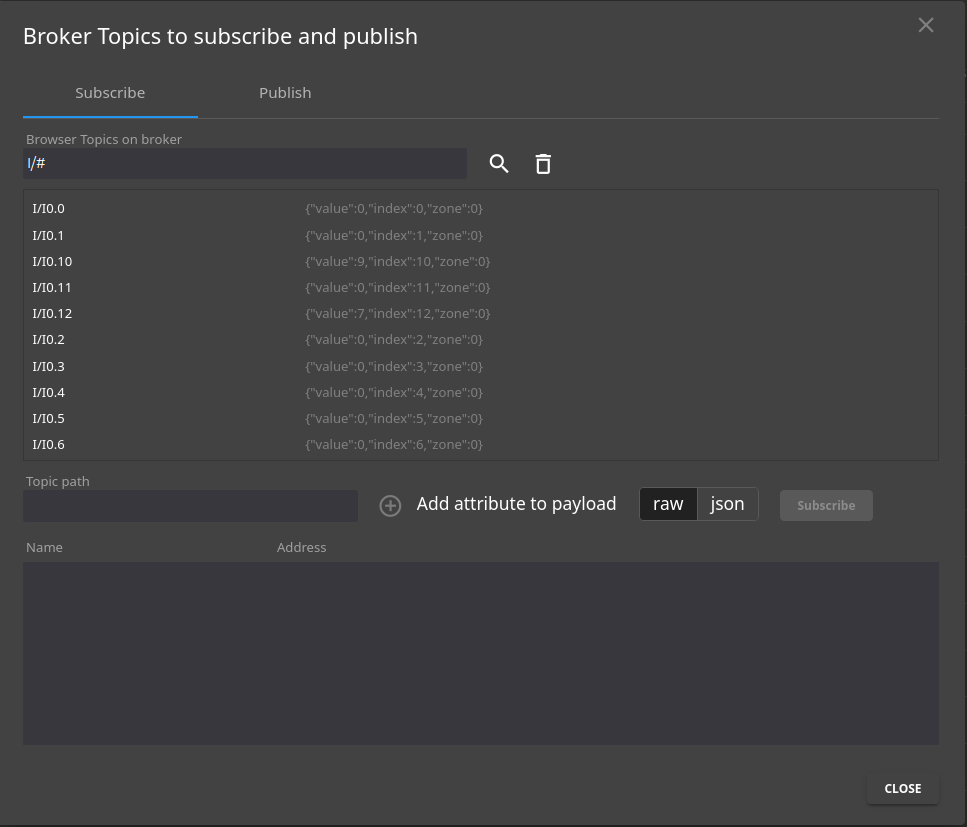
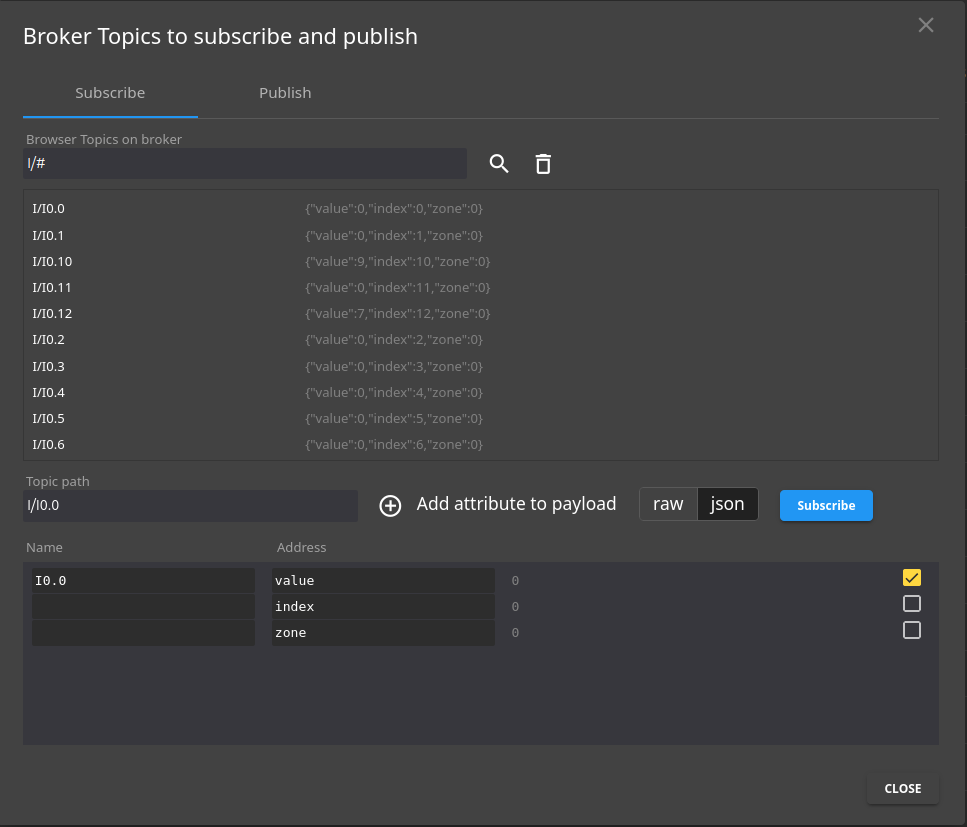
Select I/I0.0 and click JSON to see the fields. Clear index and zone, which this HMI does not need. In the Name column enter I0.0 (otherwise the name is I/I0.0[value]). Click Subscribe, then Close.
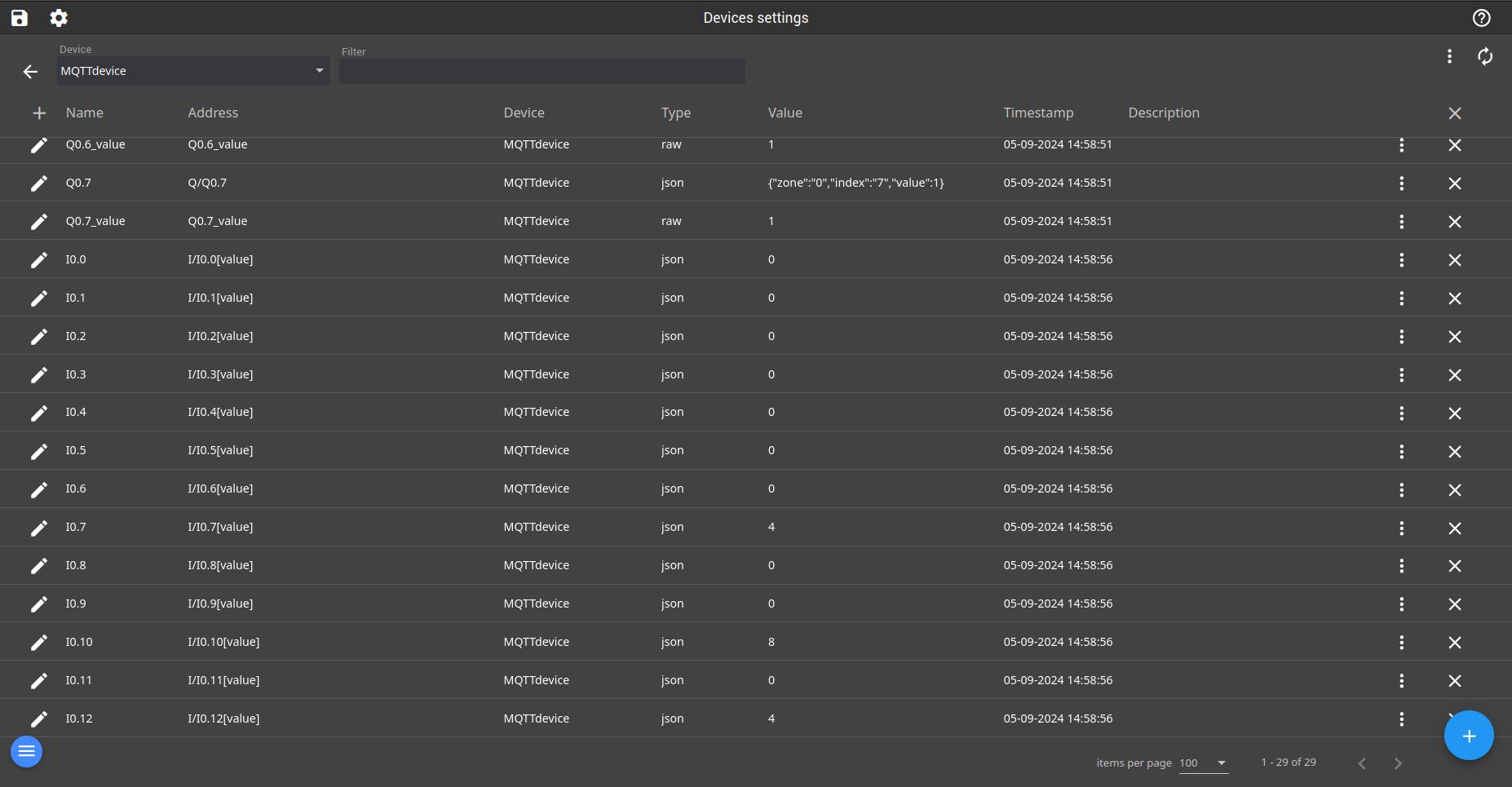
Repeat for the other inputs. The result looks like the picture.
FUXA device settings (JSON), with the device and all the tags. To import it, open Device settings, click the menu with three dots and select Import devices.
FUXA dashboard for the PLC I/O: switches, table, gauge and charts
With the device and the tags ready, the next step is to draw the screen and link each object to a tag.
Step 1: set up the view
Open the editor at http://<PLC IP>:1881/editor, or go to Views in the Setup menu.
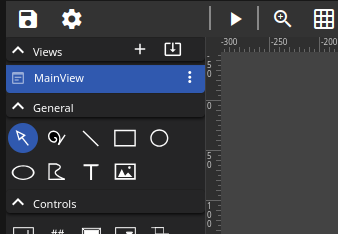
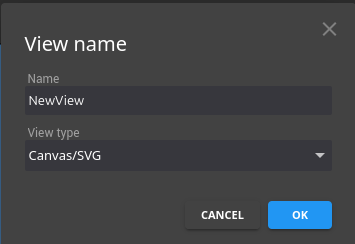
Use the default view or create a new one: click the plus (+) button in the Views list, enter a name and click OK.
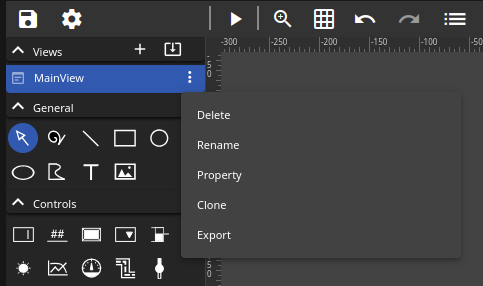
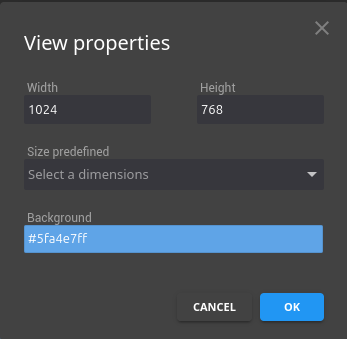
Open the properties of the view with the three dots menu. You can set the width and height, choose a predefined size, and change the background color.
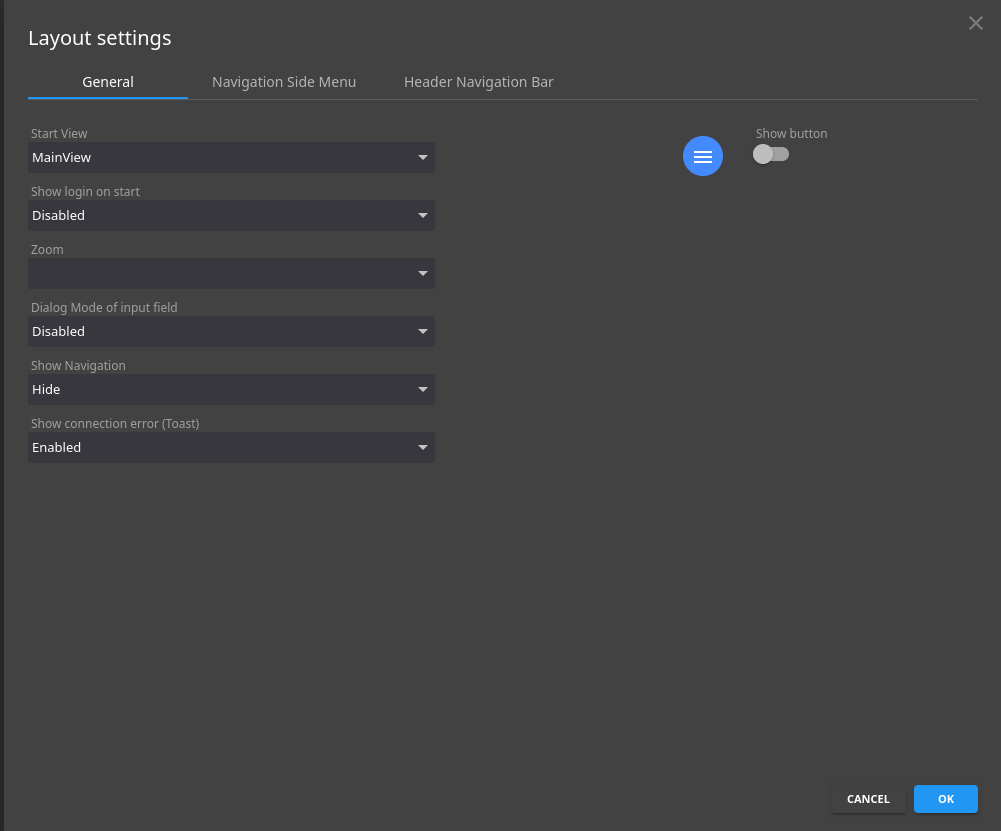
In Setup > User Interface > Layout, select the default view (the first one shown), and choose whether to show the navigation menu and whether to ask for a login at start.
Step 2: switches for the digital outputs
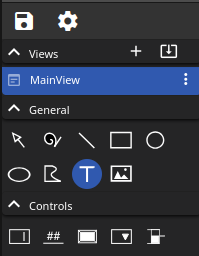
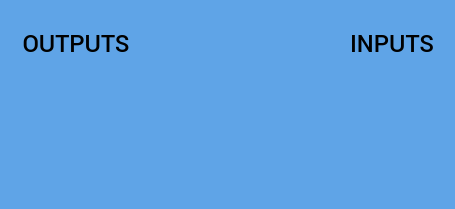
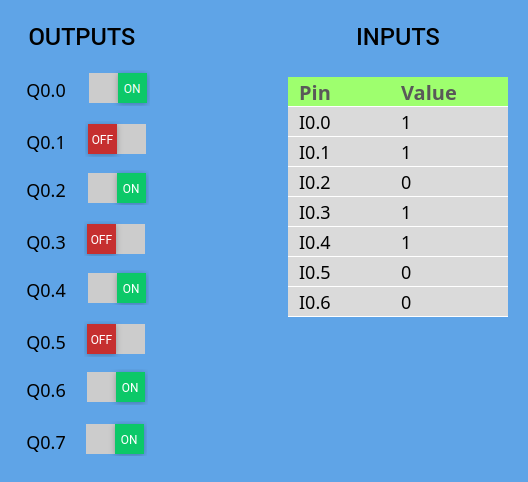
Add the titles Outputs and Inputs with the Text Tool.
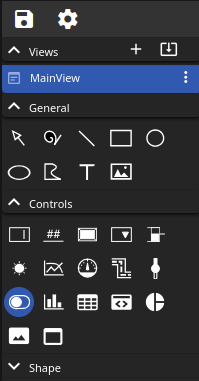
Add a switch. Click it and open Property in the pop-up window on the left.
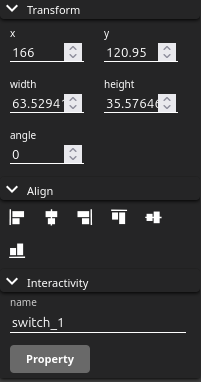
Set the colors, values and text of the switch.
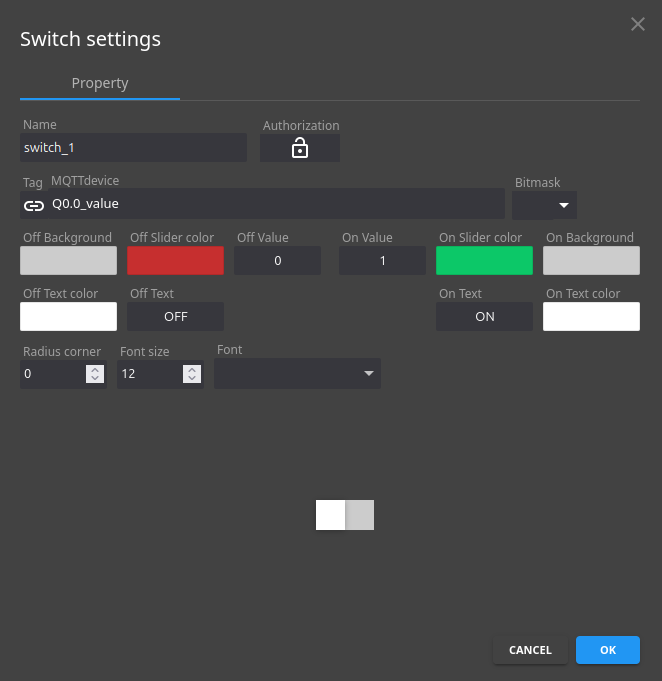
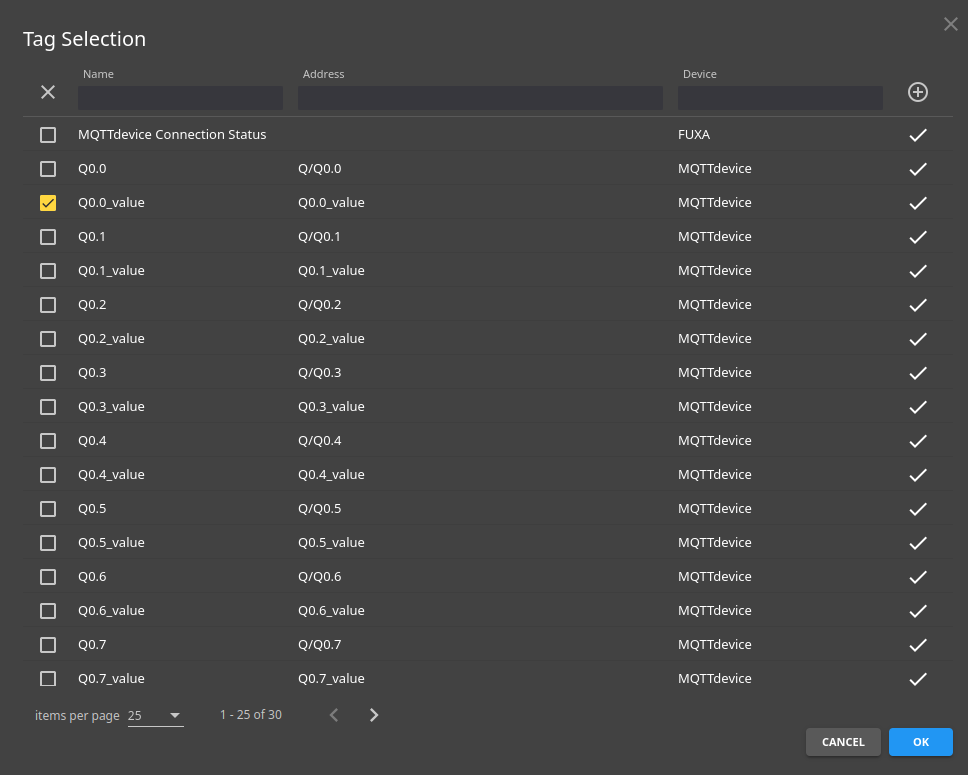
In the Tag field, select the MQTT device and the tag Q0.0_value.
Copy the switch for the other outputs and change the tag of each copy. Label each switch with its pin (Q0.0, Q0.1...) using the Text Tool.
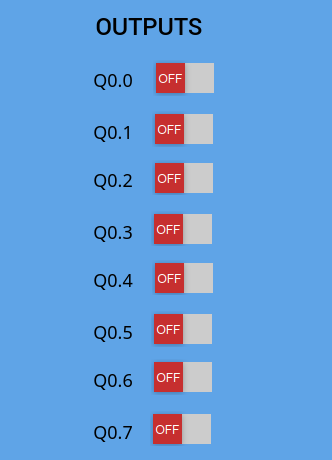
Save the project with the Save button at the top left. Open http://<PLC IP>:1881 and test the switches.
Step 3: a table for the digital inputs
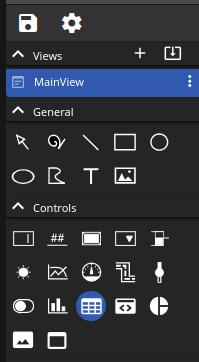
Add a table with the Table button.
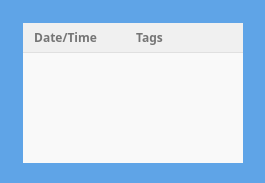
Click the table and then Property on the right. Set the colors and the font size before you add the inputs.
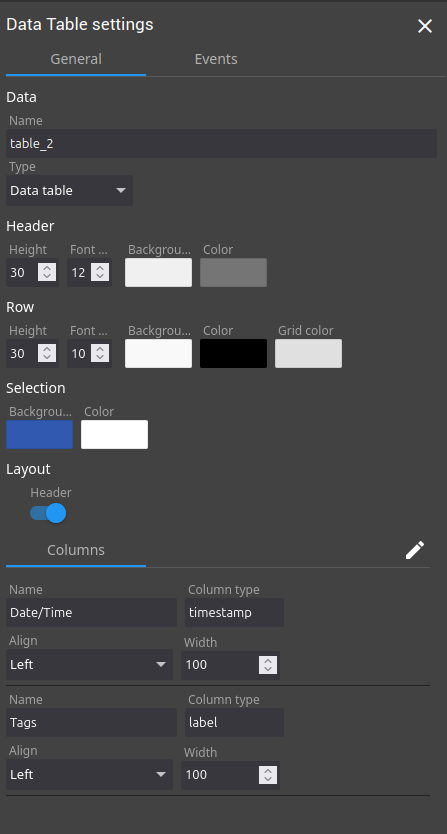
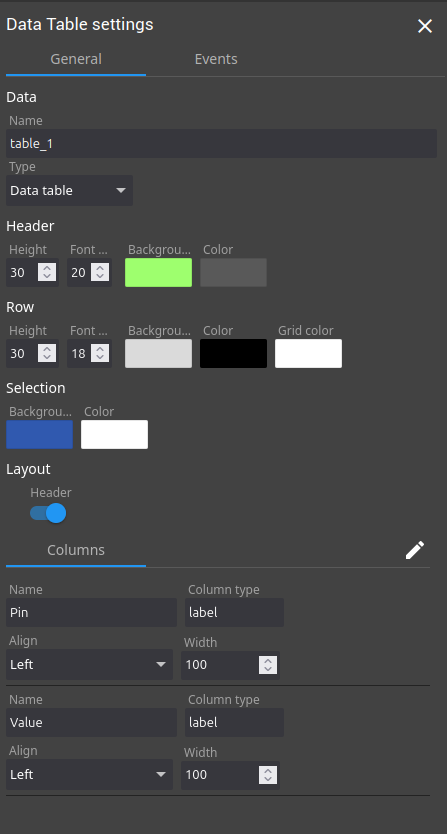
Open the Table customizer with the pencil button.

With the three dots button of each column, name the first column Pin and the second Value. Set the type of both to Label.

Add one row per digital input with the plus (+) button at the bottom left.
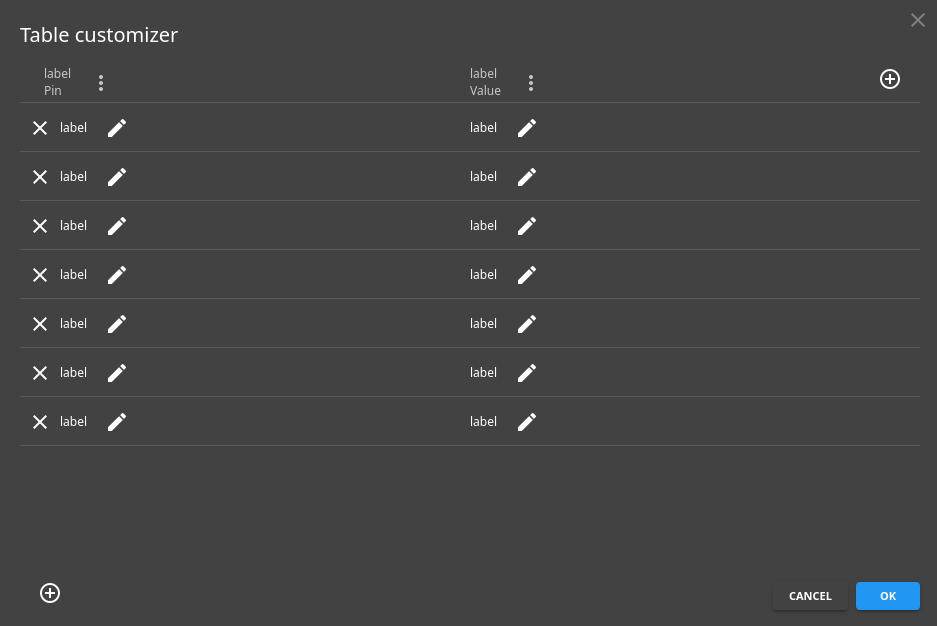
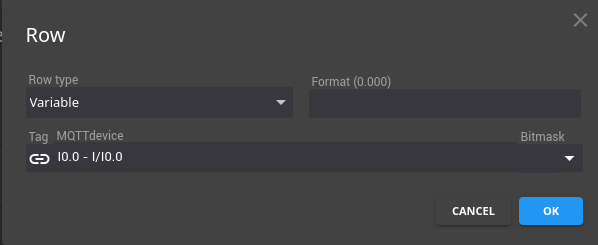
Type the pin name (I0.0, I0.1...) in the left column. In the right column, change the cell type to Variable and select the tag of the input.
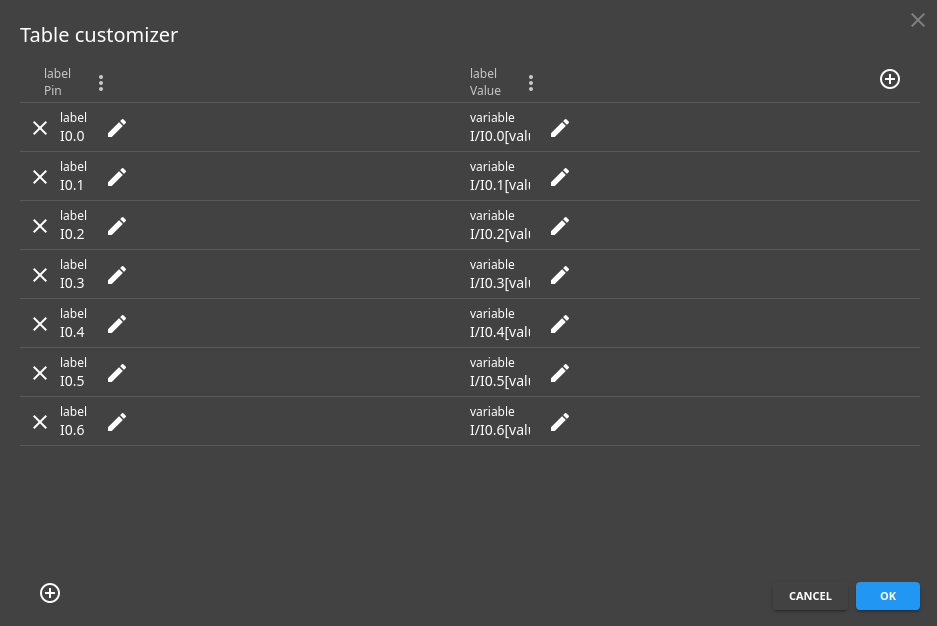
Click OK, save the project and test the inputs on the main page.
Step 4: gauge and charts for the analog inputs
An analog input is a range of values, not 0 or 1, so it needs other objects. This example uses three.
Circular gauge
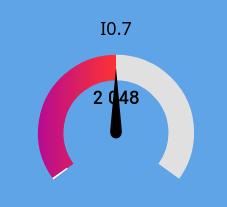
Add a circular gauge.
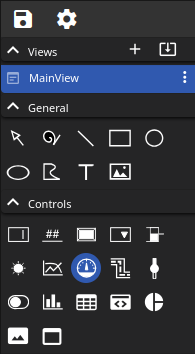
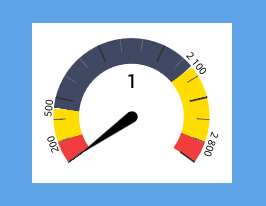
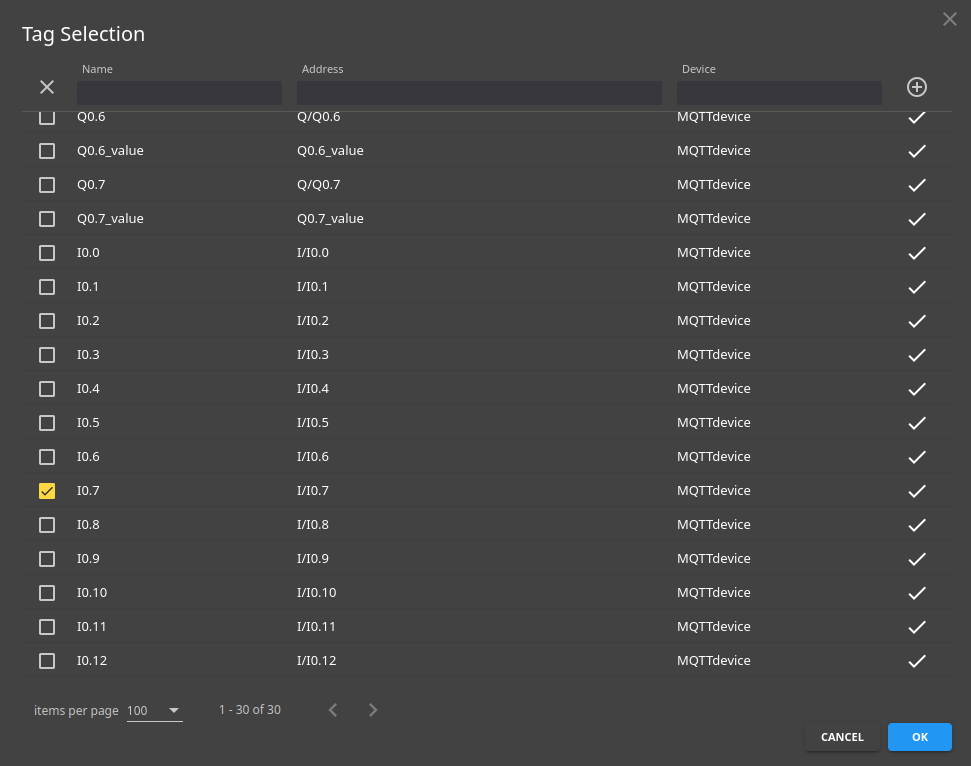
Open Property and select the tag of the input, for example I0.7.
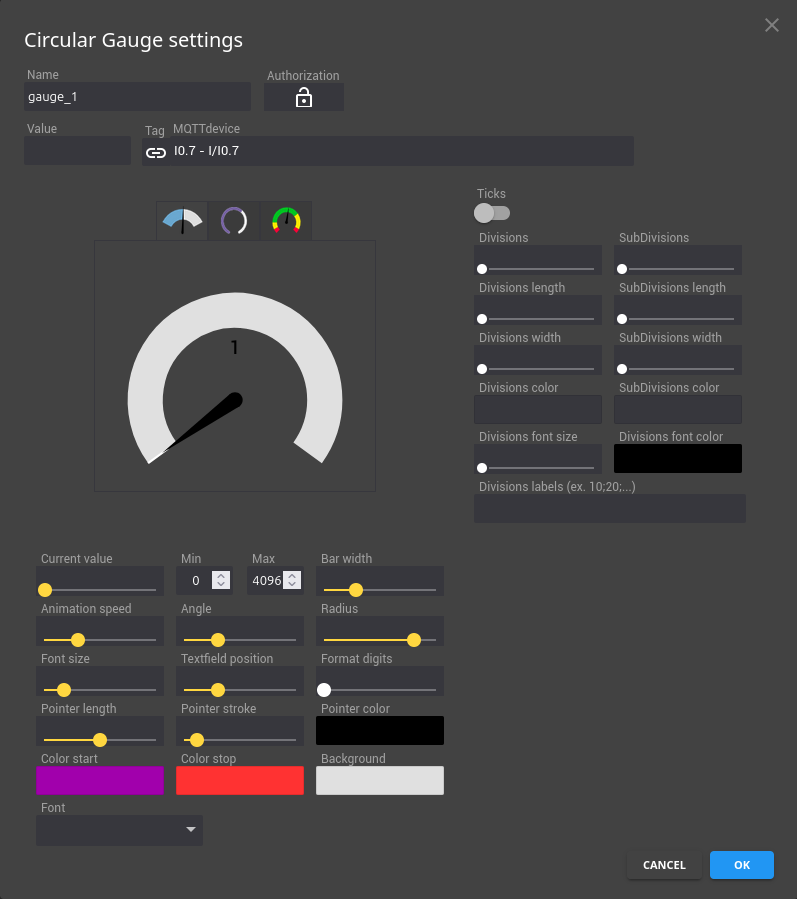
Choose one of the three designs. Set the minimum to 0 and the maximum to 4095, the full scale of the 12-bit input (10 V). The picture shows 4096: the difference is one count.
Save and test. With 10 V on the input the gauge is full, with 5 V it is at half, and with 3.3 V it is at one third.
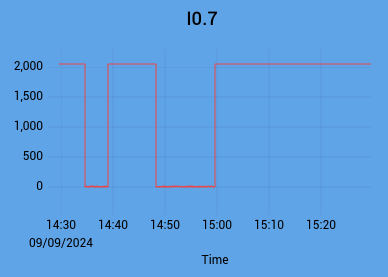
Line chart
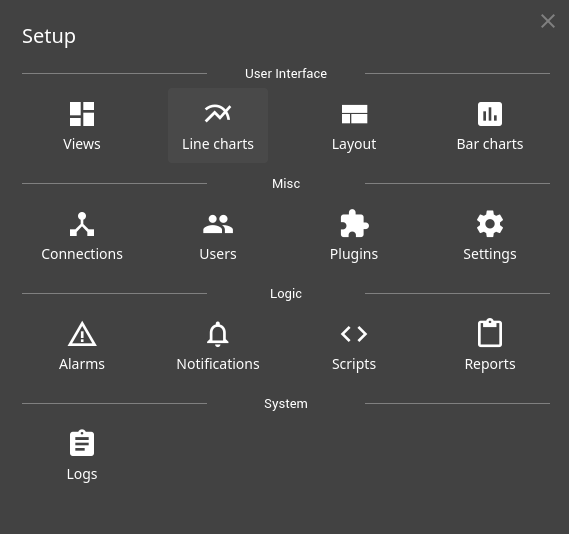
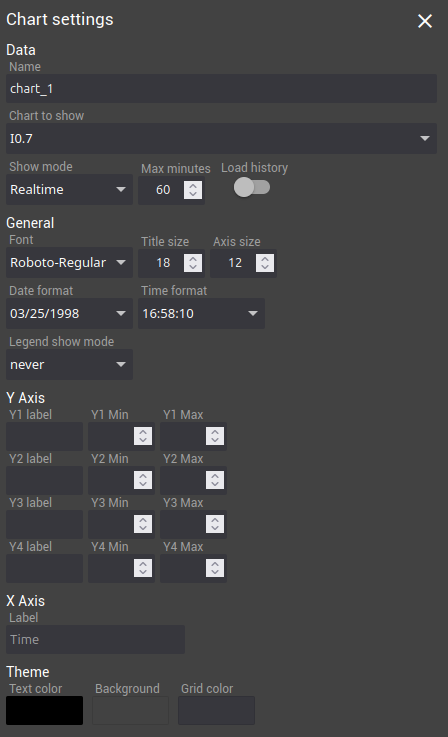
A line chart shows how the analog value changes over time. First configure it in Setup > Line Charts.
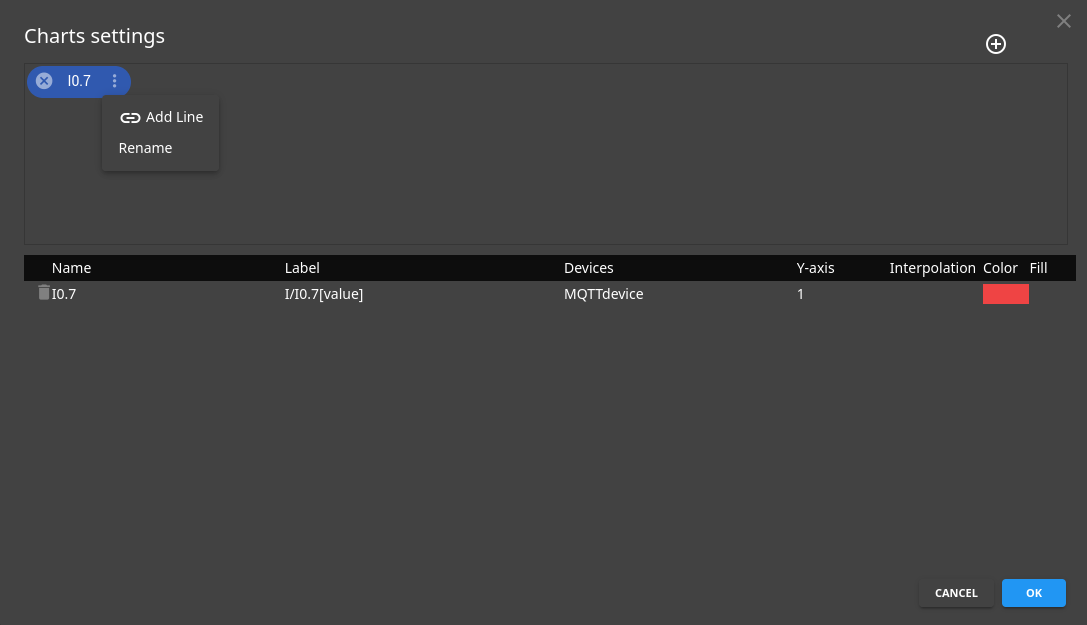
Add a configuration with the plus (+) button and give it a name. In its three dots menu, select Add Line and choose the tag of the input. Change the color if needed.
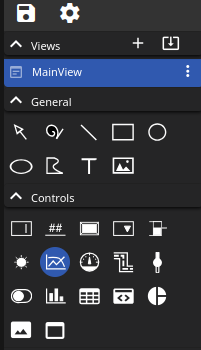
Add a line chart to the view with the Chart button.
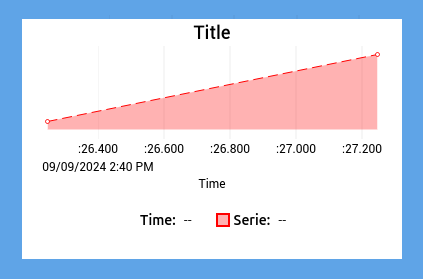
In Property, select the configuration you just created. You can hide the legend or change other options.
Save the project and check the line chart on the main page.
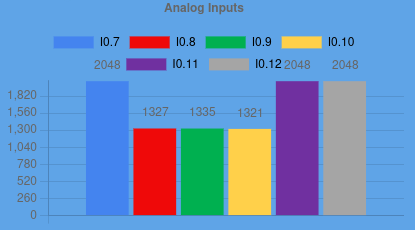
Bar graph
A bar graph shows all the analog inputs together.
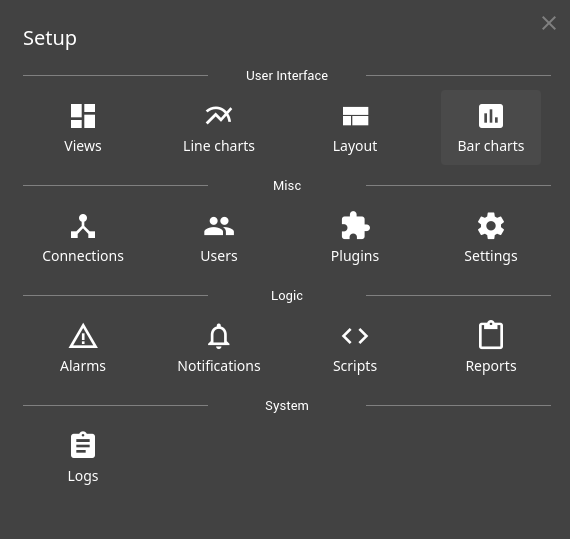
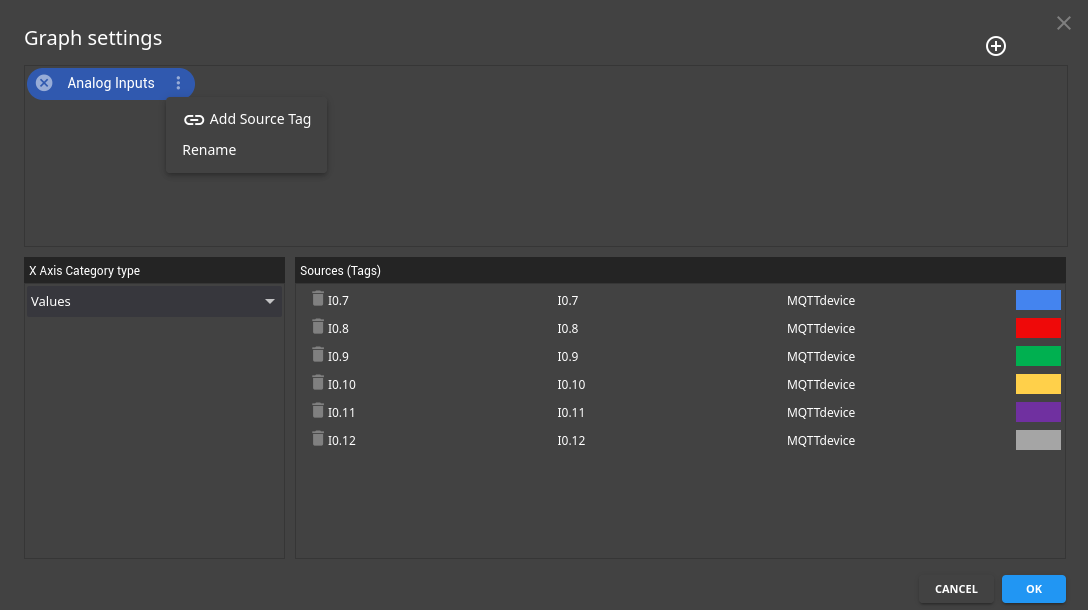
As with the line chart, create a graph configuration with the plus (+) button. In the three dots menu, add the tags of the analog inputs as sources. Set the colors and save the configuration.
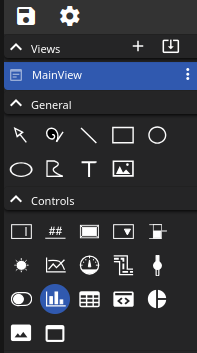
Add the bar graph to the view with the Bar Graph button.
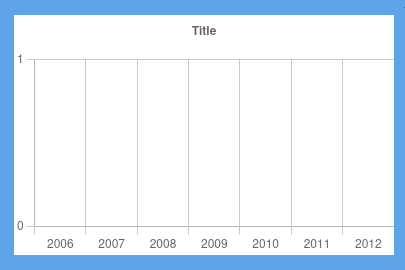
In Property, select the configuration in Graph to show and set the colors.
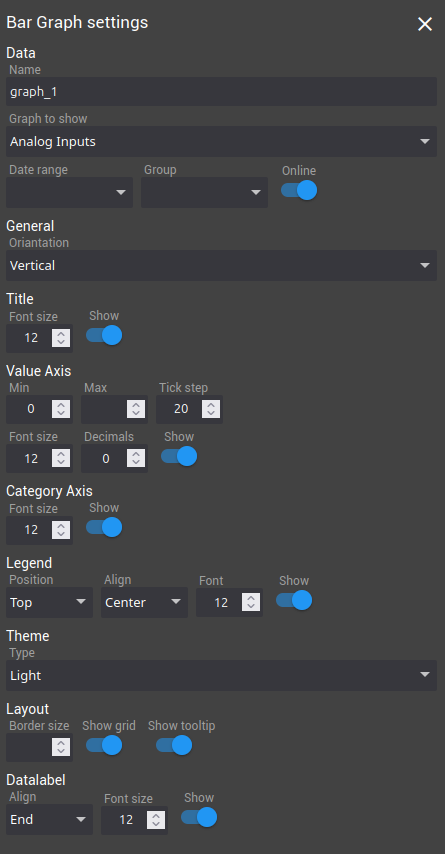
Save the project and check the bar graph on the main page.
FUXA script to switch off all outputs
A FUXA script can run when an operator clicks a button or an image. This example switches off all the outputs with one click.
Open Scripts in the Setup menu.
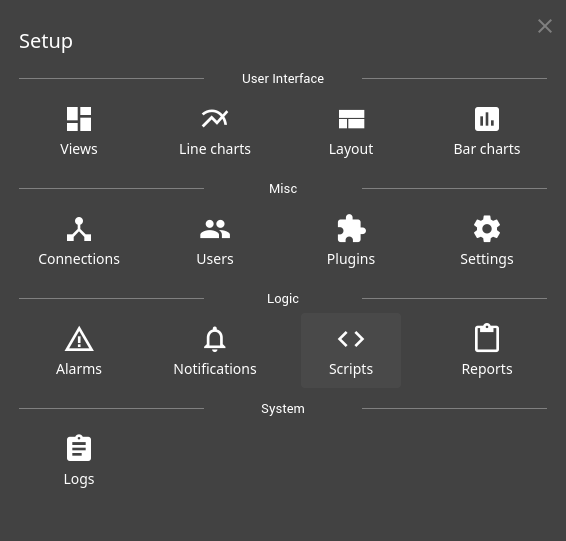
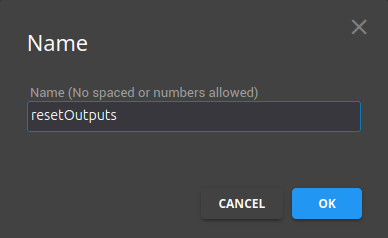
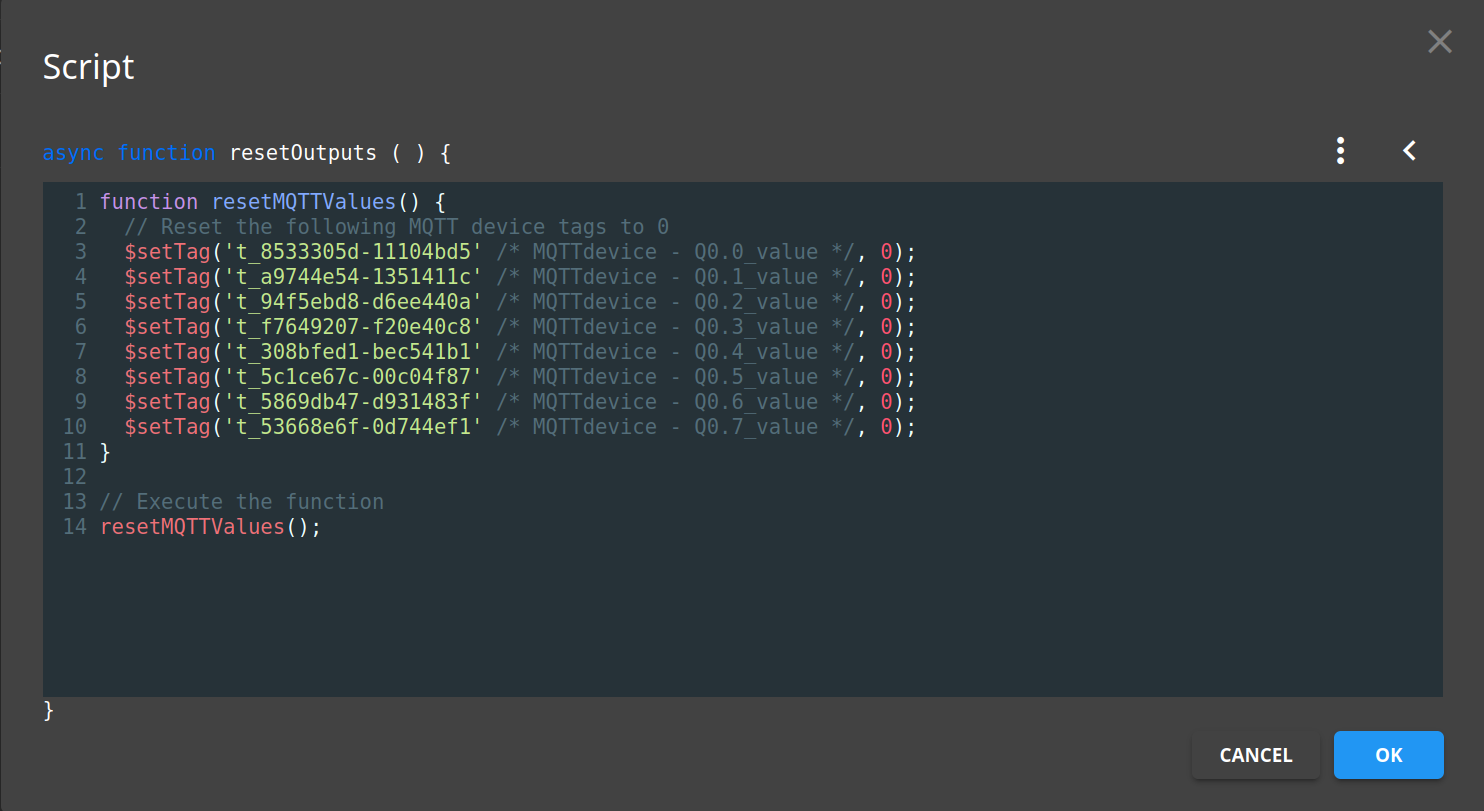
Click the plus (+) button at the bottom right to add a script. In its three dots menu, select Edit Script Name and give the main function a clear name, such as resetOutputs().
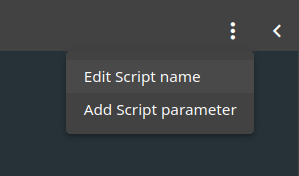
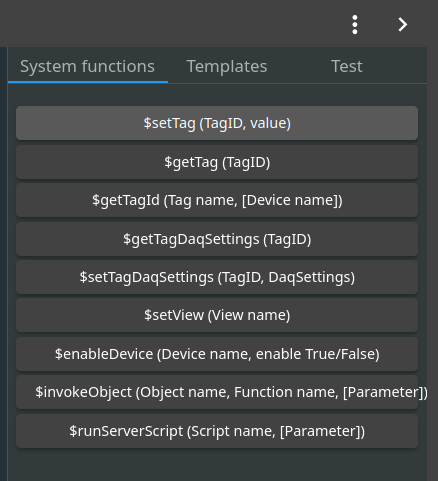
Click the less-than sign (<) at the top right of the window. In the System Functions list, select $setTag(TagID, value) and then the output tag to change.
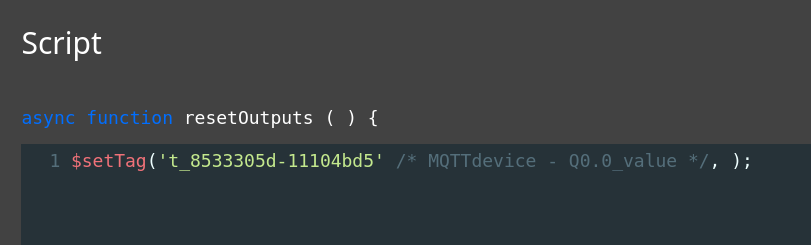
Set the value to 0 to switch the output off. Repeat for every output tag. Put these calls inside a function: it keeps the script easy to read when it grows.
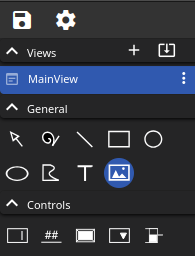
Add an image with the Image Tool (embedded) button and set its size.

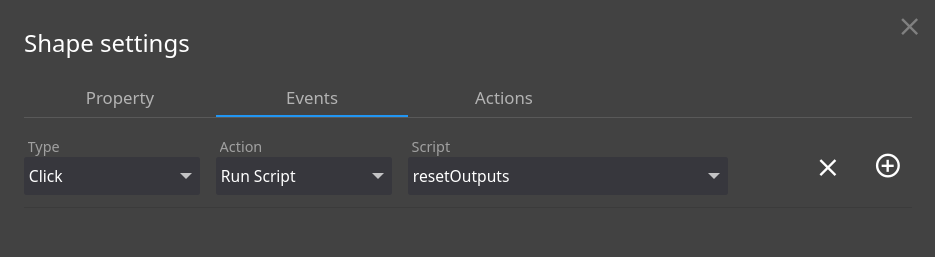
Click the image, open Property and go to the Events tab. Add an event of type click, with the action Run Script and the script resetOutputs().
A screen button is not an emergency stop. The "all outputs off" script is a convenience for the operator. The emergency stop of a machine must stay hardwired and independent of the HMI, the network and the broker.
Test the HMI, then make it ready for the plant
The finished screen reads and writes all the I/O of the Raspberry PLC 21. Test every input and every output before you use it on a machine.
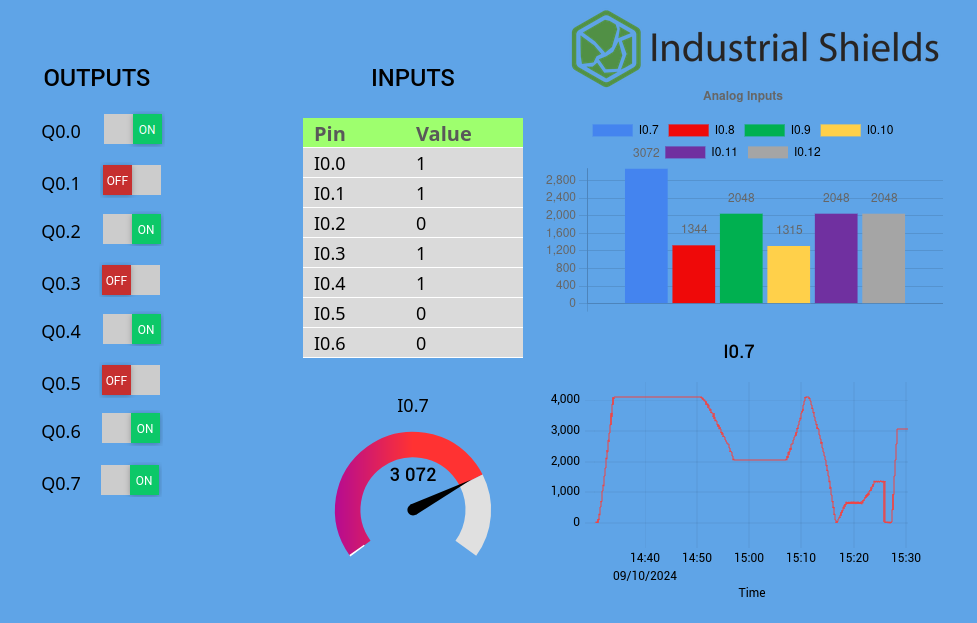
Complete FUXA project (JSON), with devices, tags, scripts and the screen. Import it with the Save button at the top left of the editor.
Check the MQTT traffic from the command line
If a switch or an input does not respond, check whether the problem is on the Node-RED side or on the FUXA side. Watch the input topics:
mosquitto_sub -h localhost -t 'I/#' -vPublish an output command by hand. If Q0.0 switches on, the Node-RED side works and the problem is in the FUXA tags:
mosquitto_pub -h localhost -t 'Q/Q0.0' -m '{"zone":0,"index":0,"value":1}'Before the HMI goes to the machine
- Start at boot. Run FUXA as a systemd service, like Node-RED and Mosquitto. See the systemd services example on a Raspberry PLC.
- Access control. Ask for a login in FUXA, protect the Node-RED editor (adminAuth in settings.js), and do not expose the ports 1880, 1881 and 1883 to the internet. If other machines must reach the broker, configure a listener with users and passwords. See MQTT security fundamentals.
- Operator panel. Open the HMI full screen on a touch screen with a browser in kiosk mode. The kiosk mode example uses a Node-RED dashboard, and the same method works with the FUXA address.
- Backups. Export the FUXA project and the Node-RED flow after each change and keep them with the machine documentation.
More about Node-RED, MQTT and HMIs on a Raspberry PLC
- Node-RED and the PLC pins: set digital outputs, read digital inputs, read analog inputs and work with MQTT.
- Tested examples in the PLC Solution Library: control a digital output from Node-RED, a central Mosquitto broker for a fleet of PLCs and an MQTT to SQL Server bridge in Python.
- Other options: Rapid SCADA on a Raspberry Pi panel PC, Modbus TCP and RTU on Raspberry PLCs, and a comparison of Node-RED, CODESYS and Arduino IDE.
- See a finished monitoring screen with MQTT data in the Machine Monitor simulator.
One PLC for control, data and the operator screen. In the logistics automation case study, a Raspberry PLC reads a barcode reader, drives the conveyors, keeps its own database and server, and shows the package data on a screen in the warehouse.
FAQ about FUXA on a Raspberry PLC
Is FUXA free and open source?
Yes. FUXA is published on GitHub under the MIT license. It runs on Linux, Windows and macOS, in Docker, and on a Raspberry Pi.
Why not connect FUXA directly to the PLC pins?
Most I/O of a Raspberry PLC are on I2C chips (expanders, ADCs and an output driver), not on the GPIO header. The FUXA GPIO driver only reaches direct GPIO. Node-RED with the librpiplc nodes knows the pin mapping of each model.
Can FUXA read Modbus or OPC UA devices on the same PLC?
Yes. FUXA has its own Modbus RTU and TCP, OPC UA, BACnet and EtherNet/IP drivers, and S7 in the full package (not in fuxa-min). One screen can show the PLC I/O over MQTT and, for example, an energy meter over Modbus TCP.
What range do the analog inputs give in FUXA?
The Raspberry PLC analog inputs are 12-bit: 0 to 4095 for 0 to 10 V. To show volts, scale the value in Node-RED before it is published, for example with a range node from 0 to 4095 to 0 to 10.
Does FUXA start again after a reboot?
Not by itself when you install it with npm. Create a systemd service for FUXA, as for any program that must run on the PLC without a user session.
Can operators use the HMI from another computer or a tablet?
Yes. Open http://<PLC IP>:1881 in a browser on the same network. Turn on the FUXA login first, and keep port 1881 inside the plant network.