
To run an OPC UA server on a Raspberry PLC, install Node-RED with the node-red-contrib-iiot-opcua nodes, build the address space (folders and variables) with Server-ASO nodes, and start an OPCUA-IIoT-Server node on a TCP port. Any OPC UA client, such as UaExpert or a SCADA, then browses and reads the variables at opc.tcp://<PLC IP>:<port>/.
This example uses port 55488 (the registered default for OPC UA is 4840), writes the analog input I0.10 of the PLC into the variable ns=1;s=Variable1 every second, and reads it back with a client from node-red-contrib-opcua. The three flows are below, ready to import.
What is OPC UA?
OPC UA (OPC Unified Architecture) is the platform independent standard of the OPC Foundation for industrial data exchange, published as IEC 62541. It replaces OPC Classic (DA, HDA, A&E), which depended on Windows COM/DCOM, and adds an information model, built in security and transports that work on any operating system, from a PLC to the cloud.
- Platform independent: it runs on Linux, Windows and embedded systems, so a Raspberry PLC can be a server.
- Information model: data is organised as nodes (objects, variables, methods) with types, units and quality, not as flat registers.
- Security: application certificates, user authentication, signing and encryption are part of the standard.
- Client and server, and PubSub: clients browse, read, write and subscribe to a server; PubSub adds publish and subscribe over UDP or MQTT.
To compare it with Modbus for a SCADA link, see Modbus RTU vs Modbus TCP vs OPC UA.
Ways to run an OPC UA server on a Raspberry PLC
| Option | Language | Notes |
|---|---|---|
| node-red-contrib-iiot-opcua | Node-RED | Used in this example for the server. Version 4.1.2, tested by its authors with Node.js 16 and Node-RED 3.0; it has not been updated for about four years, so test it on your Node-RED version. |
| node-red-contrib-opcua | Node-RED | Used in this example for the client. Actively maintained, built on node-opcua; it also has an OpcUa-Server node with users, security policies and commands such as addFolder and addVariable. |
| asyncua | Python | Open source client and server library; a good choice when the rest of the PLC program is in Python. |
| open62541 | C | Open source OPC UA stack for embedded and high performance servers. |
| CODESYS | IEC 61131-3 | The CODESYS runtime includes an OPC UA server; you choose the variables in the Symbol Configuration. See CODESYS on a Raspberry PLC. |
What you need
- A Raspberry PLC with its operating system and the Industrial Shields libraries installed. Start with the first steps with the Raspberry PLC.
- Node-RED on the PLC, with three packages from the palette manager: node-red-contrib-iiot-opcua (server), node-red-contrib-opcua (client) and the Industrial Shields Raspberry PLC nodes,
@industrial-shields/node-red-librpiplc, which provide the rpiplc-config and rpiplc-analog-read nodes used in flow 2 and need the librpiplc C library. - node-red-dashboard if you want to see the gauges of flows 2 and 3.
- An OPC UA client on your PC to check the server, for example UaExpert from Unified Automation (free download with registration).
The address space of the example
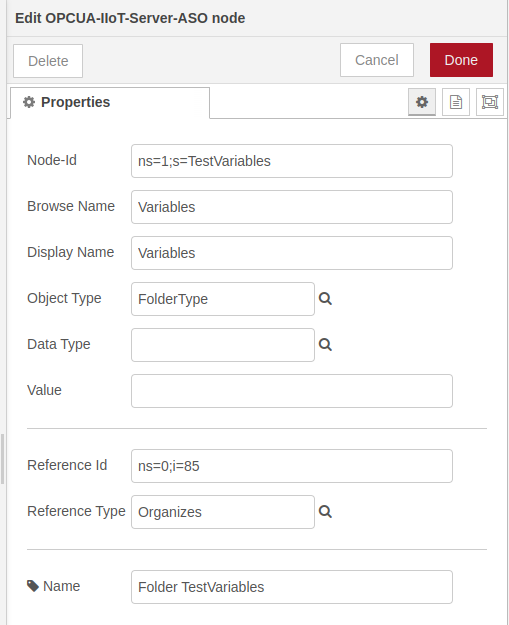
Flow 1 creates one folder and two variables under the standard Objects folder (ns=0;i=85). Flows 2 and 3 use the same NodeId to write and read.
| NodeId | Browse name | Type | Content |
|---|---|---|---|
ns=1;s=TestVariables | Variables | FolderType | Folder that organises the variables |
ns=1;s=TestDateTime | TestDateTime | BaseDataVariableType, DateTime | Date and time injected at start |
ns=1;s=Variable1 | Variable1 | BaseDataVariableType, Int16 | Value of the analog input I0.10, written every second by flow 2 |
Step 1: create the OPC UA server and its address space
These nodes create the server, its folder and its variables, and give them an initial value. After Deploy, the server takes a few seconds to start: the inject nodes of the variables wait 15 seconds so that the folder exists first.

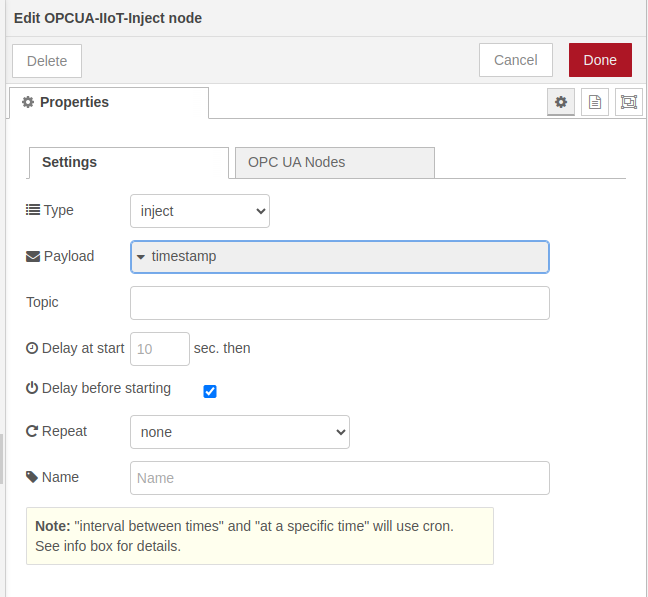
- OPCUA-IIoT-Inject sends a message once at start, with the type inject.
- OPCUA-IIoT-Server-ASO adds a node to the address space: its NodeId, browse name, parent node and type. The folder uses FolderType, and the variables use BaseDataVariableType with a data type.
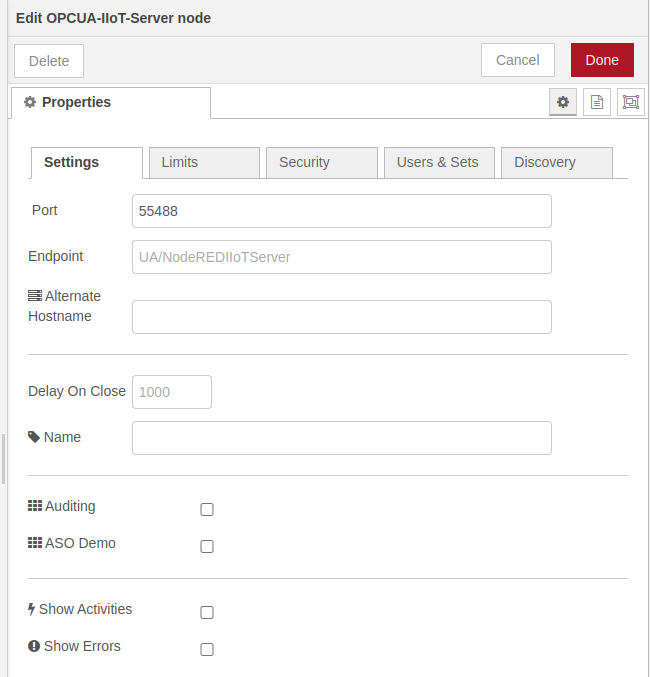
- OPCUA-IIoT-Server starts the server on the port you set, here 55488, so the endpoint is opc.tcp://<PLC IP>:55488/. It also sets limits, discovery and security. The example allows anonymous access without security, which is only valid for a test bench.
Flow 1 JSON: OPC UA server (import in Node-RED)
[
  {
    "id": "526638e31bd911fe",
    "type": "tab",
    "label": "Flow 1",
    "disabled": false,
    "info": "",
    "env": []
  },
  {
    "id": "75df2f23680c144e",
    "type": "OPCUA-IIoT-Server",
    "z": "526638e31bd911fe",
    "port": "55488",
    "endpoint": "",
    "acceptExternalCommands": true,
    "maxAllowedSessionNumber": "",
    "maxConnectionsPerEndpoint": "",
    "maxAllowedSubscriptionNumber": "",
    "alternateHostname": "",
    "name": "",
    "showStatusActivities": false,
    "showErrors": false,
    "asoDemo": false,
    "allowAnonymous": true,
    "individualCerts": false,
    "isAuditing": false,
    "serverDiscovery": true,
    "users": [],
    "xmlsets": [],
    "publicCertificateFile": "",
    "privateCertificateFile": "",
    "registerServerMethod": "1",
    "discoveryServerEndpointUrl": "",
    "capabilitiesForMDNS": "",
    "maxNodesPerRead": "",
    "maxNodesPerBrowse": "",
    "delayToClose": "",
    "x": 1034.3000183105469,
    "y": 389.9999694824219,
    "wires": [
      [
        "1b7404249f5bac6e"
      ]
    ]
  },
  {
    "id": "1b7404249f5bac6e",
    "type": "debug",
    "z": "526638e31bd911fe",
    "name": "",
    "active": true,
    "tosidebar": true,
    "console": false,
    "tostatus": false,
    "complete": "true",
    "targetType": "full",
    "statusVal": "",
    "statusType": "auto",
    "x": 1214.3000183105469,
    "y": 389.9999694824219,
    "wires": []
  },
  {
    "id": "a94182acacad6858",
    "type": "OPCUA-IIoT-Server-ASO",
    "z": "526638e31bd911fe",
    "nodeId": "ns=1;s=TestVariables",
    "browsename": "Variables",
    "displayname": "Variables",
    "objecttype": "FolderType",
    "datatype": "",
    "value": "",
    "referenceNodeId": "ns=0;i=85",
    "referencetype": "Organizes",
    "name": "Folder TestVariables",
    "x": 540,
    "y": 340,
    "wires": [
      [
        "2c72a02e95e2e53a"
      ]
    ]
  },
  {
    "id": "57a7deb0b12064d7",
    "type": "OPCUA-IIoT-Inject",
    "z": "526638e31bd911fe",
    "injectType": "inject",
    "payload": "",
    "payloadType": "date",
    "topic": "",
    "repeat": "",
    "crontab": "",
    "once": true,
    "startDelay": "",
    "name": "",
    "addressSpaceItems": [],
    "x": 250,
    "y": 340,
    "wires": [
      [
        "a94182acacad6858"
      ]
    ]
  },
  {
    "id": "09ed80c457c3501a",
    "type": "OPCUA-IIoT-Server-ASO",
    "z": "526638e31bd911fe",
    "nodeId": "ns=1;s=TestDateTime",
    "browsename": "TestDateTime",
    "displayname": "Test DateTime",
    "objecttype": "BaseDataVariableType",
    "datatype": "DateTime",
    "value": "",
    "referenceNodeId": "ns=1;s=TestVariables",
    "referencetype": "Organizes",
    "name": "DateTime",
    "x": 580,
    "y": 380,
    "wires": [
      [
        "2c72a02e95e2e53a"
      ]
    ]
  },
  {
    "id": "f824a67fc665769f",
    "type": "OPCUA-IIoT-Inject",
    "z": "526638e31bd911fe",
    "injectType": "inject",
    "payload": "",
    "payloadType": "date",
    "topic": "",
    "repeat": "",
    "crontab": "",
    "once": true,
    "startDelay": "15",
    "name": "",
    "addressSpaceItems": [],
    "x": 250,
    "y": 380,
    "wires": [
      [
        "09ed80c457c3501a"
      ]
    ]
  },
  {
    "id": "2c72a02e95e2e53a",
    "type": "function",
    "z": "526638e31bd911fe",
    "name": "thru",
    "func": "\nreturn msg;",
    "outputs": 1,
    "timeout": "",
    "noerr": 0,
    "initialize": "",
    "finalize": "",
    "libs": [],
    "x": 854.3000183105469,
    "y": 389.9999694824219,
    "wires": [
      [
        "75df2f23680c144e"
      ]
    ]
  },
  {
    "id": "9b7c6cf023d4b643",
    "type": "OPCUA-IIoT-Server-ASO",
    "z": "526638e31bd911fe",
    "nodeId": "ns=1;s=Variable1",
    "browsename": "Variable1",
    "displayname": "Variable1",
    "objecttype": "BaseDataVariableType",
    "datatype": "Int16",
    "value": "",
    "referenceNodeId": "ns=1;s=TestVariables",
    "referencetype": "Organizes",
    "name": "Variable1Int16",
    "x": 560,
    "y": 420,
    "wires": [
      [
        "2c72a02e95e2e53a"
      ]
    ]
  },
  {
    "id": "9f0e92a8743be1eb",
    "type": "OPCUA-IIoT-Inject",
    "z": "526638e31bd911fe",
    "injectType": "inject",
    "payload": "125",
    "payloadType": "num",
    "topic": "",
    "repeat": "",
    "crontab": "",
    "once": true,
    "startDelay": "15",
    "name": "",
    "addressSpaceItems": [],
    "x": 270,
    "y": 420,
    "wires": [
      [
        "9b7c6cf023d4b643"
      ]
    ]
  }
]
Step 2: write a PLC input into the OPC UA server
Every second this flow reads the analog input I0.10 of the Raspberry PLC, shows it on the dashboard and writes it into the variable ns=1;s=Variable1. The rpiplc-config node selects the PLC model, here RPIPLC_21. After you import the flow, open rpiplc-config and select the version and model of your PLC.

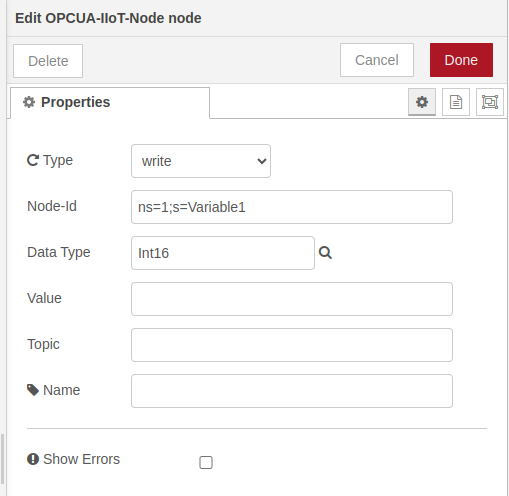
- OPCUA-IIoT-Node of type write sets the target NodeId and the data type, Int16.
- OPCUA-IIoT-Write sends the value to the server through a connector.
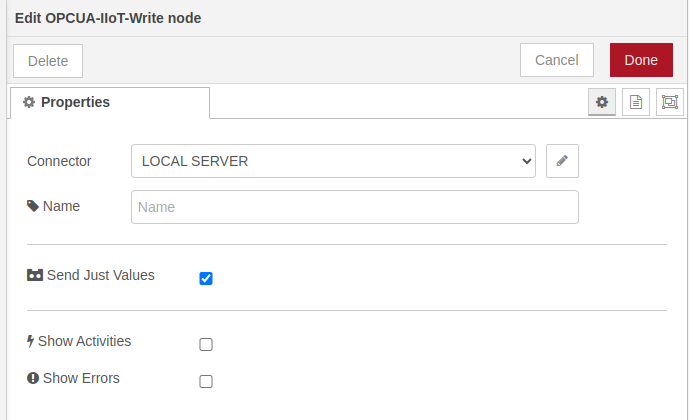
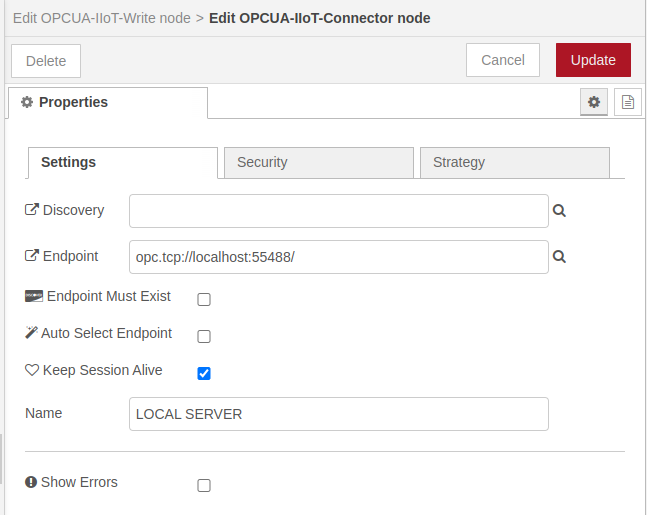
The connector holds the endpoint. Because the server runs on the same PLC, it points to opc.tcp://localhost:55488/.
The value is a raw ADC count, not volts. The rpiplc-analog-read node returns an integer: up to 12 bits (0 to 4095) on Raspberry PLC versions 3 to 6. Scale it before you publish it in engineering units. In the flow below the gauge goes to 4095 and is labelled Raw.
Flow 2 JSON: write I0.10 to the server (import in Node-RED)
[
  {
    "id": "63f010ebc6ec597c",
    "type": "tab",
    "label": "Flow 2",
    "disabled": false,
    "info": "",
    "env": []
  },
  {
    "id": "272bd91f019aaa4a",
    "type": "rpiplc-analog-read",
    "z": "63f010ebc6ec597c",
    "rpiplc": "9440adac8659dc1d",
    "pin": "I0.10",
    "name": "",
    "x": 540,
    "y": 340,
    "wires": [
      [
        "72bb01129893f1ae",
        "27654d48016fa1bf"
      ]
    ]
  },
  {
    "id": "4591787bbefbd0b3",
    "type": "OPCUA-IIoT-Write",
    "z": "63f010ebc6ec597c",
    "connector": "875fa40fca5ccc47",
    "name": "",
    "justValue": true,
    "showStatusActivities": false,
    "showErrors": false,
    "x": 850,
    "y": 340,
    "wires": [
      [
        "e4d285975b908c13"
      ]
    ]
  },
  {
    "id": "e4d285975b908c13",
    "type": "debug",
    "z": "63f010ebc6ec597c",
    "name": "debug-set",
    "active": false,
    "tosidebar": true,
    "console": false,
    "tostatus": false,
    "complete": "payload",
    "targetType": "msg",
    "statusVal": "",
    "statusType": "auto",
    "x": 1040,
    "y": 340,
    "wires": []
  },
  {
    "id": "62aeb4828a504caa",
    "type": "inject",
    "z": "63f010ebc6ec597c",
    "name": "",
    "props": [
      {
        "p": "payload"
      },
      {
        "p": "topic",
        "vt": "str"
      }
    ],
    "repeat": "1",
    "crontab": "",
    "once": false,
    "onceDelay": 0.1,
    "topic": "",
    "payload": "",
    "payloadType": "date",
    "x": 370,
    "y": 340,
    "wires": [
      [
        "272bd91f019aaa4a"
      ]
    ]
  },
  {
    "id": "72bb01129893f1ae",
    "type": "OPCUA-IIoT-Node",
    "z": "63f010ebc6ec597c",
    "injectType": "write",
    "nodeId": "ns=1;s=Variable1",
    "datatype": "Int16",
    "value": "",
    "name": "",
    "topic": "",
    "showErrors": false,
    "x": 690,
    "y": 340,
    "wires": [
      [
        "4591787bbefbd0b3"
      ]
    ]
  },
  {
    "id": "27654d48016fa1bf",
    "type": "ui_gauge",
    "z": "63f010ebc6ec597c",
    "name": "",
    "group": "0cfb93c85cf539c8",
    "order": 0,
    "width": 0,
    "height": 0,
    "gtype": "gage",
    "title": "I0.10",
    "label": "Raw",
    "format": "{{value}}",
    "min": 0,
    "max": "4095",
    "colors": [
      "#00b500",
      "#e6e600",
      "#ca3838"
    ],
    "seg1": "",
    "seg2": "",
    "diff": false,
    "className": "",
    "x": 690,
    "y": 280,
    "wires": []
  },
  {
    "id": "9440adac8659dc1d",
    "type": "rpiplc-config",
    "model": "RPIPLC_21",
    "name": ""
  },
  {
    "id": "875fa40fca5ccc47",
    "type": "OPCUA-IIoT-Connector",
    "discoveryUrl": "",
    "endpoint": "opc.tcp://localhost:55488/",
    "endpointMustExist": false,
    "keepSessionAlive": true,
    "loginEnabled": false,
    "name": "LOCAL SERVER",
    "showErrors": false,
    "securityPolicy": "None",
    "securityMode": "None",
    "individualCerts": false,
    "publicCertificateFile": "",
    "privateKeyFile": "",
    "defaultSecureTokenLifetime": "",
    "autoSelectRightEndpoint": false,
    "strategyMaxRetry": "",
    "strategyInitialDelay": "",
    "strategyMaxDelay": "",
    "strategyRandomisationFactor": "",
    "requestedSessionTimeout": "",
    "connectionStartDelay": "",
    "reconnectDelay": "",
    "maxBadSessionRequests": "10"
  },
  {
    "id": "0cfb93c85cf539c8",
    "type": "ui_group",
    "name": "Default",
    "tab": "39450c9e599a8dde",
    "order": 1,
    "disp": true,
    "width": "6",
    "collapse": false,
    "className": ""
  },
  {
    "id": "39450c9e599a8dde",
    "type": "ui_tab",
    "name": "Home",
    "icon": "dashboard",
    "disabled": false,
    "hidden": false
  }
]
Step 3: read the variable with an OPC UA client
This flow uses the other package, node-red-contrib-opcua, as a client. Every second it asks the server for ns=1;s=Variable1 and shows the value in the debug panel and on the dashboard. It can run on the same PLC or on another device on the network.

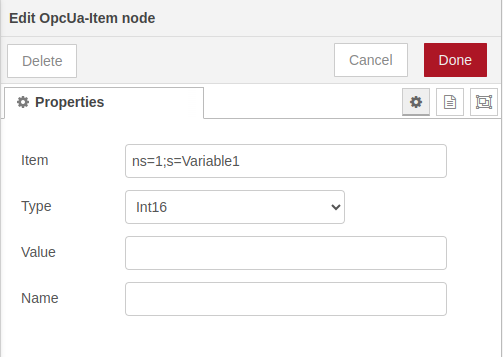
- OpcUa-Item sets the NodeId to read and its data type.
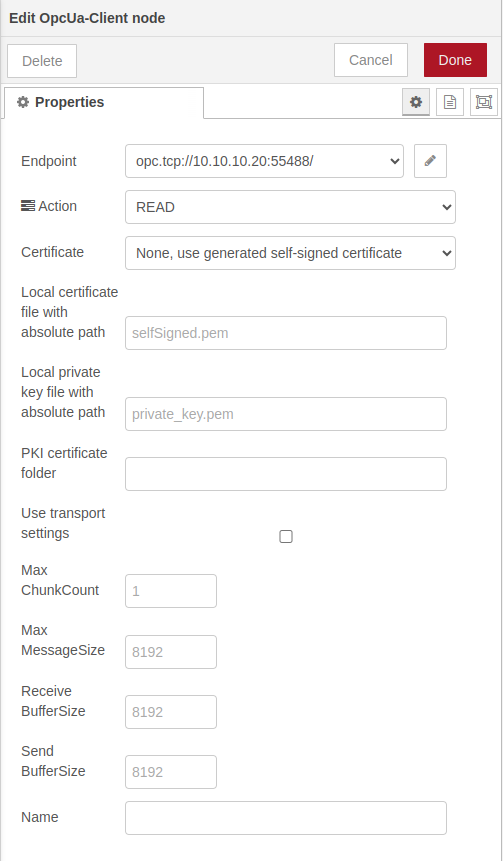
- OpcUa-Client connects to the endpoint, here opc.tcp://10.10.10.20:55488/ (the default eth0 address of the Raspberry PLC), with the action read. The same node can also write, subscribe, monitor and browse.
Flow 3 JSON: read the variable with a client (import in Node-RED)
[
  {
    "id": "e0635bf35b9bc5c7",
    "type": "tab",
    "label": "Flow 3",
    "disabled": false,
    "info": "",
    "env": []
  },
  {
    "id": "f7aab83e0a06b0ba",
    "type": "OpcUa-Item",
    "z": "e0635bf35b9bc5c7",
    "item": "ns=1;s=Variable1",
    "datatype": "Int16",
    "value": "",
    "name": "",
    "x": 480,
    "y": 280,
    "wires": [
      [
        "c9cbb2df0b559691"
      ]
    ],
    "icon": "font-awesome/fa-tag"
  },
  {
    "id": "c9cbb2df0b559691",
    "type": "OpcUa-Client",
    "z": "e0635bf35b9bc5c7",
    "endpoint": "9911d4815d3e3bdd",
    "action": "read",
    "deadbandtype": "a",
    "deadbandvalue": 1,
    "time": 10,
    "timeUnit": "s",
    "certificate": "n",
    "localfile": "",
    "localkeyfile": "",
    "folderName4PKI": "",
    "useTransport": false,
    "maxChunkCount": "",
    "maxMessageSize": "",
    "receiveBufferSize": "",
    "sendBufferSize": "",
    "name": "",
    "x": 680,
    "y": 280,
    "wires": [
      [
        "95de452cad37e33f",
        "4faa4ea77b213280"
      ],
      []
    ],
    "icon": "font-awesome/fa-tasks"
  },
  {
    "id": "9e76fd28ede4da39",
    "type": "inject",
    "z": "e0635bf35b9bc5c7",
    "name": "",
    "props": [
      {
        "p": "payload"
      },
      {
        "p": "topic",
        "vt": "str"
      }
    ],
    "repeat": "1",
    "crontab": "",
    "once": true,
    "onceDelay": "15",
    "topic": "",
    "payload": "1",
    "payloadType": "num",
    "x": 270,
    "y": 280,
    "wires": [
      [
        "f7aab83e0a06b0ba"
      ]
    ]
  },
  {
    "id": "95de452cad37e33f",
    "type": "debug",
    "z": "e0635bf35b9bc5c7",
    "name": "debug-get",
    "active": true,
    "tosidebar": true,
    "console": false,
    "tostatus": false,
    "complete": "payload",
    "targetType": "msg",
    "statusVal": "",
    "statusType": "auto",
    "x": 900,
    "y": 300,
    "wires": []
  },
  {
    "id": "4faa4ea77b213280",
    "type": "ui_gauge",
    "z": "e0635bf35b9bc5c7",
    "name": "",
    "group": "0cfb93c85cf539c8",
    "order": 2,
    "width": 0,
    "height": 0,
    "gtype": "gage",
    "title": "Server Read",
    "label": "Raw",
    "format": "{{value}}",
    "min": 0,
    "max": "4095",
    "colors": [
      "#00b500",
      "#e6e600",
      "#ca3838"
    ],
    "seg1": "",
    "seg2": "",
    "diff": false,
    "className": "",
    "x": 910,
    "y": 260,
    "wires": []
  },
  {
    "id": "9911d4815d3e3bdd",
    "type": "OpcUa-Endpoint",
    "endpoint": "opc.tcp://10.10.10.20:55488/",
    "secpol": "None",
    "secmode": "None",
    "none": true,
    "login": false,
    "usercert": false,
    "usercertificate": "",
    "userprivatekey": ""
  },
  {
    "id": "0cfb93c85cf539c8",
    "type": "ui_group",
    "name": "Default",
    "tab": "39450c9e599a8dde",
    "order": 1,
    "disp": true,
    "width": "6",
    "collapse": false,
    "className": ""
  },
  {
    "id": "39450c9e599a8dde",
    "type": "ui_tab",
    "name": "Home",
    "icon": "dashboard",
    "disabled": false,
    "hidden": false
  }
]
Check the server with UaExpert
- Connect the PC to the same network as the PLC and check that you can ping it.
- In UaExpert, add a server with the custom URL opc.tcp://<PLC IP>:55488/ and choose the endpoint with security None, as configured in this example.
- Connect and open Objects, then Variables, in the address space panel.
- Drag Variable1 to the data access view: the value changes when the voltage on I0.10 changes.
Before production: secure the server
The example accepts anonymous clients with security policy None. On a real plant network:
- Enable a security policy such as Basic256Sha256 with the Sign and Encrypt mode, and trust only the certificates of known clients.
- Disable anonymous access and create users with a password.
- Open the server port only towards the SCADA or MES network, with the firewall of the PLC or of the network.
- Keep Node-RED, its packages and the operating system up to date, and protect the Node-RED editor with a login.
Common problems
| Symptom | Likely cause | What to do |
|---|---|---|
| The client cannot connect | Wrong IP or port, firewall, or the server is still starting | Ping the PLC, check the port in the Server node, and wait a few seconds after Deploy |
| BadNodeIdUnknown when writing or reading | The variable does not exist yet, or the NodeId is written differently | Keep the 15 second delay of flow 1 and copy the NodeId exactly, namespace included |
| BadTypeMismatch | The data type of the write does not match the variable | Use the same type (Int16 here) in Server-ASO, OPCUA-IIoT-Node and OpcUa-Item |
| The value looks wrong | It is the raw ADC count | Scale it to volts or engineering units before you publish it |
More about OPC UA, SCADA and the Raspberry PLC
- How to install and use Rapid SCADA on Touchberry Pi
- Modbus TCP and RTU guide for Raspberry Pi PLCs
- Node-RED: read analog inputs from the Raspberry PLC
- Raspberry PLC family
- Libraries: node-red-contrib-iiot-opcua, node-red-contrib-opcua, @industrial-shields/node-red-librpiplc. Reference: OPC UA on Wikipedia.
Take it further
OPC UA is one way to hand PLC data to a supervisor. These pages show how a Raspberry PLC shares its data in other ways: a gateway for a SCADA, a plant simulation and a Modbus TCP reader.
Case study
Every tracker reports. The SCADA sees the whole field.
A gateway per block publishes every tracker row in a fixed Modbus TCP register map for the SCADA, and over MQTT for the operations server.
Read the case study
Simulator
Solar field simulator: single-axis trackers, diffuse mode, alarms and grid limits
A 12.5 MWp single-axis tracker plant monitored with Raspberry PLC zone controllers, a GateBerry gateway and a TouchBerry panel.
Open the simulator
PLC Solution Library
Reading a Fronius inverter over SunSpec Modbus TCP
A Raspberry Pi reads the AC power of an inverter and the consumption of the Smart Meter over Modbus TCP, to compute the live solar surplus.
See the example
FAQ about OPC UA on a Raspberry PLC
Can a Raspberry Pi be an OPC UA server?
Yes. OPC UA is platform independent, and a Raspberry Pi or a Raspberry PLC can run a server with Node-RED (node-red-contrib-iiot-opcua or node-red-contrib-opcua), Python (asyncua), C (open62541) or the OPC UA server of the CODESYS runtime.
Which port does OPC UA use?
The registered default port for opc.tcp is 4840, but a server can listen on any free TCP port. This example uses 55488, so the endpoint is opc.tcp://<PLC IP>:55488/.
What is the difference between node-red-contrib-iiot-opcua and node-red-contrib-opcua?
Both bring OPC UA to Node-RED. node-red-contrib-iiot-opcua builds the server here with Server-ASO nodes, but has not been updated for about four years. node-red-contrib-opcua is actively maintained and has client and server nodes, so it is the safer choice for new projects.
How do I test an OPC UA server?
Connect a client such as UaExpert to opc.tcp://<server IP>:<port>/, browse the Objects folder and add the variables to the data access view. If the values change, the server works.
Is OPC UA better than Modbus TCP?
It does more: typed nodes with structure, built in security and subscriptions. Modbus TCP is lighter and simpler to commission. Many plants use Modbus at device level and OPC UA towards SCADA, MES or the cloud.
Is anonymous access with security None safe?
Only on an isolated test bench. In production, use a security policy with Sign and Encrypt, trusted certificates, user accounts and a firewall that opens the port only to the SCADA network.