Introduction
Node-RED is a powerful, open-source visual programming tool designed to simplify the process of wiring together hardware devices, APIs, and online services in new and innovative ways. Node-RED provides a browser-based editor that enables users to create flows using a wide range of nodes representing various functionalities.
If you are used to Node-red and its dashboards, you know that it has a short and limited variety of user interfaces which sometimes are quite suitable for your dashboard design.
In this post we will show how to make your own designs for your dashboard using CSS and HTML.
Creating your design in CSS and HTML
First of all we need to think about the design we want to implement in our dashboard. In this post we are going to design a silo that is used as a gauge. To create de design in CSS, HTML and see the the result design in real time we recommend to use CodePen.
In CSS it is recommended to create a first class as a master class, set the parameters of the design maximum size and the rest of the parts of the design as a child classes of the master class. Implementing this method will be easier to scale the whole design on the dashboard.
CSS CODE
.master-container{height: 1100px;
width: 500px;
position: relative;
background-color: ;
transform: scale(0.8); /*Variable scale for Node-Red dashboard, default: 1*/}
.base_child {height: 50px;
width: 500px;
bottom: 0px;
position: absolute;
background-color: #808070;
}
.container_child{height: 800px;
width: 450px;
background-color: #808080;
  bottom: 20PX;
  left: 25px;
position: absolute;
z-index: 1;
background: linear-gradient(to bottom, #D3D3D3, #A9A9A9, #808080);
}
.trapezoid_child {border-bottom: 95px solid #4B4B4B;
border-left: 80px solid transparent;
border-right: 80px solid transparent;
bottom: 1000px;
width: 294px;
left: 23px;
z-index: -1;
position: absolute;
}
.leg_child_left{height: 150px;
width: 50px;
background-color: #4B4B4B;
bottom: 50px;
position: absolute;
left: 25px;
}
.leg_child_right{height: 150px;
width: 50px;
background-color: #4B4B4B;
bottom: 50px;
position: absolute;
right: 25px;
}
.inverted_trapezoid_child{border-bottom: 80px solid #4B4B4B;
border-left: 160px solid transparent;
border-right: 160px solid transparent;
bottom: 122px;
width: 30px;
left: 75px;
z-index: 6;
position: absolute;
transform: scaleY(-1);
}
/* Percentage and gauge design */
.liquid { /*Gauge*/background-color: #017B92;
position: absolute;
bottom: 0px;
left: 5%;
width: 90%;
transition: height 0.8s;
z-index: 2
}
.quantity_child{ /*Percentage value displayed*/content: attr(data-value) '%';
position: absolute;
top: calc(50% - 0.5em);
left: 50%;
transform: translateX(-50%);
font-size: 300%;
font-family: DejaVu Sans Mono, monospace;
z-index: 3;
}
The HTML code is used to import all the classes created in CSS, in this part is where we set the subclass of the CSS design.
HTML CODE
<div class="master-container">
<div class="base_child"></div>
<div class="trapezoid_child"></div>
<div class="container_child">
<div class="quantity_child">50%</div>
</div>
<div class="leg_child_left"></div>
<div class="leg_child_right"></div>
<div class="inverted_trapezoid_child"></div>
</div>
Importing the design into Node-Red
To implement the design in Node-RED, we will use the template node. Open it and insert the CSS and HTML code, structured as follows.
<style>
CSS code
</style>
HTML code
Note: if "ui_template" is not found in node section you need to install "Node-red-dashboard" extension
To test the design we are going to send values to the template node and see how the design behaves. To do this test it is needed to modify some parameters of the HTML code.
<div class="master-container">
<div class="base_child"></div>
<div class="trapezoid_child"></div>
<div class="container_child">
<div class="quantity_child">{{msg.payload}}%</div>
<div class="liquid" style="height: {{msg.payload}}%; background-color: {{msg.payload > 75 ? '#00FF00' : (msg.payload > 50 ? '#FFFF00' : '#FF0000')}};"></div>
</div>
<div class="leg_child_left"></div>
<div class="leg_child_right"></div>
<div class="inverted_trapezoid_child"></div>
</div>
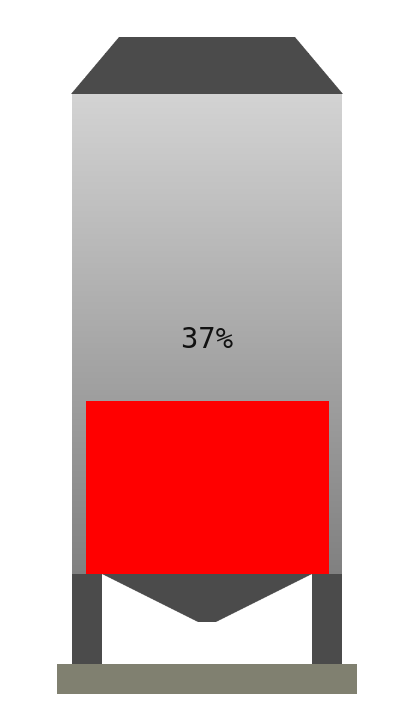
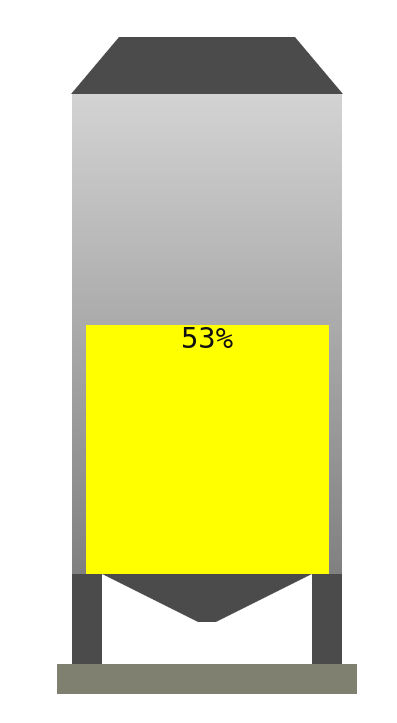
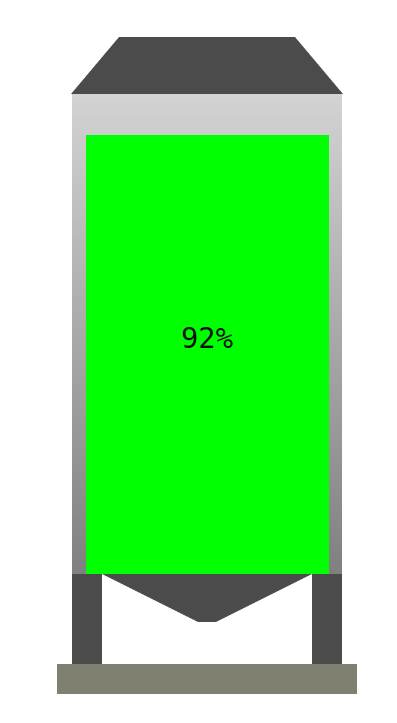
As you can see, we display the payload that is sent to the template node. The color of the gauge changes depending on the value given, in this case red is displayed if the percentage is under 50, yellow between 51 and 75 and green over 75.
To test the template we are going to set the following flow:
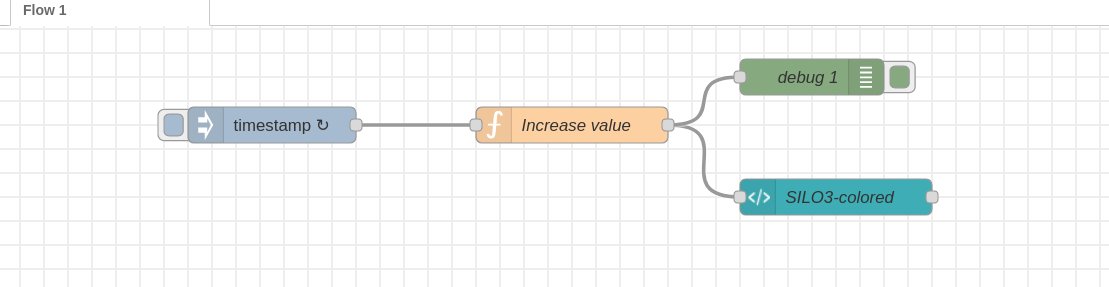
The flow has the following nodes:
- Inject node: set inject to be repeated every second
- Function node: this function will send a value as payload that is increased every injection time, the function values have a range [0-100]
- Template node: where our gauge design is implemented (needed to configure dashboard settings)
- [Optional] Debug node: to see the values displayed from the function node
Once the flow is implemented, deploy the project and go to the dashboard to see how our design is working.