
Introduction
Profinet (Process Field Network) is an open industrial Ethernet standard designed for automation and process control applications. It serves as a communication protocol for connecting devices such as PLCs, HMIs, sensors, actuators and other industrial equipment in the industrial environment.
This post implements two examples to test the communication between ESP32 as a master and PLC series S7 as slave via Profinet protocol library.
Requirements for this tutorial
- x1 ESP32 board with Ethernet port module.
- x1 Ethernet Cable.
- x1 Cable micro USB.
- x1 PLC S7 series (If you don't have any PLC you can use a PLC simulator application e.g: PLCSIM ).
Note: Industrial Shields does not provide Profinet libraries to control the Inputs & Outputs. You can use our libraries based on C++, Python or Node-Red that you can find in our official github.
First Steps: setting the environment:
Downloading Profinet library in ArduinoIDE
- Download the Profinet library master from Github as .zip file.
- Open ArduinoIDE application.
- Tap on Sketch --> Include Library --> Add .zip library.
- Select the library downloaded in step 1.
Creating a virtual PLC in PLCSIM
If you already have a S7 Series PLC you can skip this step.
Note: In order to simulate a PLC, the application used is S7-PLCSIM and TIA PORTAL to configure the PLC
If you download and open PLCSIM app, it should pop up an interface similar like this:
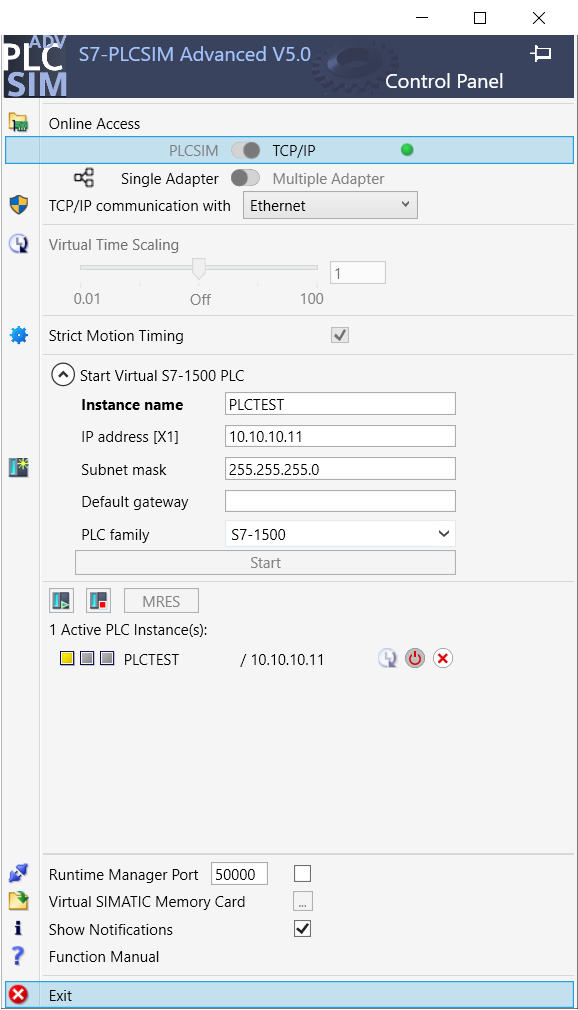
It is needed to activate TCP/IP communication via Ethernet option. Once enabled this configuration, we configure the network settings such as IP Address and Subnet mask. In this example the IP used is 10.10.10.11 and the Gateway 255.255.255.0. (This IP is used temporally)
As you can see, after creating the PLC, it appears the PLC on Active PLC instance(s) with a yellow light, this means the PLC is on STOP mode, to RUN the PLC it is needed to upload a program on it. Creating and uploading a program is shown in the next step.
Configuring the PLC with TIA Portal
In this section we are going to learn how to configure the PLC for testing with Profinet protocol.
- Open TIA PORTAL and create a new project
- Select Devices & networks option --> Add a new device
- Select one of the S7 series PLC (preferable S7-1500 or S7-1200)
- In this tutorial the PLC selected is 1511C-1 PN
- If a security setting pops up, a password is needed to be set
Now it is needed to configure the PLC to enable ESP32 establish communication with it.
First, got to the left bar, on devices, right click on the PLC folder and click on properties option
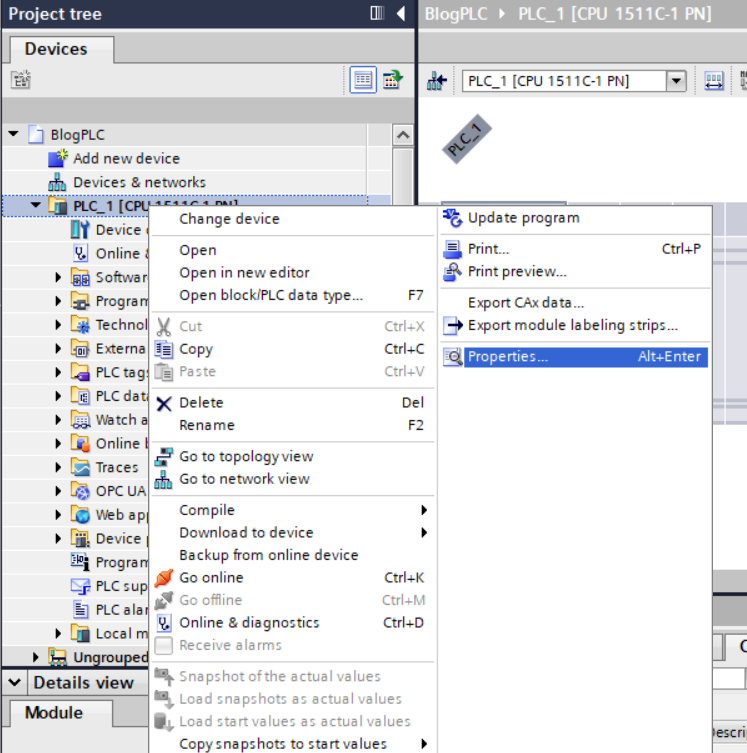
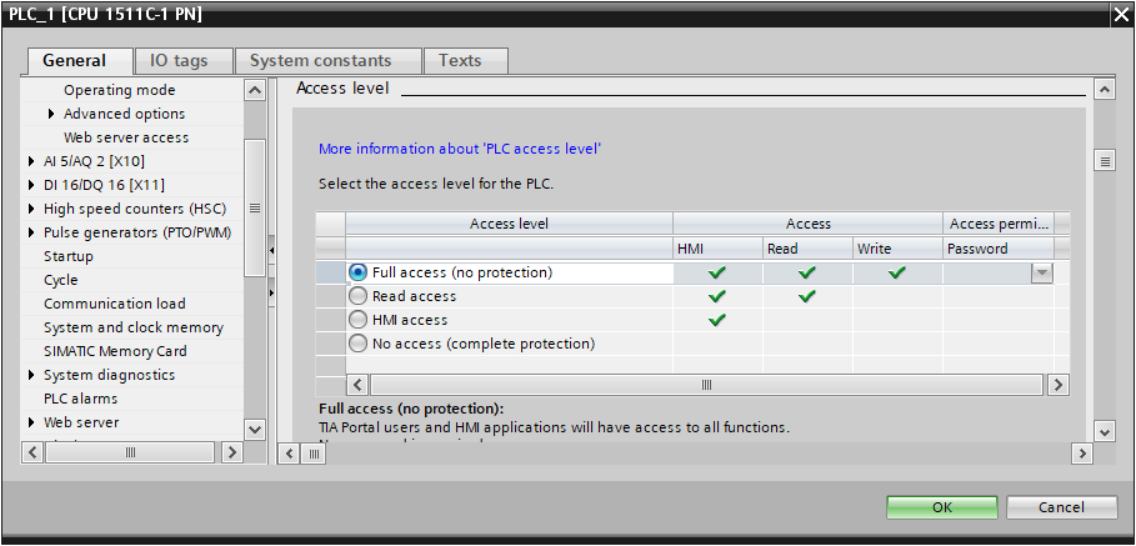
Once a pop up appears, go to general options, scroll down to access level and select full access. This option will enable ESP32 to access the contents of the PLC, including making read and write operations.
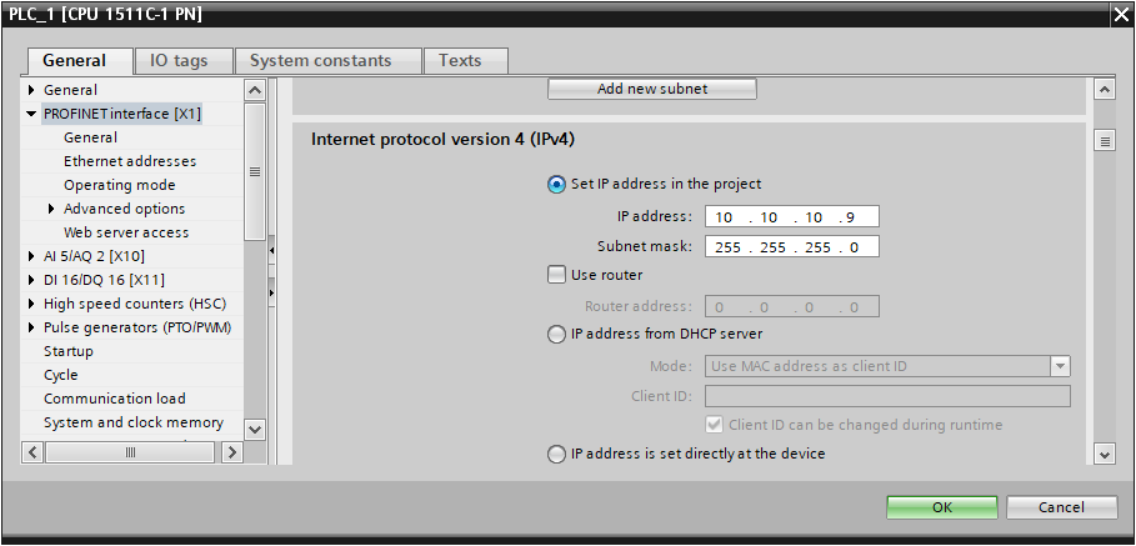
The following step is to configure the Profinet interface, on general options, scroll down to PROFINET interface [x1], go to Internet protocol version 4 (IPV4) and set an IP address and subnet mask. In this case the IP set is 10.10.10.9 and netmask 255.255.255.0 . It is important an set the IP and netmask compatible with the PLC so they are in the same subnet.
Note: if you want to use the IP set on the PLC, select the option IP address is sect directly at the device. Otherwise the IP of the PLC will be changed to Profinet IP.
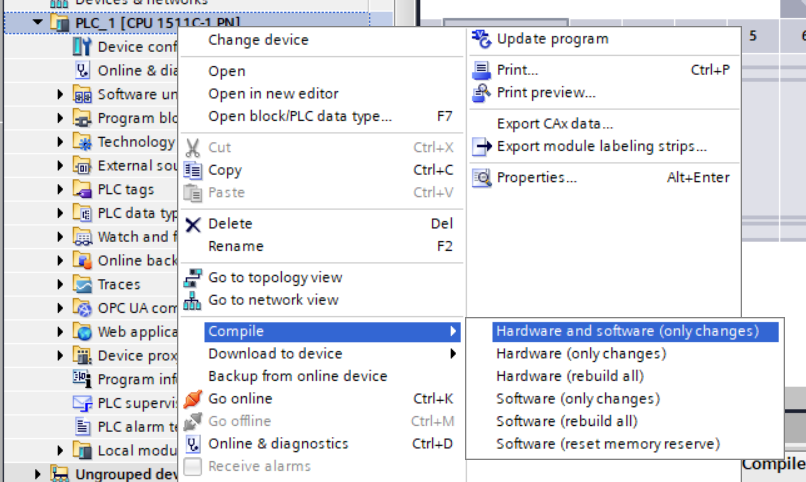
After completing the previous steps the program can be compiled. To compile the program go to the left bar, on devices, right click on the PLC folder --> Compile --> Hardware and software (only changes).
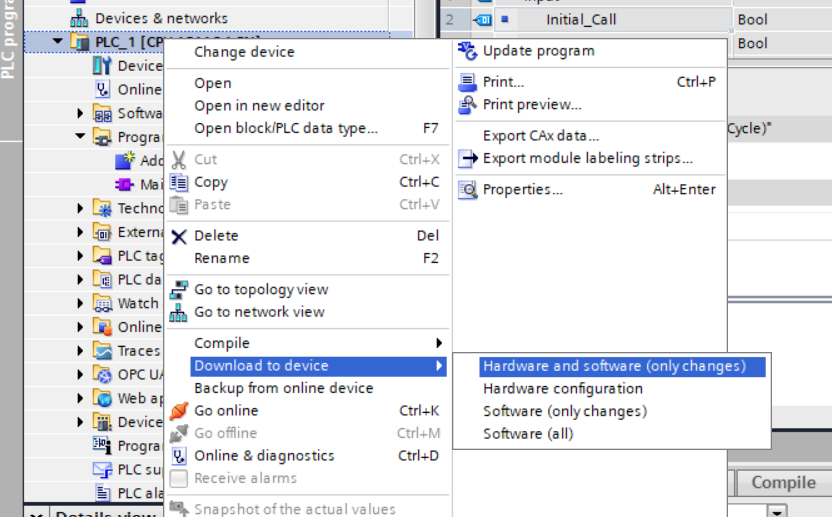
Once the compilation is done successfully, it is time to download the program to the device. In order to do this step, go to the left bar, on devices, right click on the PLC folder --> Download to device --> Hardware and software (only changes)
A pop up should appear, in this interface, on PG/PC interface select Siemens PLCSIM Virtual Ethernet Adapter, then we search for the device. The PLC created with PLCSIM should appear on the devices once analyzed.
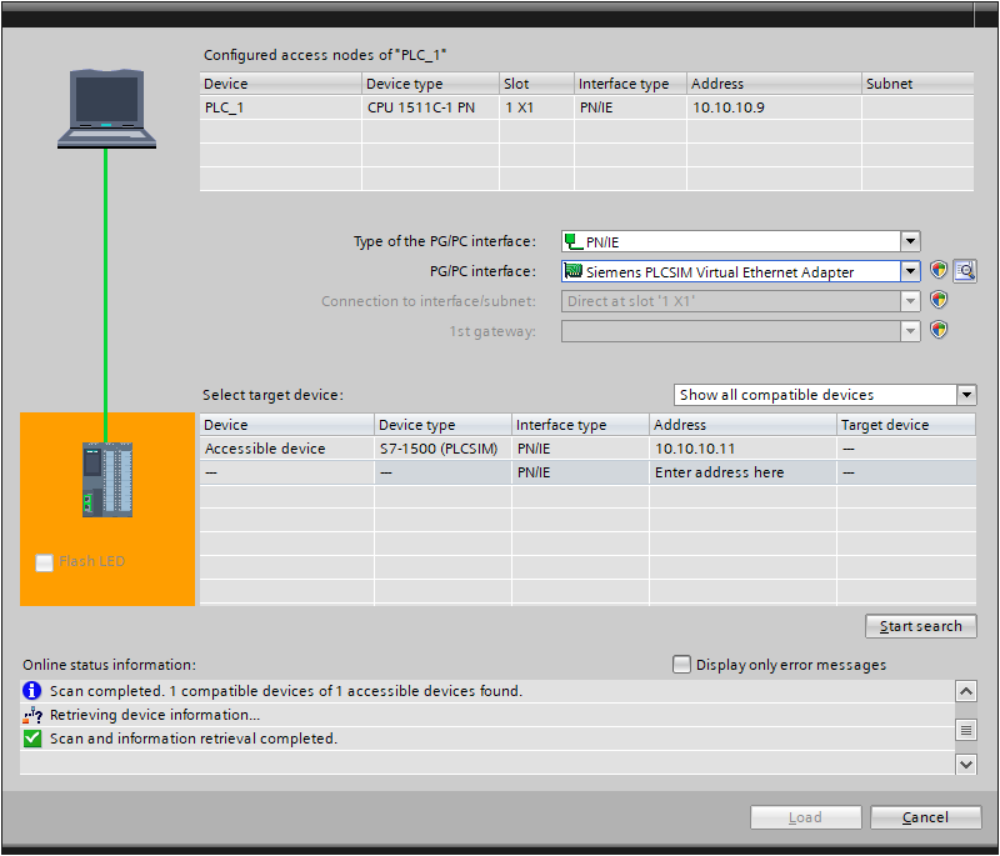
If a device is found, click on the device and load the program on it. During the loading it may ask for a password in order to download the program to the PLC, this is the password that was set previously. If the loading is successful, you should be able to turn on RUN mode (green light) the PLC on the PLCSIM application.
Troubleshoot: if during the downloading of the program to the PLC, the error "Can't load CPUCommon" pops up, it is needed to enable the option "Support simulation during block compilation" on project properties.
Test 1: read the status of the PLC using profinet protocol
Once the environment for the testing is set, it is time to try some sample tests. First connect ESP32 board to the PLC (or the device where you have PLCSIM running), using the Ethernet cable. (If using ESP32 PLC series, you need to plug a power source to enable the Ethernet port working).
Then open ArduinoIDE and select the example test "StatusDemo.ino" included in the library. You have to change the IP Address and Submask with the IP Address of the PLC. (In this example PLC IP: 10.10.10.9, Submask 255.255.255.0 and ESP32 IP 10.10.10.4).
Note: before uploading the program, depending on the PLC model used, you need to change some parameters of the code, in this case as we are using a S7-1500 model, change Rack and Slock parameters to 0.
Apply changes, configure ESP32 board and model you are using and load the program. To view the state of the PLC open serial monitor.
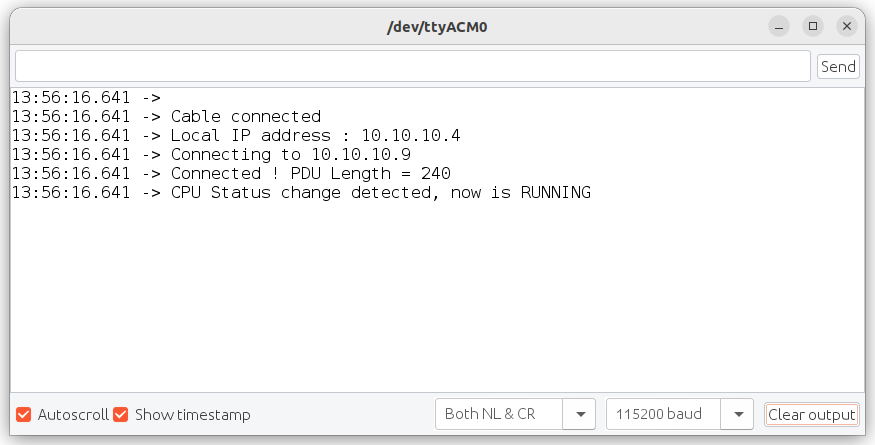
As you can see is detecting the state of the PLC. If we change the mode of the PLC from RUN to STOP mode the Arduino will detect that change. We can also disconnect and connect the Ethernet cable to see how the program resumes automatically.
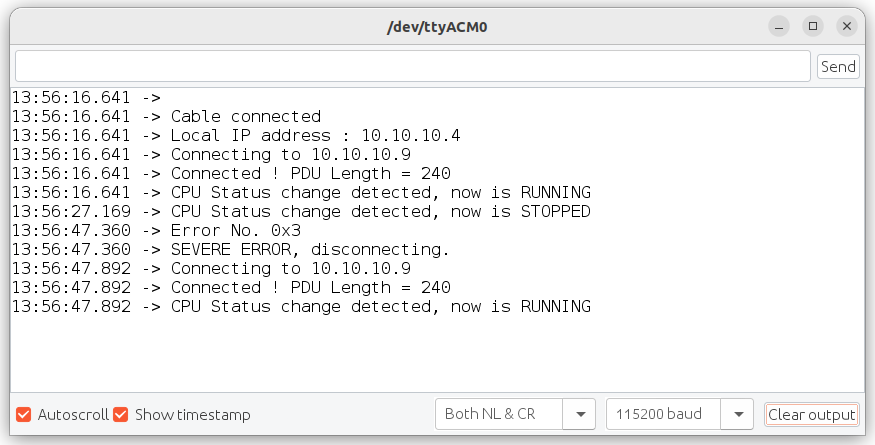
Test 2: read database from PLC using Profinet protocol
In this test we are going to create a database, load it into the PLC and then read the contents of it using the ESP32 module via Profinet protocol.To do this test the PLC project created for the previous test can be reused.
In the first place, it is needed to enable PUT/GET mode for remote partner. This option enables the PLC to transfer data to a remote PLC (in this case ESP32).
To enable this mode go to PLC properties --> General Options --> Protection & Security --> Connection mechanisms.
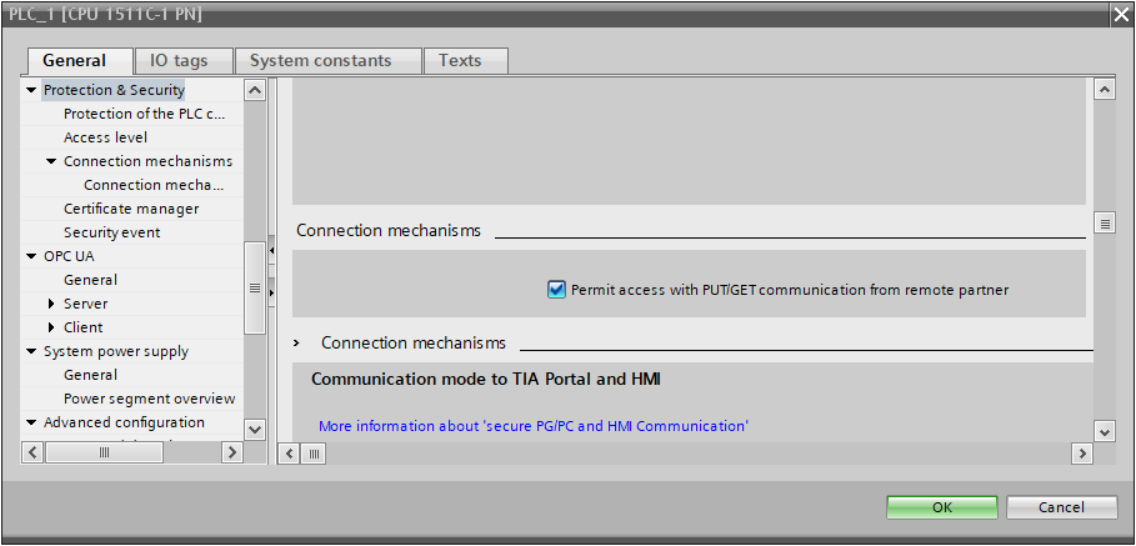
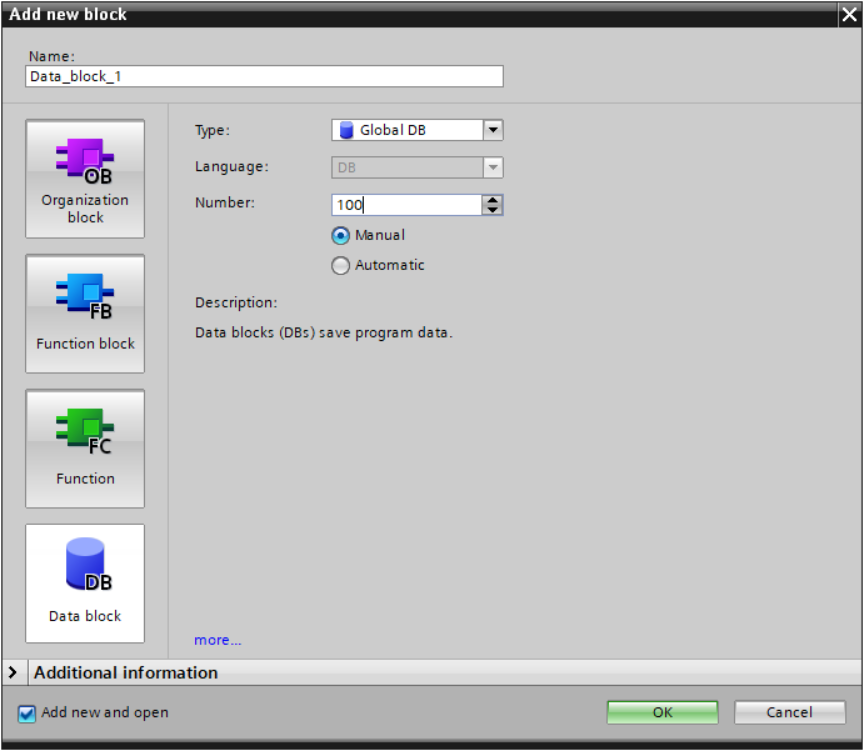
Once this option is enabled let's proceed to create a database. On the PLC folder, go to Program Blocks and add a new block. Select Data Block and set a number of the Data Block. The number of the Data Block is important due to it is needed to indicate the database ESP32 has to read (in this test the Data Block number set is 100).
When the data block is created it is time to insert some values into de database. First create a new variable (e.g. Data_test) an Array[0..10] of int and set some default values in it.
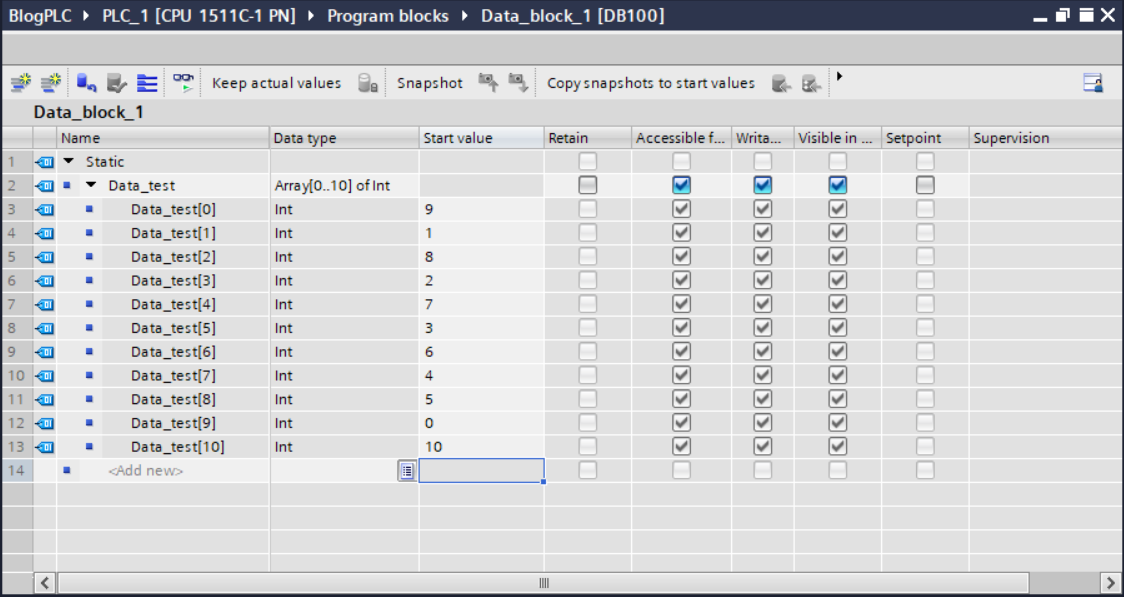
After inserting some values into the Data Base, it is needed to disable Optimized Block Access mode on Data Block properties. After this option is disabled, the program can be compiled and uploaded to the PLC, The process of compilation and uploading is the same as done previously.
Before testing the program it is needed to do some modifications in the "ReadDemo.ino" program test:
- Modify IP address and gateway according to the IP of the PLC
- Insert the number of the database created before (DBNum variable) (e.g:100).
- Change the value of the "Size" variable from 64 to 22.
After implementing this modifications, the program can be tested.
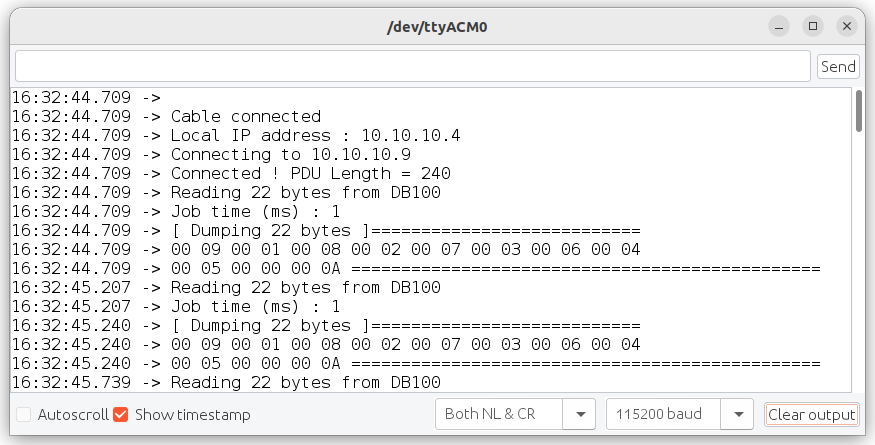
The image above shows the values read from the database of the PLC [9,1,8,2,7,3,6,4,5,0,10] in hexadecimal.