
To trigger PROFINET alarms with CODESYS on a Raspberry PLC, make the Raspberry PLC the IO-controller with CODESYS Control for Raspberry Pi SL, install the GSDML file of the p-net sample application, add the device with a DIO 8xLogicLevel module and run pn_dev on the IO-device. Each time Button2 of the IO-device goes to 1, the device sends the next event of its demo sequence: a process alarm, diagnosis entries, a logbook entry and an abort of the connection. CODESYS shows them in the Log and Status tabs.
This is part 2 of the PROFINET tutorial for the Raspberry PLC. In part 1 you built p-net and ran the IO-device sample application on Linux. Here CODESYS on the Raspberry PLC connects to that device, exchanges cyclic data every few milliseconds and receives its alarms.
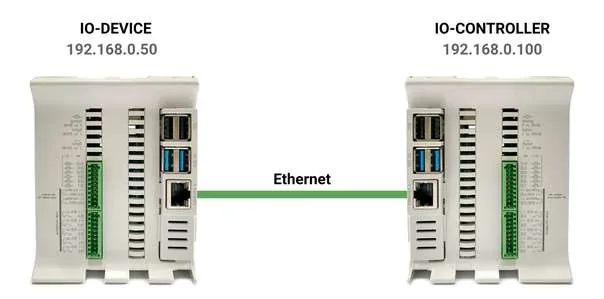
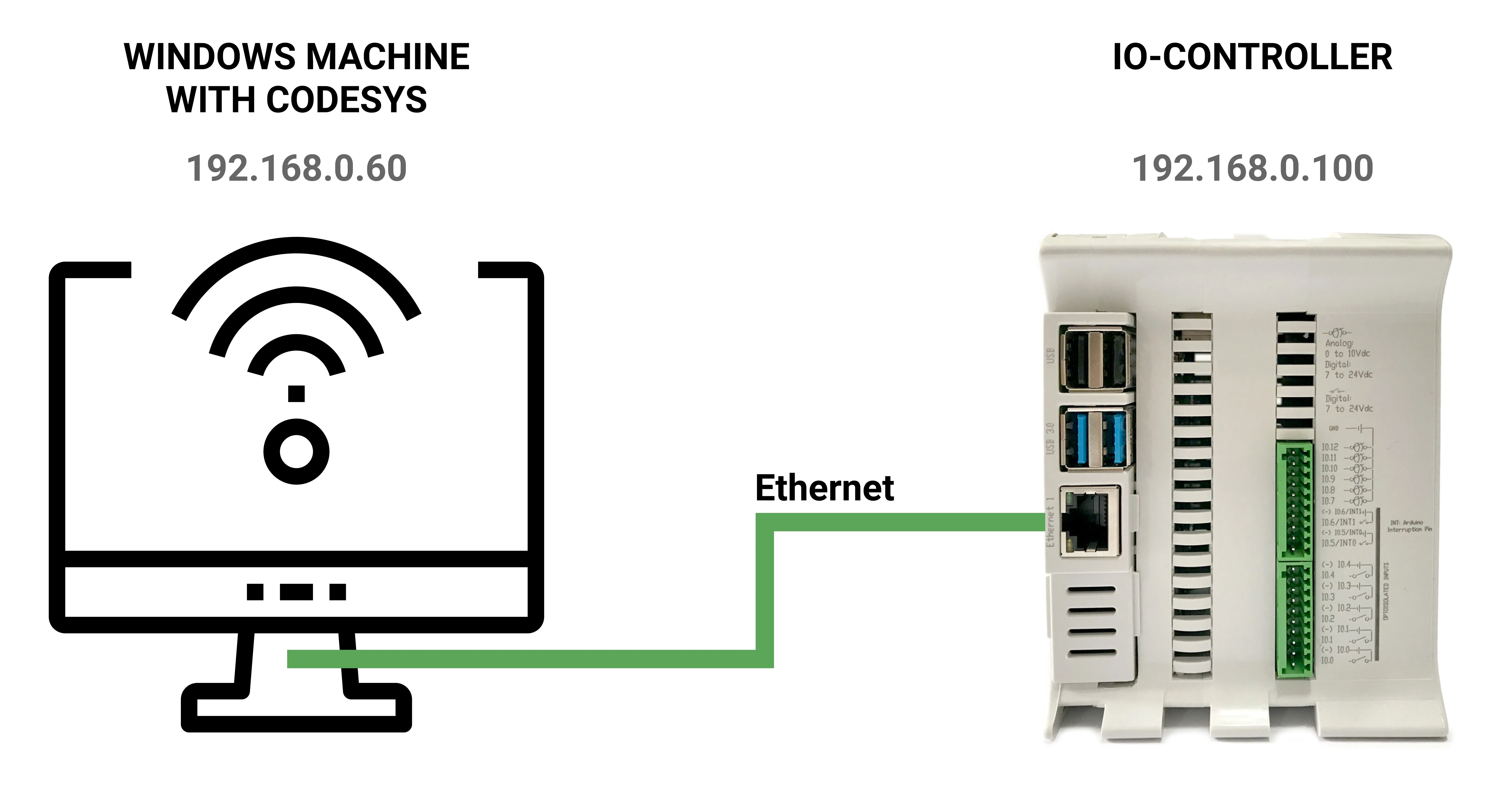
What you build in this tutorial
| Device | Role | IP address |
|---|---|---|
| Windows PC with CODESYS Development System V3.5 | Programs and configures the IO-controller. It is not part of the PROFINET exchange | 192.168.0.60 |
| Raspberry PLC with CODESYS Control for Raspberry Pi SL | PROFINET IO-controller | 192.168.0.100 |
| Second Raspberry PLC, or a Raspberry Pi | PROFINET IO-device with the p-net sample application (station name rt-labs-dev) | 192.168.0.50 |
The IO-device exchanges one byte in each direction with the controller. In the input byte, bits 0 to 6 are a counter and bit 7 is Button1. In the output byte, bit 7 drives the data LED of the device. The CODESYS program below makes that LED flash, and Button1 switches the flashing on and off.
- Two Raspberry PLC units with Ethernet, or one Raspberry PLC and a Raspberry Pi, and their power supply
- An Ethernet switch and three Ethernet cables
- A Windows PC with CODESYS Development System V3.5 and the CODESYS Control for Raspberry Pi SL package
- Internet access on the IO-device to download p-net, by LAN or Wi-Fi
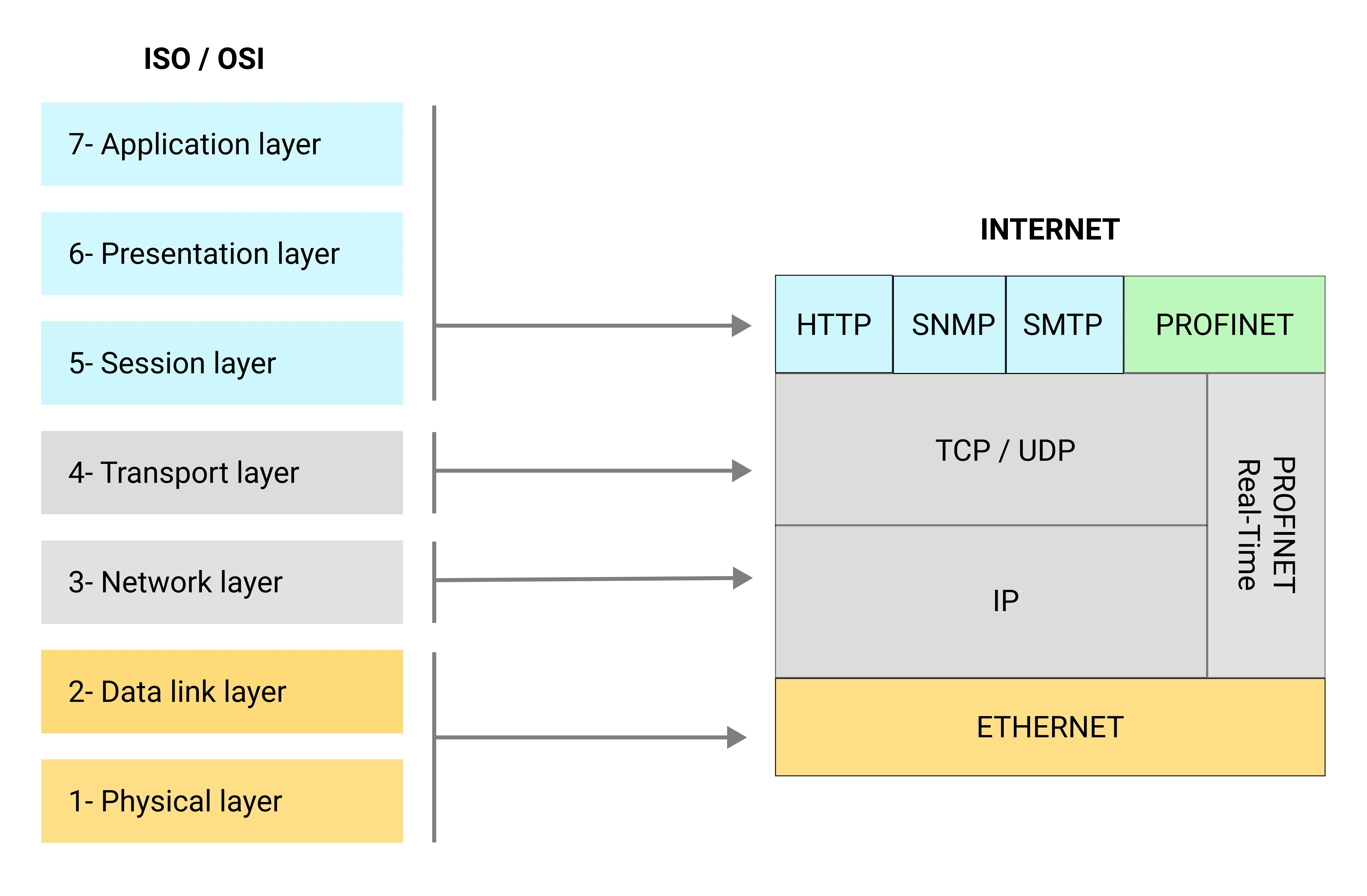
Where PROFINET sits in the ISO/OSI model
PROFINET uses two paths. Configuration, parameters and acyclic reads and writes go over UDP/IP, like any other IP application. Cyclic I/O data and alarms of PROFINET Real-Time skip the IP and transport layers and go directly in Ethernet frames with Ethertype 0x8892. That short path is what makes cycle times of a few milliseconds possible on standard Ethernet hardware.
For the PROFINET channels, the role of LLDP and DCP and the limits of p-net, see part 1. To compare PROFINET with other industrial Ethernet protocols, read EtherNet/IP vs PROFINET vs Modbus TCP.
Prepare the IO-controller: CODESYS on the Raspberry PLC
- Connect the PC to the side Ethernet port (eth0) of the Raspberry PLC. The PLC answers at 10.10.10.20 by default, so give the PC an address in that network and connect with SSH:
ssh [email protected] - Give eth0 of the Raspberry PLC the address 192.168.0.100/24, following how to configure a static IP on a Raspberry PLC. Then give the PC the address 192.168.0.60/24.
- On the PC, install CODESYS Development System V3.5 and the CODESYS Control for Raspberry Pi SL package, and install the runtime on the PLC with Tools > Update Raspberry Pi (Deploy Control SL in recent versions). Setting up CODESYS for Raspberry Pi PLC explains each step, the versions to use and the license terms.
- Create a Standard project, select the device CODESYS Control for Raspberry Pi SL and the language Structured Text (ST). Use the same runtime variant in the project and on the PLC: SL (single core) or SL MC (multicore). With different variants, CODESYS does not find the controller.
- Double-click Device, open the Scan Network tab and select the Raspberry PLC. The marker turns green. To check the link, use Send Echo Service on the Device tab.
Demo mode. Without a license, the CODESYS runtime works for two hours and then stops. Restart it, or reboot the PLC, to get two more hours.
Add the PROFINET controller and the p-net device in CODESYS
- Copy the GSDML file of the sample application to the PC. It is in the p-net folder that you cloned on the IO-device in part 1,
p-net/sample_app/GSDML-V2.4-RT-Labs-P-Net-Sample-App-20220324.xml. From the PC:
You can also download it from the v0.2.0 tag of the p-net repository. Do not use the old link toscp [email protected]:/home/pi/profinet/p-net/sample_app/GSDML-V2.4-RT-Labs-P-Net-Sample-App-20220324.xml .samples/pn_devon the master branch: that folder no longer exists. - In CODESYS, open Tools > Device Repository, press Install and select the GSDML file.
- Right-click Device (CODESYS Control for Raspberry Pi SL) > Add Device > Ethernet Adapter > Ethernet.
- Right-click Ethernet > Add Device > PROFINET IO Master > PN-Controller.
- Right-click PN_Controller > Add Device > P-Net Sample App.
- Right-click P_Net_Sample_App > Add Device > DIO 8xLogicLevel. This module has 8 digital inputs and 8 digital outputs.
- Double-click Ethernet and select the interface eth0. CODESYS reads its IP address, 192.168.0.100.
- Double-click PN_Controller and set both First IP and Last IP to 192.168.0.50, the address of the IO-device. Do not include the address of the PC in this range.
- Double-click P_Net_Sample_App and, on the General tab, set the IP address to 192.168.0.50. The station name must be
rt-labs-dev, the name that the GSDML file proposes and thatpn_devuses by default.
Structured Text program: flash the data LED of the IO-device
Open Application > PLC_PRG (PRG). The editor has a declaration part at the top and the program body at the bottom.
Declaration part:
PROGRAM PLC_PRG
VAR
    in_pin_button_LED : BOOL;          (* Input Bit 7: Button1 of the IO-device *)
    out_pin_LED : BOOL;                (* Output Bit 7: data LED of the IO-device *)
    in_pin_button_LED_previous : BOOL;
    flashing : BOOL := TRUE;
    oscillator_state : BOOL := FALSE;
    oscillator_cycles : UINT := 0;
END_VAR
Program body:
oscillator_cycles := oscillator_cycles + 1;
IF oscillator_cycles > 200 THEN
    oscillator_cycles := 0;
    oscillator_state := NOT oscillator_state;
END_IF;

IF in_pin_button_LED = TRUE THEN
    IF in_pin_button_LED_previous = FALSE THEN
        flashing := NOT flashing;
    END_IF;
    out_pin_LED := TRUE;
ELSIF flashing = TRUE THEN
    out_pin_LED := oscillator_state;
ELSE
    out_pin_LED := FALSE;
END_IF;
in_pin_button_LED_previous := in_pin_button_LED;
With the 4 ms task of the next step, the output changes every 200 cycles, about 0.8 s. When Button1 goes to 1, the LED stays on and the flashing toggles on or off. This is the program of the p-net documentation, with END_IF; in the standard IEC 61131-3 form. We compiled it with the open source IEC 61131-3 compiler matiec, without errors. We did not run it in CODESYS for this edition.
Map the I/O, set the tasks and download the program
- Right-click DIO_8xLogicLevel > Edit IO mapping. Expand Input 8 bits, double-click the icon of Input Bit 7, press [...] and select Application > PLC_PRG > in_pin_button_LED.
- In the same way, map Output Bit 7 to out_pin_LED.
- Open Application > Task Configuration > MainTask and select Cyclic, 4 ms.
- Open Profinet_CommunicationTask and select Cyclic, 10 ms. The p-net documentation uses priority 14.
- Use Build > Generate Code.
- Use Online > Login and answer Yes to download the application to the PLC. Then use Debug > Start.
- Follow the controller log in Tools > Update Raspberry Pi > System Info, in the Runtime Info box. It shows an error if the controller does not find the IO-device.
Once the controller is configured, you can switch off the PC. The PLC keeps the application. Until the IO-device answers, the controller sends LLDP frames every 5 seconds, and every 15 seconds an ARP request for 192.168.0.50 and a DCP request for the station name rt-labs-dev. You can see them with the tshark capture of part 1.
Run the p-net IO-device with simulated buttons
On the IO-device, build p-net v0.2.0 as in part 1. In short:
sudo apt update
sudo apt install -y git cmake build-essential
mkdir -p /home/pi/profinet
cd /home/pi/profinet
git clone --branch v0.2.0 --recurse-submodules https://github.com/rtlabs-com/p-net.git
cmake -B build -S p-net -DBUILD_TESTING=OFF
cmake --build build --target install
The default branch of p-net no longer has the build system or the sample application, so clone the v0.2.0 tag. The first edition of this post cloned the default branch and installed cmake with snap: those commands no longer build pn_dev. We built these commands with cmake 3.28 and gcc 13 on x86 Linux, and pn_dev -h reports p-net revision 0.2.0. We did not repeat the build on a Raspberry PLC (ARM).
- Bring up eth0 with its initial address and keep NetworkManager away from it, so that the controller can set the name and the address with DCP:
sudo nmcli device set eth0 managed no sudo ip link set eth0 up sudo ip addr add 192.168.0.50/24 dev eth0 - Create two text files that replace the buttons. On a Raspberry PLC, do not use GPIO 27 and 22 for buttons as on a plain Raspberry Pi: the PLC uses its GPIOs.
cd /home/pi/profinet/build touch button1.txt button2.txt - Start the sample application in the background, with the button files:
sudo ./pn_dev -v -b /home/pi/profinet/build/button1.txt -d /home/pi/profinet/build/button2.txt & - Watch the data LED, which the script
set_profinet_ledswrites to a text file in the build folder:watch -n 0.1 cat /home/pi/profinet/build/pnet_led_1.txt
When the controller connects, pnet_led_1.txt changes between 0 and 1. Write 1 and then 0 to button1.txt to toggle the flashing:
echo 1 > /home/pi/profinet/build/button1.txt
echo 0 > /home/pi/profinet/build/button1.txt
To stop the application, run sudo pkill pn_dev.
Trigger PROFINET alarms from the IO-device
Button2 runs a demo sequence in the sample application. Each time button2.txt goes from 0 to 1, the device does the next step and prints it in its console:
echo 1 > /home/pi/profinet/build/button2.txt
echo 0 > /home/pi/profinet/build/button2.txt| Press | What the IO-device does |
|---|---|
| 1 | Sends a process alarm from the input module, with USI 0x0010 and a one byte payload that increases with each alarm |
| 2 and 3 | Sets the cyclic data state to backup and redundant, then back to primary and not redundant |
| 4 and 5 | Adds a standard channel diagnosis (channel 4, error type short circuit, severity fault), then updates it |
| 6, 7 and 8 | Adds, updates and removes a diagnosis in USI format |
| 9 | Removes the standard channel diagnosis |
| 10 | Writes an entry in the logbook of the device |
| 11 | Aborts the connection (AR). The controller normally connects again, and the next press sends a process alarm again |
The device sends a new process alarm only after the controller has acknowledged the previous one. In CODESYS, process and diagnosis alarms appear on the Log tab of the Raspberry Pi device, of PN_Controller and of P_Net_Sample_App, and on the Status tab of the plugged module. On the network, the alarm is an Alarm Notification frame from the device, followed by an Alarm Ack from the controller.
Troubleshooting the CODESYS and p-net connection
| Symptom | What to check |
|---|---|
| The device "Codesys Control for Raspberry Pi SL" is not in the list | The Raspberry Pi package is not installed. Install it and restart CODESYS. |
| Scan Network does not find the PLC | Same runtime variant (SL or SL MC) in the project and on the PLC, PC address in the same network, runtime running. |
| The controller does not find the IO-device | Station name rt-labs-dev, First IP and Last IP set to 192.168.0.50, pn_dev running, NetworkManager not managing eth0 on the device. |
PNET_EVENT_ABORT with error code 5 or 6 on the device | Timeouts on Linux without real-time patches. Increase the reduction ratio and the watchdog time on the General tab of P_Net_Sample_App, then lower them step by step. |
| The connection stops after two hours | CODESYS demo mode. Restart the runtime or add a license. |
| cmake fails on the IO-device | You cloned the default branch. Clone the v0.2.0 tag. |
The documentation of p-net v0.2.0, with more CODESYS details, is in the doc folder of the cloned repository (using_codesys.rst and codesys_details.rst).
Use the Raspberry PLC as a gateway between protocols. With CODESYS, the same PLC can be a PROFINET IO-controller, a Modbus TCP or RTU master and a link to a higher system. To see a Raspberry PLC that collects data from field protocols and sends it on, read the onboard data gateway case study.
FAQ about PROFINET with CODESYS on the Raspberry PLC
Can a Raspberry PLC be a PROFINET IO-controller?
Yes. CODESYS Control for Raspberry Pi SL runs on the Linux of the Raspberry PLC, and the PROFINET controller of CODESYS connects to IO-devices described by a GSDML file, as in this tutorial.
What is a GSDML file?
An XML file that describes a PROFINET IO-device to the engineering tool of the controller: modules, I/O data, timing, alarms and station name. The p-net sample application comes with its own GSDML file.
How does an IO-device send an alarm to the PLC?
Through the alarm channel of the PROFINET connection. The device sends an Alarm Notification with slot, subslot and data, and the controller answers with an Alarm Ack. In the p-net sample application, Button2 sends a process alarm.
Which cycle time can I use with p-net on Linux?
The sample application GSDML file declares a send clock of 1 ms. On Linux without real-time patches, use a reduction ratio to slow down the exchange if the connection aborts with timeouts.
Do I need the Windows PC once the controller runs?
No. The PC programs the controller. After the download, you can switch it off and the Raspberry PLC keeps running the application.
More about the Raspberry PLC on industrial networks
- PROFINET on Linux: run the p-net IO-device stack (part 1)
- Setting up CODESYS for Raspberry Pi PLC
- Ladder programming with CODESYS on a Raspberry PLC
- How to check the Ethernet configuration
- Choosing an industrial controller
Choose the model and the I/O mix in the Raspberry PLC family.