
Complete guide: Modbus RTU and TCP with Python and Node-RED
To write and read a coil over Modbus RTU from a Raspberry PLC in Node-RED, install the node-red-contrib-modbus nodes and create a Modbus-Client with Type Serial, the RS-485 port of your PLC (/dev/ttySC0 or /dev/ttySC2), Serial type RTU and the serial settings of the slave. Then use a Modbus Write node with FC 5 and a Modbus Read node with FC 1, both with the Unit-Id of the slave. The flow of this post was tested with Node-RED 4.1 and node-red-contrib-modbus 5 against a simulated slave.
This is part 1 of the Modbus and Raspberry PLC series. Parts 1 and 2 use Node-RED, and parts 3 and 4 use Python. All the details, such as timeouts, addressing, 32-bit values and troubleshooting, are in the Modbus guide for Raspberry Pi PLCs.
What you need
- A Raspberry PLC with Node-RED. It is the Modbus RTU master. If Node-RED is not installed yet, see how to install Node-RED on a Raspberry PLC.
- A Modbus RTU slave: any device with RS-485, or another Industrial Shields PLC working as a slave, for example an Arduino or ESP32 based PLC as in Modbus RTU with Arduino and ESP32 based PLCs.
- RS-485 wiring: A+ to A+ and B- to B-, with termination at the ends of the bus.
- The serial settings of the slave: address (Unit-Id), baud rate, parity and stop bits. This post uses Unit-Id 31 at 38400 bit/s, 8N1. Change them to match your slave.
Start Node-RED and install the Modbus nodes
Start Node-RED in a terminal of the PLC:
node-red-startOpen the editor in a browser. From another computer, use http://PLC_IP_ADDRESS:1880. On the PLC itself, with a screen connected, use http://127.0.0.1:1880.
Open Menu, Manage palette (or press Alt+Shift+P), go to the Install tab, search for node-red-contrib-modbus and install it. Version 5.62 of these nodes needs Node-RED 4 or later and Node.js 22 or later, so check node -v first.
Configure the Modbus-Client for RS-485
Drag a Modbus Write node to the flow, double click it, and click the pencil icon next to Server. This opens the Modbus-Client: the connection that all Modbus nodes of the flow share.
| Field | Value | Note |
|---|---|---|
| Type | Serial | Modbus RTU goes over the serial port |
| Serial port | /dev/ttySC0 or /dev/ttySC2 | v3, and v4 without expansion: /dev/ttySC0 and /dev/ttySC1. v6, and v4 with expansion: /dev/ttySC2 and /dev/ttySC3. Check with ls /dev/ttySC* |
| Serial type | RTU | |
| Baud rate | 38400 | The same as the slave |
| Data bits, parity, stop bits | 8, None, 1 | The same as the slave |
| Unit-Id | 1 | Default Unit-Id for the nodes that leave their own Unit-Id empty. It is not the address of the master: in Modbus RTU the master has no address |
Give the configuration a name and click Update. If the flow talks to several RS-485 ports, create one Modbus-Client for each port and check that every node uses the right one.
Write a coil with Modbus Write (FC 5)
Configure the Modbus Write node:
- Unit-Id:
31, the address of the slave. - FC:
FC 5: Force Single Coil. - Address:
0. Coil 00001 in the manual of the device is address 0. - Quantity:
1. - Server: the Modbus-Client of the previous step.
Add an Inject node, set msg.payload to the boolean true and connect it to Modbus Write. Add a second Inject node with the boolean false. Each click on an Inject node sends one write request: true turns the coil on and false turns it off.

Read the coil with Modbus Read (FC 1)
Add a Modbus Read node with the same Modbus-Client:
- Unit-Id:
31, the same slave. - FC:
FC 1: Read Coil Status. - Address:
0. Quantity:1. - Poll Rate:
1second.
Connect a Debug node to the first output of Modbus Read, which gives the data array. The second output gives the raw Modbus response. Click Deploy. The Debug panel shows a new message every second. The answer carries the coils in whole bytes, so the array has 8 values even if you read one coil. The first value is coil 0.
In our test, after a click on the true Inject node, the next reads showed an array that starts with true, and after a click on false, an array that starts with false.
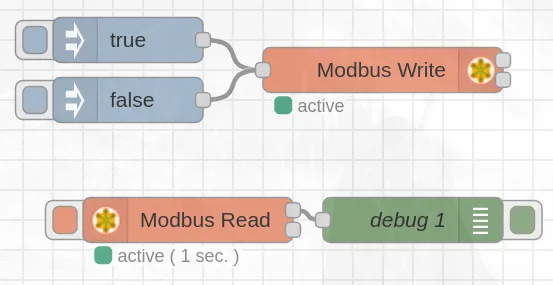
Import the complete flow
To skip the manual steps, open Menu, Import, paste this flow and click Import. Then change the serial port and the Unit-Id to the values of your PLC and your slave.
[{"id":"5e1ff7e5bdc20aad","type":"tab","label":"Flow 1","disabled":false,"info":"","env":[]},{"id":"bf0737313ed47579","type":"modbus-write","z":"5e1ff7e5bdc20aad","name":"","showStatusActivities":true,"showErrors":true,"showWarnings":true,"unitid":"31","dataType":"Coil","adr":"0","quantity":"1","server":"d71fcab96da43404","emptyMsgOnFail":false,"keepMsgProperties":false,"delayOnStart":false,"startDelayTime":"","x":660,"y":300,"wires":[[],[]]},{"id":"ecf9141ee03c86bc","type":"inject","z":"5e1ff7e5bdc20aad","name":"","props":[{"p":"payload"},{"p":"topic","vt":"str"}],"repeat":"","crontab":"","once":false,"onceDelay":0.1,"topic":"","payload":"true","payloadType":"bool","x":510,"y":280,"wires":[["bf0737313ed47579"]]},{"id":"d3759149be3b0b7e","type":"inject","z":"5e1ff7e5bdc20aad","name":"","props":[{"p":"payload"},{"p":"topic","vt":"str"}],"repeat":"","crontab":"","once":false,"onceDelay":0.1,"topic":"","payload":"false","payloadType":"bool","x":510,"y":320,"wires":[["bf0737313ed47579"]]},{"id":"8f43e9aa567f6f3c","type":"modbus-read","z":"5e1ff7e5bdc20aad","name":"","topic":"","showStatusActivities":false,"logIOActivities":false,"showErrors":false,"showWarnings":true,"unitid":"31","dataType":"Coil","adr":"0","quantity":"1","rate":"1","rateUnit":"s","delayOnStart":false,"startDelayTime":"","server":"d71fcab96da43404","useIOFile":false,"ioFile":"","useIOForPayload":false,"emptyMsgOnFail":false,"x":530,"y":400,"wires":[["d2d923f66ea77a31"],[]]},{"id":"d2d923f66ea77a31","type":"debug","z":"5e1ff7e5bdc20aad","name":"debug 1","active":true,"tosidebar":true,"console":false,"tostatus":false,"complete":"false","statusVal":"","statusType":"auto","x":680,"y":400,"wires":[]},{"id":"d71fcab96da43404","type":"modbus-client","name":"ModbusRTU","clienttype":"simpleser","bufferCommands":true,"stateLogEnabled":false,"queueLogEnabled":false,"failureLogEnabled":true,"tcpHost":"127.0.0.1","tcpPort":"502","tcpType":"DEFAULT","serialPort":"/dev/ttySC0","serialType":"RTU","serialBaudrate":"38400","serialDatabits":"8","serialStopbits":"1","serialParity":"none","serialConnectionDelay":"100","serialAsciiResponseStartDelimiter":"0x3A","unit_id":1,"commandDelay":1,"clientTimeout":1000,"reconnectOnTimeout":true,"reconnectTimeout":2000,"parallelUnitIdsAllowed":true,"showWarnings":true,"showLogs":true}]When the slave does not answer
| Symptom | What to check |
|---|---|
| No messages in the Debug panel, Modbus Read shows a timeout | Unit-Id of the slave, baud rate, parity and stop bits, A+ and B- swapped, termination at the ends of the bus |
| The Modbus-Client cannot open the port | The port name for your PLC version, with ls /dev/ttySC* |
| Some reads fail, others work | Two programs on the same port. Only one program can use a serial port: stop the Python scripts or other flows that use it |
| Exception code 02 (illegal data address) | The coil address does not exist in the slave. Check the coil table in the manual of the slave |
| The Modbus nodes do not install or do not appear | Versions of Node-RED and Node.js: node-red-contrib-modbus 5.62 needs Node-RED 4 and Node.js 22 or later |
To see errors in the Debug panel, enable Show Errors in the Modbus Read and Modbus Write nodes.
What we tested. Node-RED 4.1.17 on Node.js 22 (Linux) with node-red-contrib-modbus 5.62.1 and 5.23.3. Version 5.62.1 ran with the modbus-serial 8.0.25 library from npm in place of its own fork of that library. The flow of this post, with only the serial port changed to a virtual serial link, ran against a simulated Modbus RTU slave (pymodbus 3.16.1, Unit-Id 31, 38400 8N1). The true and false Inject nodes turned coil 0 on and off, and Modbus Read showed the new value within one second. We did not run this update on Raspberry PLC hardware: the two screenshots come from the first version of the post.
Which controller for your Modbus project? A Raspberry PLC runs Node-RED and Python on Linux. An Arduino or ESP32 based PLC, a classic PLC, an industrial PC or a gateway can also be the Modbus master. The comparison guide gives the criteria to choose.
Compare industrial controllersOpen the complete Modbus guide
Take it further
After the first Modbus steps on a Raspberry PLC: a real network, a simulator to break it and a Modbus TCP example.
Case study
Many thermometers. One Modbus network.
Local M-Duino PLCs read Modbus RTU thermometers on RS-485, and a main PLC collects the readings over Modbus TCP.
Read the case study
Simulator
Run a Modbus RTU and TCP network and find the fault
An M-Duino 21 polls four Modbus RTU slaves on RS-485 and serves the data on Modbus TCP. Switch a slave off or change the baud rate and find the fault in the frames.
Open the simulator
PLC Solution Library
Reading a Fronius inverter over SunSpec Modbus TCP
A Raspberry Pi reads the AC power of an inverter and the consumption of the Smart Meter over Modbus TCP, to compute the live solar surplus.
See the example
FAQ about Modbus RTU in Node-RED
What is the Unit-Id of the Modbus-Client configuration?
It is the default Unit-Id for the Modbus nodes that leave their own Unit-Id empty. A node with its own Unit-Id uses that value. The Modbus RTU master has no address, so this field never identifies the Raspberry PLC.
Which RS-485 port do I select on a Raspberry PLC?
/dev/ttySC0 or /dev/ttySC1 on the v3, and on the v4 without expansion. /dev/ttySC2 or /dev/ttySC3 on the v6, and on the v4 with expansion. ls /dev/ttySC* lists the ports of your PLC.
Why does the Debug panel show 8 values for one coil?
Because the Modbus answer carries the coils in whole bytes, and the node gives all the bits of those bytes. Use only the first value.
Can a Node-RED flow and a Python script use the same RS-485 port?
Not at the same time. Two programs on one serial port take bytes from each other, and you get timeouts and CRC errors. Stop the flow before you run the script of part 3.
How do I do the same over Ethernet?
With a Modbus-Client of Type TCP and the IP address of the slave. See part 2: Modbus TCP and Node-RED.
More about Modbus on the Raspberry PLC
- Modbus TCP and RTU guide for Raspberry Pi PLCs: Python and Node-RED examples
- Using multiple Modbus RTU slaves in Node-RED
- RS-485 with Raspberry PLC: terminals and loop test
- Part 2: Modbus TCP and Node-RED
- Part 3: Modbus RTU and Python
- Part 4: Modbus TCP and Python
- Modbus RTU frame, function codes and CRC
- Choosing an industrial controller: PLC, embedded controller, IPC or gateway
Choose the model and the I/O mix in the Raspberry PLC family.