In this blog post, we will explore how to use 4G LTE with the ESP32 PLC using the NB library from Industrial Shields, specifically designed for the SARA-R4 module. We will demonstrate how to integrate other protocol libraries like ArduinoHttpClient and MQTT to create a versatile IoT device capable of communicating over a cellular network.This tutorial is designed to help you connect your ESP32 PLC to the internet using 4G.
Why use 4G with your ESP32 PLC?
While the ESP32 is equipped with Wi-Fi and Bluetooth, IoT 4G integration offers a wider range and more reliable internet connectivity for remote applications. In this guide, we’ll demonstrate how to enhance your ESP32 IoT projects with 4G connectivity.
Essential hardware for setting up 4G on ESP32 PLC
Before beginning, make sure you have the following hardware for ESP32 4G connection:
- An ESP32 PLC from the ESP32 PLC family with 4G as an additional communications board. The 4G communications board integrates a U-Blox SARA-R412 module.
- A SIM card compatible with NB-IoT, LTE Cat M1 or GPRS.
- A computer with Arduino IDE and our boards package installed. Ready for programming ESP32 for 4G.
Step-by-step guide to inserting a SIM card in your ESP32 PLC
Proper installation of your SIM card is crucial for a stable ESP32 4G connection:
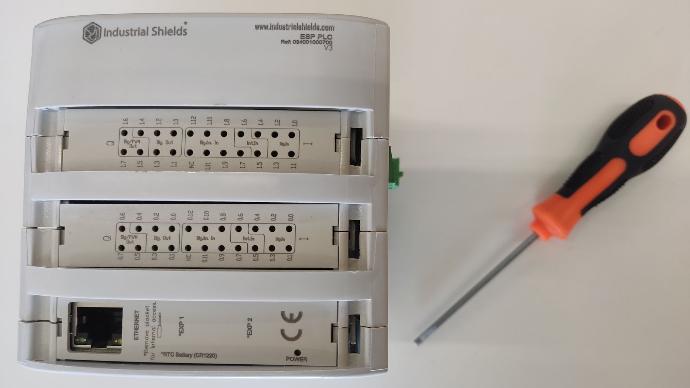
- Remove the Ethernet Port Cover:
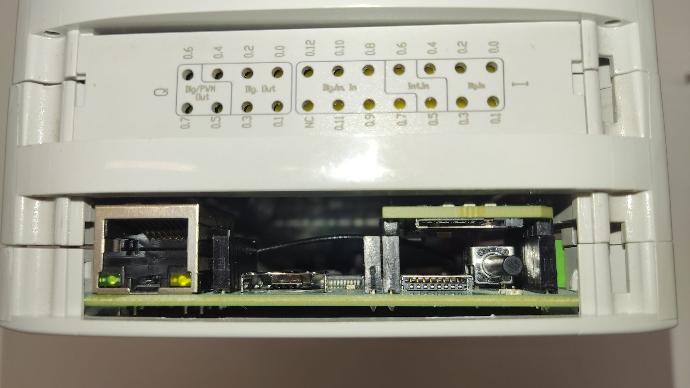
- Locate the Ethernet port on your ESP32 PLC.
- Place your finger into the Ethernet port and apply upward pressure to lift the cover. Alternatively, use a flathead screwdriver to gently pry the cover from one of its sides.
- Insert the SIM Card:
- Once the cover is removed, you will see the SIM card slot located above the reset button.
- Insert the SIM card into the slot with the contact side facing up.
- Replace the Cover:
- After the SIM card is securely in place, reattach the cover by pressing it back down until it clicks into place.
By following these steps, you ensure that your SIM card is correctly installed and ready to use for 4G connectivity with your ESP32 PLC.
Configuring the Arduino IDE for ESP32 PLC 4G communication
"How do I set up my Arduino IDE for ESP32 PLC 4g communication?" Follow these steps to configure your development environment:
- Open the Arduino IDE.
- Select the Industrial Shields ESP32 board family: Tools > Board > Industrial Shields ESP32 Boards > ESP32 PLC Family.
- Select your specific model, for example, the ESP32 PLC 21: Tools > Model > ESP32 PLC 21 IO+.
- Now you need to configure the 4G module, as this communication is optional. This module can be located in 2 expansion slots of the PLC, but it will usually be located in number 1. In the IDE, go to Tools > Extension Module 1, and select the type of communication to use: NB.
With this the ESP32 PLC 4G communication is set up to work with the NB library that our boards package includes. This library takes care of the communication with the module and also includes basic examples, which you can find in the IDE: Files > Examples > NB.
In this post examples, however, we will also use two other libraries that can work together with the NB: the ArduinoHttpClient library and the PubSubClient library. Install them like this:
- Open the Arduino IDE.
- Go to Sketch > Include Library > Manage Libraries.
- Search for and install the "ArduinoHttpClient" library. (Required for the HTTP protocol.)
- Search for and install the "PubSubClient" library. (Required for the MQTT protocol.)
Programming your ESP32 for 4G connectivity
In this section, we provide a simple sketch to demonstrate how to use the NB library to connect your ESP32 PLC to the 4G network and make an HTTP request. This is a crucial part of our ESP32 IoT tutorial, aimed at enabling your device to communicate over a cellular network effectively.
Setting up the sketch
Learn how to configure your ESP32 to access the internet via 4G using the NB and ArduinoHttpClient libraries, crucial for IoT applications requiring stable and remote communication.
#include <NB.h>
#include <ArduinoHttpClient.h>
#define PINNUMBER ""
#define APN ""
#define USERNAME ""
#define PASSWORD ""
NBClient nbClient;
GPRS gprs;
NB nbAccess;
char server[] = "httpbin.org";
char path[] = "/get";
int port = 80;
HttpClient http(nbClient, server, port);
void setup() {
Serial.begin(115200);
while (!Serial);
Serial.println("Starting Arduino web client.");
boolean connected = false;
#ifdef MAKE_AUTOBAUD
if (nbAccess.autobaud()) {
Serial.println("Autobaud completed with exit");
nbAccess.shutdown();
}
else {
Serial.println("Autobaud could not configure the module correctly. Trying again...");
if (nbAccess.autobaud()) {
Serial.println("Autobaud completed with exit");
nbAccess.shutdown();
}
else {
Serial.println("Autobaud could not configure the module correctly. Blocking...");
while(1);
}
}
#endif
while (!connected) {
if ((nbAccess.begin(PINNUMBER, APN, USERNAME, PASSWORD) == NB_READY) &&
(gprs.attachGPRS() == GPRS_READY)) {
connected = true;
} else {
Serial.println("Not connected");
delay(1000);
}
}
Serial.println("connecting...");
int statusCode = http.get(path);
if (statusCode == HTTP_SUCCESS) {
Serial.println("connected and request sent");
} else {
Serial.println("connection or request failed");
}
}
void loop() {
if (http.available()) {
char c = http.read();
Serial.print(c);
}
if (!http.available() && !http.connected()) {
Serial.println();
Serial.println("disconnecting.");
http.stop();
for (;;)
;
}
}
#include <NB.h>
#include <ArduinoHttpClient.h>
#define PINNUMBER ""
#define APN ""
#define USERNAME ""
#define PASSWORD ""
NBClient nbClient;
GPRS gprs;
NB nbAccess;
char server[] = "httpbin.org";
char path[] = "/get";
int port = 80;
HttpClient http(nbClient, server, port);
void setup() {
Serial.begin(115200);
while (!Serial);
Serial.println("Starting Arduino web client.");
boolean connected = false;
#ifdef MAKE_AUTOBAUD
if (nbAccess.autobaud()) {
Serial.println("Autobaud completed with exit");
nbAccess.shutdown();
}
else {
Serial.println("Autobaud could not configure the module correctly. Trying again...");
if (nbAccess.autobaud()) {
Serial.println("Autobaud completed with exit");
nbAccess.shutdown();
}
else {
Serial.println("Autobaud could not configure the module correctly. Blocking...");
while(1);
}
}
#endif
while (!connected) {
if ((nbAccess.begin(PINNUMBER, APN, USERNAME, PASSWORD) == NB_READY) &&
(gprs.attachGPRS() == GPRS_READY)) {
connected = true;
} else {
Serial.println("Not connected");
delay(1000);
}
}
Serial.println("connecting...");
int statusCode = http.get(path);
if (statusCode == HTTP_SUCCESS) {
Serial.println("connected and request sent");
} else {
Serial.println("connection or request failed");
}
}
void loop() {
if (http.available()) {
char c = http.read();
Serial.print(c);
}
if (!http.available() && !http.connected()) {
Serial.println();
Serial.println("disconnecting.");
http.stop();
for (;;)
;
}
}
Libraries and definitions
Incorporate essential libraries to facilitate cellular communication and HTTP requests:
#include <NB.h>
#include <ArduinoHttpClient.h>
#define PINNUMBER ""
#define APN ""
#define USERNAME ""
#define PASSWORD ""
#include <NB.h>
#include <ArduinoHttpClient.h>
#define PINNUMBER ""
#define APN ""
#define USERNAME ""
#define PASSWORD ""
These directives establish the foundation for your device to manage network interactions effectively.
Initialization
Initialize networking and HTTP client objects:
NBClient nbClient;
GPRS gprs;
NB nbAccess;
NBClient nbClient;
GPRS gprs;
NB nbAccess;
- These lines create instances of the necessary objects for network and client management.
Server details
Configure the server parameters for initiating HTTP requests:
char server[] = "httpbin.org";
char path[] = "/get";
int port = 80;
HttpClient http(nbClient, server, port);
char server[] = "httpbin.org";
char path[] = "/get";
int port = 80;
HttpClient http(nbClient, server, port);
Setting these parameters directs your HTTP client on where and how to send requests.
Setup function
Initialize the device for network communication:
void setup() {
Serial.begin(115200);
while (!Serial);
Serial.println("Starting Arduino web client.");
boolean connected = false;
#ifdef MAKE_AUTOBAUD
if (nbAccess.autobaud()) {
Serial.println("Autobaud completed with exit");
nbAccess.shutdown();
}
else {
Serial.println("Autobaud could not configure the module correctly. Trying again...");
if (nbAccess.autobaud()) {
Serial.println("Autobaud completed with exit");
nbAccess.shutdown();
}
else {
Serial.println("Autobaud could not configure the module correctly. Blocking...");
while(1);
}
}
#endif
while (!connected) {
if ((nbAccess.begin(PINNUMBER, APN, USERNAME, PASSWORD) == NB_READY) &&
(gprs.attachGPRS() == GPRS_READY)) {
connected = true;
} else {
Serial.println("Not connected");
delay(1000);
}
}
Serial.println("connecting...");
int statusCode = http.get(path);
if (statusCode == HTTP_SUCCESS) {
Serial.println("connected and request sent");
} else {
Serial.println("connection or request failed");
}
}
void setup() {
Serial.begin(115200);
while (!Serial);
Serial.println("Starting Arduino web client.");
boolean connected = false;
#ifdef MAKE_AUTOBAUD
if (nbAccess.autobaud()) {
Serial.println("Autobaud completed with exit");
nbAccess.shutdown();
}
else {
Serial.println("Autobaud could not configure the module correctly. Trying again...");
if (nbAccess.autobaud()) {
Serial.println("Autobaud completed with exit");
nbAccess.shutdown();
}
else {
Serial.println("Autobaud could not configure the module correctly. Blocking...");
while(1);
}
}
#endif
while (!connected) {
if ((nbAccess.begin(PINNUMBER, APN, USERNAME, PASSWORD) == NB_READY) &&
(gprs.attachGPRS() == GPRS_READY)) {
connected = true;
} else {
Serial.println("Not connected");
delay(1000);
}
}
Serial.println("connecting...");
int statusCode = http.get(path);
if (statusCode == HTTP_SUCCESS) {
Serial.println("connected and request sent");
} else {
Serial.println("connection or request failed");
}
}
- Initializes serial communication and waits for the serial port to open.
- Uses the "nbAccess" object to attempt connection to the network using the provided APN, username, and password.
- Sends an HTTP GET request to the specified server and path.
Loop function
void loop() {
if (http.available()) {
char c = http.read();
Serial.print(c);
}
if (!http.available() && !http.connected()) {
Serial.println();
Serial.println("disconnecting.");
http.stop();
for (;;)
;
}
}
void loop() {
if (http.available()) {
char c = http.read();
Serial.print(c);
}
if (!http.available() && !http.connected()) {
Serial.println();
Serial.println("disconnecting.");
http.stop();
for (;;)
;
}
}
- Continuous monitoring: The loop function continuously checks for data availability from the server, reads, and prints responses to the serial monitor. It also handles disconnection by stopping the client and blocking further operations if disconnected.
Integrating MQTT with ESP32 over 4G: advanced IoT applications
MQTT (Message Queuing Telemetry Transport) is a lightweight messaging protocol ideal for the IoT 4G integration due to its minimal bandwidth requirements. This section covers how to use MQTT over a 4G LTE connection with the ESP32, providing real-time data transfer capabilities essential for ESP32 IoT projects.
Here’s an example of how to use the MQTT protocol with the NB library:
#include <NB.h>
#include <PubSubClient.h>
#define PINNUMBER ""
#define APN ""
#define USERNAME ""
#define PASSWORD ""
NBClient client;
GPRS gprs;
NB nbAccess;
PubSubClient mqttClient(client);
const char* mqtt_server = "broker.hivemq.com";
const int mqtt_port = 1883;
const char* mqtt_topic = "test/topic";
void setup() {
Serial.begin(115200);
while (!Serial);
Serial.println("Starting Arduino web client and MQTT.");
boolean connected = false;
#ifdef MAKE_AUTOBAUD
if (nbAccess.autobaud()) {
Serial.println("Autobaud completed with exit");
nbAccess.shutdown();
}
else {
Serial.println("Autobaud could not configure the module correctly. Trying again...");
if (nbAccess.autobaud()) {
Serial.println("Autobaud completed with exit");
nbAccess.shutdown();
}
else {
Serial.println("Autobaud could not configure the module correctly. Blocking...");
while(1);
}
}
#endif
while (!connected) {
if ((nbAccess.begin(PINNUMBER, APN, USERNAME, PASSWORD) == NB_READY) &&
(gprs.attachGPRS() == GPRS_READY)) {
connected = true;
} else {
Serial.println("Not connected");
delay(1000);
}
}
Serial.println("Connecting to MQTT broker...");
mqttClient.setServer(mqtt_server, mqtt_port);
mqttClient.setCallback(callback);
connectToMQTT();
}
void loop() {
  if (!mqttClient.connected()) {
    connectToMQTT();
  }
  mqttClient.loop();
}
void connectToMQTT() {
while (!mqttClient.connected()) {
Serial.print("Attempting MQTT connection...");
if (mqttClient.connect("ESP32Client")) {
Serial.println("connected");
mqttClient.publish(mqtt_topic, "Hello from ESP32");
mqttClient.subscribe(mqtt_topic);
} else {
Serial.print("failed, rc=");
Serial.print(mqttClient.state());
Serial.println(" try again in 5 seconds");
delay(5000);
}
}
}
void callback(char* topic, byte* payload, unsigned int length) {
Serial.print("Message arrived [");
Serial.print(topic);
Serial.print("] ");
for (unsigned int i = 0; i < length; i++) {
Serial.print((char)payload[i]);
}
Serial.println();
}
#include <NB.h>
#include <PubSubClient.h>
#define PINNUMBER ""
#define APN ""
#define USERNAME ""
#define PASSWORD ""
NBClient client;
GPRS gprs;
NB nbAccess;
PubSubClient mqttClient(client);
const char* mqtt_server = "broker.hivemq.com";
const int mqtt_port = 1883;
const char* mqtt_topic = "test/topic";
void setup() {
Serial.begin(115200);
while (!Serial);
Serial.println("Starting Arduino web client and MQTT.");
boolean connected = false;
#ifdef MAKE_AUTOBAUD
if (nbAccess.autobaud()) {
Serial.println("Autobaud completed with exit");
nbAccess.shutdown();
}
else {
Serial.println("Autobaud could not configure the module correctly. Trying again...");
if (nbAccess.autobaud()) {
Serial.println("Autobaud completed with exit");
nbAccess.shutdown();
}
else {
Serial.println("Autobaud could not configure the module correctly. Blocking...");
while(1);
}
}
#endif
while (!connected) {
if ((nbAccess.begin(PINNUMBER, APN, USERNAME, PASSWORD) == NB_READY) &&
(gprs.attachGPRS() == GPRS_READY)) {
connected = true;
} else {
Serial.println("Not connected");
delay(1000);
}
}
Serial.println("Connecting to MQTT broker...");
mqttClient.setServer(mqtt_server, mqtt_port);
mqttClient.setCallback(callback);
connectToMQTT();
}
void loop() {
  if (!mqttClient.connected()) {
    connectToMQTT();
  }
  mqttClient.loop();
}
void connectToMQTT() {
while (!mqttClient.connected()) {
Serial.print("Attempting MQTT connection...");
if (mqttClient.connect("ESP32Client")) {
Serial.println("connected");
mqttClient.publish(mqtt_topic, "Hello from ESP32");
mqttClient.subscribe(mqtt_topic);
} else {
Serial.print("failed, rc=");
Serial.print(mqttClient.state());
Serial.println(" try again in 5 seconds");
delay(5000);
}
}
}
void callback(char* topic, byte* payload, unsigned int length) {
  Serial.print("Message arrived [");
  Serial.print(topic);
  Serial.print("] ");
  for (unsigned int i = 0; i < length; i++) {
    Serial.print((char)payload[i]);
  }
  Serial.println();
}
Explanation of the code
Libraries and definitions
#include <NB.h>
#include <PubSubClient.h>
#define PINNUMBER ""
#define APN ""
#define USERNAME ""
#define PASSWORD ""
#include <NB.h>
#include <PubSubClient.h>
#define PINNUMBER ""
#define APN ""
#define USERNAME ""
#define PASSWORD ""
- "#include <NB.h>" and "#include <PubSubClient.h>" include the necessary libraries for cellular communication and MQTT protocol.
- "#define" statements set up constants for your SIM card details.
Initialization
NBClient client;
GPRS gprs;
NB nbAccess;
PubSubClient mqttClient(client);
NBClient client;
GPRS gprs;
NB nbAccess;
PubSubClient mqttClient(client);
- These lines create instances of the necessary objects for network and MQTT client management.
MQTT Broker details
const char* mqtt_server = "broker.hivemq.com";
const int mqtt_port = 1883;
const char* mqtt_topic = "test/topic";
const char* mqtt_server = "broker.hivemq.com";
const int mqtt_port = 1883;
const char* mqtt_topic = "test/topic";
- Defines the MQTT broker details including server address, port, and topic.
Setup function
void setup() {
Serial.begin(115200);
while (!Serial);
Serial.println("Starting Arduino web client and MQTT.");
boolean connected = false;
#ifdef MAKE_AUTOBAUD
if (nbAccess.autobaud()) {
Serial.println("Autobaud completed with exit");
nbAccess.shutdown();
}
else {
Serial.println("Autobaud could not configure the module correctly. Trying again...");
if (nbAccess.autobaud()) {
Serial.println("Autobaud completed with exit");
nbAccess.shutdown();
}
else {
Serial.println("Autobaud could not configure the module correctly. Blocking...");
while(1);
}
}
#endif
while (!connected) {
if ((nbAccess.begin(PINNUMBER, APN, USERNAME, PASSWORD) == NB_READY) &&
(gprs.attachGPRS() == GPRS_READY)) {
connected = true;
} else {
Serial.println("Not connected");
delay(1000);
}
}
Serial.println("Connecting to MQTT broker...");
mqttClient.setServer(mqtt_server, mqtt_port);
mqttClient.setCallback(callback);
connectToMQTT();
}
void setup() {
Serial.begin(115200);
while (!Serial);
Serial.println("Starting Arduino web client and MQTT.");
boolean connected = false;
#ifdef MAKE_AUTOBAUD
if (nbAccess.autobaud()) {
Serial.println("Autobaud completed with exit");
nbAccess.shutdown();
}
else {
Serial.println("Autobaud could not configure the module correctly. Trying again...");
if (nbAccess.autobaud()) {
Serial.println("Autobaud completed with exit");
nbAccess.shutdown();
}
else {
Serial.println("Autobaud could not configure the module correctly. Blocking...");
while(1);
}
}
#endif
while (!connected) {
if ((nbAccess.begin(PINNUMBER, APN, USERNAME, PASSWORD) == NB_READY) &&
(gprs.attachGPRS() == GPRS_READY)) {
connected = true;
} else {
Serial.println("Not connected");
delay(1000);
}
}
Serial.println("Connecting to MQTT broker...");
mqttClient.setServer(mqtt_server, mqtt_port);
mqttClient.setCallback(callback);
connectToMQTT();
}
- Initializes serial communication and waits for the serial port to open.
- Uses the "nbAccess" object to attempt connection to the network using the provided APN, username, and password.
- Sets the MQTT server and callback function, and attempts to connect to the MQTT broker.
Loop function
void loop() {
if (!mqttClient.connected()) {
connectToMQTT();
}
mqttClient.loop();
}
void loop() {
if (!mqttClient.connected()) {
connectToMQTT();
}
mqttClient.loop();
}
- Continuously checks if the MQTT client is connected. If not, it attempts to reconnect.
- Calls the "mqttClient.loop()" function to keep the client connected and handle incoming messages.
Connect to MQTT function
void connectToMQTT() {
while (!mqttClient.connected()) {
Serial.print("Attempting MQTT connection...");
if (mqttClient.connect("ESP32Client")) {
Serial.println("connected");
mqttClient.publish(mqtt_topic, "Hello from ESP32");
mqttClient.subscribe(mqtt_topic);
} else {
Serial.print("failed, rc=");
Serial.print(mqttClient.state());
Serial.println(" try again in 5 seconds");
delay(5000);
}
}
}
void connectToMQTT() {
while (!mqttClient.connected()) {
Serial.print("Attempting MQTT connection...");
if (mqttClient.connect("ESP32Client")) {
Serial.println("connected");
mqttClient.publish(mqtt_topic, "Hello from ESP32");
mqttClient.subscribe(mqtt_topic);
} else {
Serial.print("failed, rc=");
Serial.print(mqttClient.state());
Serial.println(" try again in 5 seconds");
delay(5000);
}
}
}
- Attempts to connect to the MQTT broker.
- It publishes a message and subscribes to a topic, essential steps in establishing communication for ESP32 cellular projects.
- If the connection fails, waits 5 seconds and retries.
Callback function
void callback(char* topic, byte* payload, unsigned int length) {
  Serial.print("Message arrived [");
  Serial.print(topic);
  Serial.print("] ");
  for (unsigned int i = 0; i < length; i++) {
    Serial.print((char)payload[i]);
  }
  Serial.println();
}
void callback(char* topic, byte* payload, unsigned int length) {
Serial.print("Message arrived [");
Serial.print(topic);
Serial.print("] ");
for (unsigned int i = 0; i < length; i++) {
Serial.print((char)payload[i]);
}
Serial.println();
}
This function is activated when a message is received on a subscribed topic, demonstrating effective data handling in ESP32 MQTT 4G setups. It prints the topic and payload to the serial monitor, providing real-time feedback crucial for debugging and monitoring ESP32 projects.
Effective debugging tips for ESP32 4G projects
If your setup is not working as expected, try the following steps:
- Uncomment the line "#define MAKE_AUTOBAUD" to configure the module's baud rate automatically.
- To enable debugging and see what the NB library is doing, change the line "NB nbAccess;" to "NB nbAccess(true);".
Maximizing IoT capabilities: leveraging 4G connectivity with ESP32
In this guide, we have shown how to connect the ESP32 to a 4G network using the Industrial Shields NB library and perform HTTP and MQTT operations. This setup enables you to create robust IoT applications with cellular connectivity. We encourage you to experiment with different protocols and explore the full potential of your ESP32 PLC 4G variant.
References and additional links
For more information, refer to the following resources:
By following these guidelines and utilizing the provided sketches and functions, you are well-equipped to develop advanced IoT solutions that leverage the power of 4G connectivity.