
Modbus is a master-slave communication protocol used worldwide in industrial automation. It runs over two transports: serial lines (Modbus RTU, via RS-485) and Ethernet (Modbus TCP). Both are supported natively on Industrial Shields Raspberry Pi PLCs — RTU through the RS-485 port, TCP through the Ethernet interface.
In this guide you will find working Python and Node-RED examples for both protocols, tested on Raspberry Pi PLC hardware with pymodbus 3.x.
pip install --upgrade pymodbus before proceeding.
Prerequisites
Before running these examples, make sure you have the following in place:
- How to work with RS-485 on a Raspberry PLC — required for Modbus RTU
- Ethernet configuration for your Raspberry PLC model (see the User Guide for your unit)
- How to install Node-RED on a Raspberry Pi PLC — it comes pre-installed on the Industrial Shields OS image
Install pymodbus if not already present:
pip install pymodbusModbus RTU with Python
Slave (server)
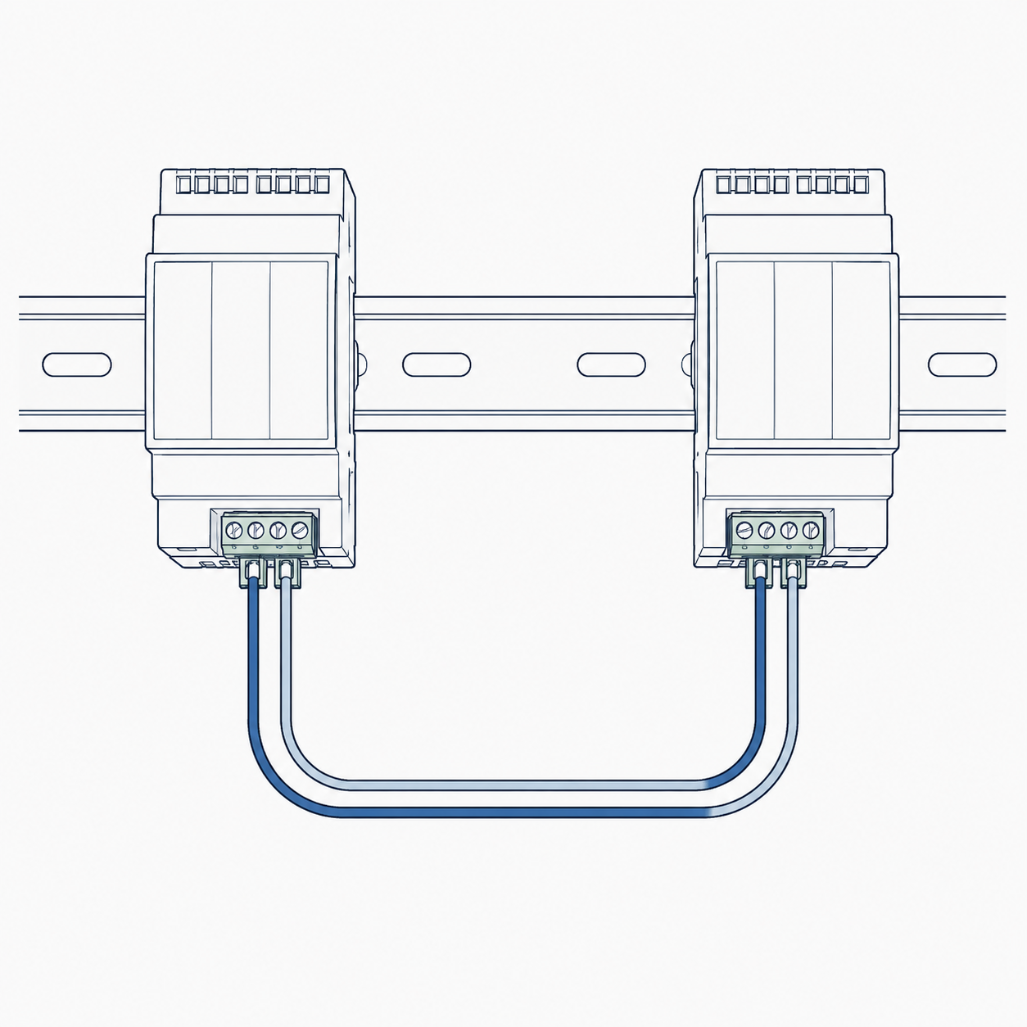
Run this code on the Raspberry Pi PLC that will act as the slave. It starts a Modbus RTU server on the RS-485 port.
from pymodbus.server import StartSerialServer
from pymodbus.framer import FramerType
from pymodbus.datastore import (
    ModbusServerContext,
    ModbusSequentialDataBlock,
    ModbusSlaveContext
)

store = ModbusSlaveContext(
    di=ModbusSequentialDataBlock(0, [0] * 10000),
    co=ModbusSequentialDataBlock(0, [0] * 10000),
    hr=ModbusSequentialDataBlock(0, [0] * 10000),
    ir=ModbusSequentialDataBlock(0, [0] * 10000)
)
context = ModbusServerContext(slaves=store, single=True)

StartSerialServer(
    context=context,
    port='/dev/ttySC0',       # RS-485 port on Raspberry PLC 21. Use /dev/ttySC2 for other models.
    framer=FramerType.RTU,
    baudrate=9600
)
Master (client)
Run this code on the second Raspberry Pi PLC. It connects to the slave and reads and writes holding registers.
from pymodbus.client import ModbusSerialClient
from pymodbus.framer import FramerType

client = ModbusSerialClient(
    port='/dev/ttySC0',
    framer=FramerType.RTU,
    baudrate=9600,
    timeout=3
)

if not client.connect():
    print("Connection failed. Check RS-485 wiring and port.")
    exit()

SLAVE_ID = 1
REGISTER_ADDRESS = 0
data_to_write = [10, 20, 30, 40, 50]

# Write registers
response = client.write_registers(REGISTER_ADDRESS, data_to_write, slave=SLAVE_ID)
if not response.isError():
    print("Write successful")
else:
    print("Write error:", response)

# Read registers
response = client.read_holding_registers(REGISTER_ADDRESS, count=5, slave=SLAVE_ID)
if not response.isError():
    print("Read successful:", response.registers)
else:
    print("Read error:", response)

client.close()
Wiring: Connect RS-485 A+ to A+ and B- to B- between the two units. Both PLCs use /dev/ttySC0 in this example.
Expected output when the communication is working:
Write successful
Read successful: [10, 20, 30, 40, 50]
Modbus RTU with Node-RED
This example uses Node-RED as the master and the Python slave above as the server.
- Install the
node-red-contrib-modbuspackage from the Node-RED palette manager. - Build the following flow: Inject → Function → Modbus Write and Modbus Read → Debug
- Configure the Function node to increment a counter on each trigger:
if (context.hasOwnProperty('num')) {
    context.num = context.num + 1;
} else {
    context.num = 0;
}
msg.payload = context.num;
return msg;- Configure the Modbus Write node:
- Server type:
Serial - Serial port:
/dev/ttySC0 - Serial type:
RTU - Baud rate:
9600 - Function code:
FC 6: Preset Single Register - Register address:
0
- Server type:
- Configure the Modbus Read node with the same server settings:
- Function code:
FC 3: Read Holding Registers - Address:
0, Quantity:1 - Poll rate:
5000 ms
- Function code:
The flow will write and read register 0 every 5 seconds. Use the Python slave from the previous section as the server.
Modbus TCP with Python
Testing with a single device
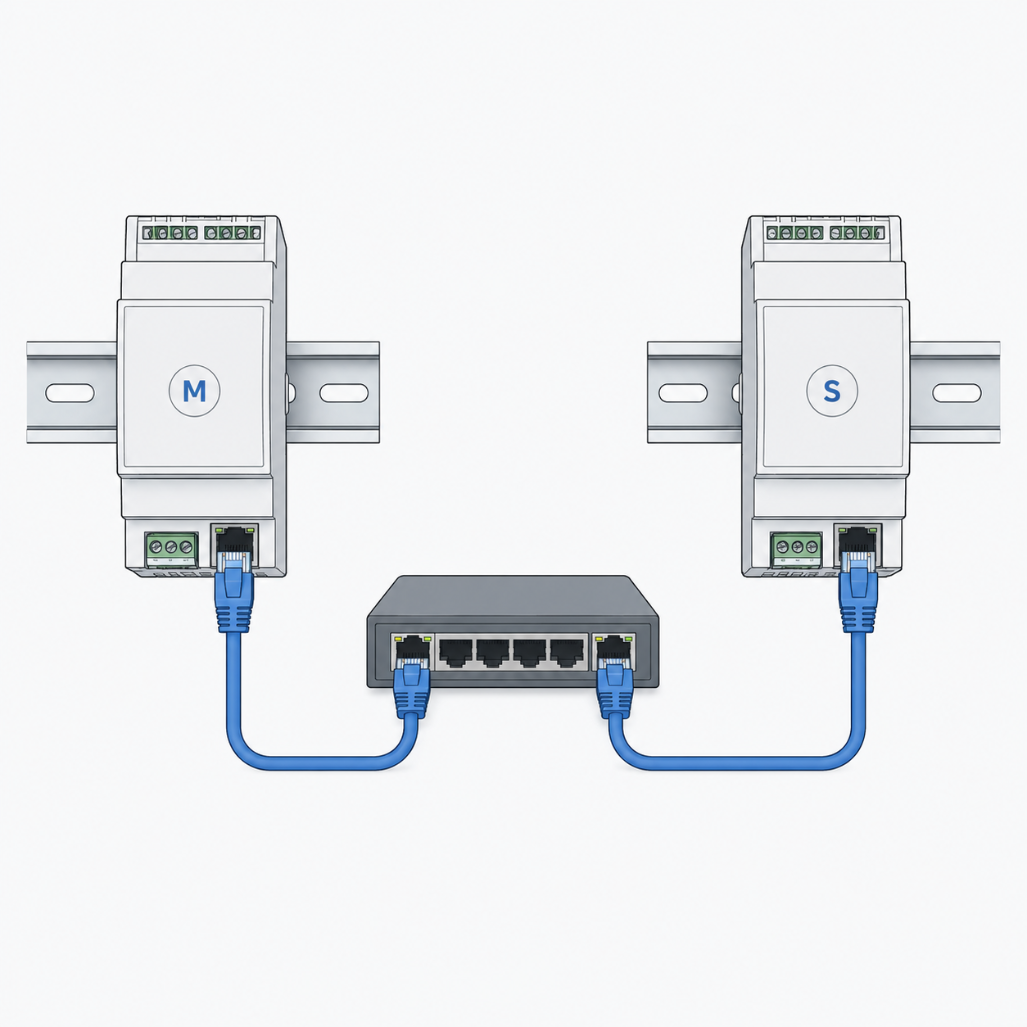
You do not need two Raspberry Pi PLCs to test Modbus TCP. You can run both the slave and the master on the same unit using localhost as the address.
Open two terminal sessions on the same PLC. Run the slave in the first and the master in the second.
Slave (server)
from pymodbus.server import StartTcpServer
from pymodbus.datastore import (
    ModbusServerContext,
    ModbusSequentialDataBlock,
    ModbusSlaveContext
)

store = ModbusSlaveContext(
    di=ModbusSequentialDataBlock(0, [0] * 10000),
    co=ModbusSequentialDataBlock(0, [0] * 10000),
    hr=ModbusSequentialDataBlock(0, [0] * 10000),
    ir=ModbusSequentialDataBlock(0, [0] * 10000)
)
context = ModbusServerContext(slaves=store, single=True)

# Listens on all interfaces, port 502
# For single-device testing, use address=("localhost", 502)
StartTcpServer(context=context, address=("0.0.0.0", 502))
Master (client)
from pymodbus.client import ModbusTcpClient

# Replace with the slave IP, or use "localhost" for single-device testing
client = ModbusTcpClient(host="192.168.1.100", port=502, timeout=3)

if not client.connect():
    print("Connection failed. Check IP address and network configuration.")
    exit()

SLAVE_ID = 1
REGISTER_ADDRESS = 0
data_to_write = [10, 20, 30, 40, 50]

# Write registers
response = client.write_registers(REGISTER_ADDRESS, data_to_write, slave=SLAVE_ID)
if not response.isError():
    print("Write successful")
else:
    print("Write error:", response)

# Read registers
response = client.read_holding_registers(REGISTER_ADDRESS, count=5, slave=SLAVE_ID)
if not response.isError():
    print("Read successful:", response.registers)
else:
    print("Read error:", response)

client.close()
Note on Ethernet ports: Raspberry Pi PLCs have two Ethernet interfaces (eth0 and eth1). For device-to-device connections, use the top Ethernet connector on both units, or adjust the IP configuration to match your wiring.
Modbus TCP with Node-RED
This flow uses Node-RED as the TCP master. You can use the Python slave above as the server.
- Install
node-red-contrib-modbusif not already installed. - Build the same flow as the RTU example: Inject → Function → Modbus Write and Modbus Read → Debug
- Configure the Modbus Write node:
- Server type:
TCP - Host: IP address of the Modbus TCP slave (or
localhostfor single-device testing) - Port:
502 - Function code:
FC 6: Preset Single Register - Register address:
0
- Server type:
- Configure the Modbus Read node with the same TCP server settings:
- Function code:
FC 3: Read Holding Registers - Address:
0, Quantity:1 - Poll rate:
5000 ms
- Function code:
The flow reads and writes register 0 every 5 seconds from the TCP slave.
Error handling and connection robustness
In production environments, connections drop and devices restart. The examples above include a basic timeout parameter and an explicit connection check. For critical applications, add a retry loop:
import time
from pymodbus.client import ModbusTcpClient

MAX_RETRIES = 5
RETRY_DELAY = 2  # seconds

client = ModbusTcpClient(host="192.168.1.100", port=502, timeout=3)

for attempt in range(MAX_RETRIES):
    if client.connect():
        print("Connected")
        break
    print(f"Connection attempt {attempt + 1} failed. Retrying in {RETRY_DELAY}s...")
    time.sleep(RETRY_DELAY)
else:
    print("Could not connect after maximum retries.")
    exit()

# ... your read/write logic ...

client.close()
Related posts
- Introduction to Modbus and Raspberry PLC — Part 1
- Introduction to Modbus and Raspberry PLC — Part 2
- Introduction to Modbus and Raspberry PLC — Part 3
- Introduction to Modbus and Raspberry PLC — Part 4
- How to use pymodbus with Raspberry Pi PLC
- Using multiple Modbus RTU slaves in Node-RED
→ Explore the full Raspberry Pi PLC range at industrialshields.com