
On Raspberry Pi OS Bookworm and Trixie, NetworkManager manages the network: set the static IP with nmcli or the nmtui menu and activate the connection again. On Bullseye and older, add the address to /etc/dhcpcd.conf and reboot. Check the result with ip a.
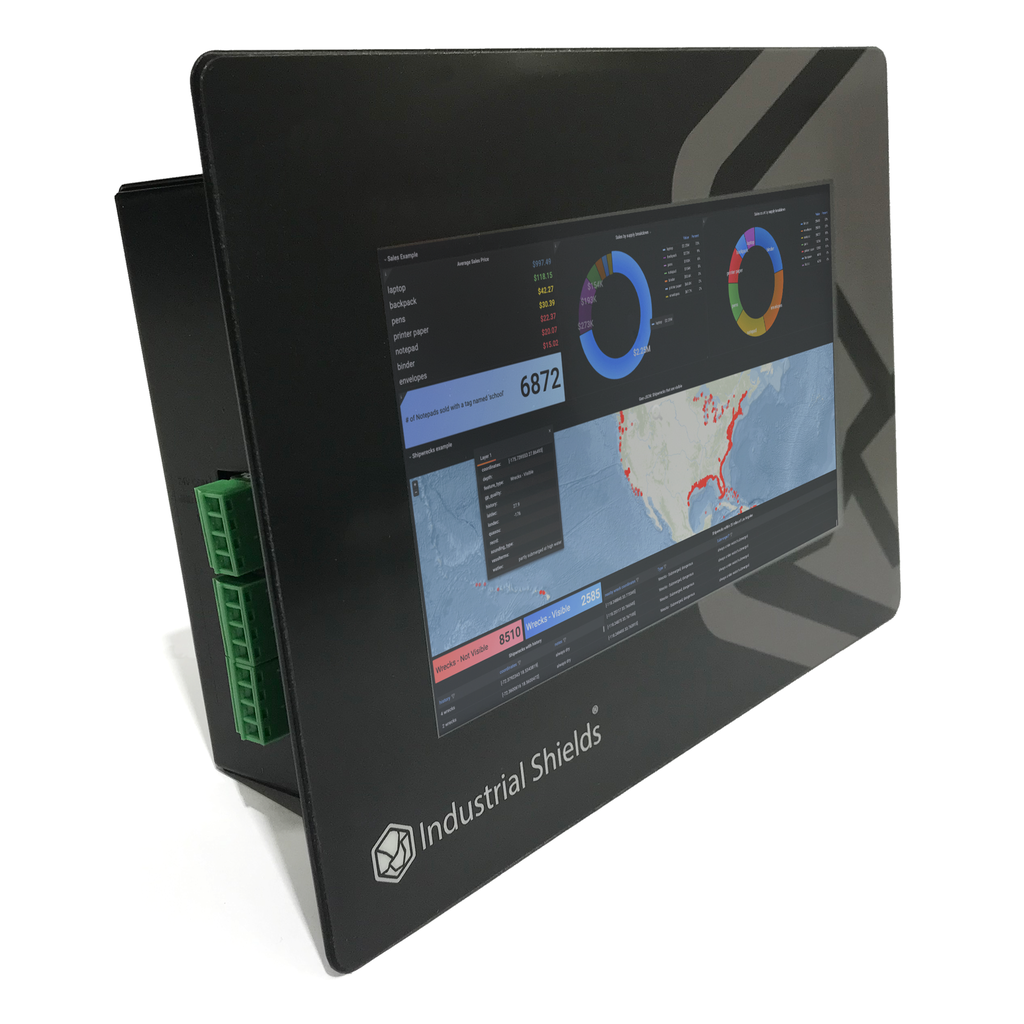
This guide works on a TouchBerry Pi Panel PC, a Raspberry PLC or any Raspberry Pi with Raspberry Pi OS. It covers Ethernet and Wi-Fi.
The first version of this post only used dhcpcd.conf. That method still works on older systems, so it is here too, but current images use NetworkManager.
- Step 1Check the OSBookworm or Trixie, or an older release
- Step 2Find the connectionEthernet or Wi-Fi in NetworkManager
- Step 3Set the addressnmcli, nmtui or dhcpcd.conf
- Step 4Check itip a, ip route and ping
Dynamic or static IP: which one do you need?
By default, the Raspberry Pi asks the router for an address with DHCP (Dynamic Host Configuration Protocol). The address can change after a reboot or when the lease expires.
That is fine for a laptop. It is a problem for a device that others must find: a file or web server, a TCP server, a panel that a SCADA reads, or a PLC on a machine network.
- Dynamic IP: the router gives it, and it can change.
- Static IP: you set it on the device, and it stays the same after each restart.
Choose an address outside the DHCP range of the router, so that no other device receives it. If you prefer to keep DHCP, ask for a DHCP reservation in the router for the MAC address of the device.
The examples use this network. Change the values to match yours:
| Setting | Example value |
|---|---|
| Interface | eth0 (Ethernet) or wlan0 (Wi-Fi) |
| IP address and mask | 192.168.1.25/24 (mask 255.255.255.0) |
| Gateway (router) | 192.168.1.1 |
| DNS server | 192.168.1.1 |
Step 1: check which method your system uses
Open a terminal on the device, or connect by SSH, and read the operating system version:
cat /etc/os-releaseThe line VERSION_CODENAME tells you the release:
| Release | Network service | How to set a static IP |
|---|---|---|
| Bookworm (Debian 12) and Trixie (Debian 13) | NetworkManager | nmcli or nmtui |
| Bullseye (Debian 11) and older | dhcpcd | /etc/dhcpcd.conf |
The Raspberry PLC ships with Debian Bookworm 64-bit, so it uses NetworkManager.
Step 2: find the name of the connection
NetworkManager stores the settings in connections. List the devices and the connections:
nmcli device status
nmcli connection show
The Ethernet connection of eth0 is usually called Wired connection 1. The Wi-Fi connection of wlan0 often has the name of the network, or preconfigured if you set the Wi-Fi in Raspberry Pi Imager.
Use the name that you see, in quotes if it has spaces. If a device appears as unmanaged, another tool configures it, for example an iface block in /etc/network/interfaces.
Step 3: set the static IP with nmcli (Bookworm and Trixie)
Change the IPv4 method to manual, give the address with its prefix, the gateway and the DNS server, and activate the connection again:
sudo nmcli connection modify "Wired connection 1" ipv4.method manual ipv4.addresses 192.168.1.25/24 ipv4.gateway 192.168.1.1 ipv4.dns 192.168.1.1
sudo nmcli connection up "Wired connection 1"
The change is saved and stays after a reboot. If you are connected by SSH through that port, the session stops when the address changes: connect again to the new address.
For more than one DNS server, separate them with a space inside quotes, for example ipv4.dns "192.168.1.1 8.8.8.8".
Wi-Fi (wlan0)
The command is the same, with the name of the Wi-Fi connection and an address of the Wi-Fi network:
sudo nmcli connection modify "preconfigured" ipv4.method manual ipv4.addresses 192.168.1.26/24 ipv4.gateway 192.168.1.1 ipv4.dns 192.168.1.1
sudo nmcli connection up "preconfigured"
With nmtui (text menu)
If you prefer a menu, run sudo nmtui:
- Choose Edit a connection and select the Ethernet or Wi-Fi connection.
- In IPv4 CONFIGURATION, change Automatic to Manual and open Show.
- Fill in Addresses (
192.168.1.25/24), Gateway and DNS servers, and select OK. - Go back, choose Activate a connection, and deactivate and activate the connection to apply the address.
Step 3 on older systems: dhcpcd.conf (Bullseye and earlier)
Raspberry Pi OS up to Bullseye uses dhcpcd. On Bookworm and later this file is not used, so editing it has no effect.
Open the configuration file:
sudo nano /etc/dhcpcd.confThe file has a commented example (lines that start with #). Add your own block at the end of the file. For Ethernet:
interface eth0
static ip_address=192.168.1.25/24
static routers=192.168.1.1
static domain_name_servers=192.168.1.1
For Wi-Fi, the block is the same with interface wlan0:
interface wlan0
static ip_address=192.168.1.26/24
static routers=192.168.1.1
static domain_name_servers=192.168.1.1| Line | What it means |
|---|---|
interface | The interface to configure: eth0 or wlan0 |
static ip_address | The fixed address, with the prefix /24 at the end |
static routers | The gateway (the router) |
static domain_name_servers | The DNS server, usually the router. Separate several servers with a space. |
Save with Ctrl+O, exit with Ctrl+X and reboot:
sudo rebootStep 4: check the address with ip a
ip a show eth0
ip route
ping -c 3 192.168.1.1
In the output of ip a show eth0, look for the line inet 192.168.1.25/24. ip route must show default via 192.168.1.1, and the ping to the gateway must get replies.
For Wi-Fi, check wlan0:
ip a show wlan0Use ip a instead of ifconfig. ifconfig belongs to the old net-tools package, it may not be installed and it does not show every address of an interface.
Raspberry PLC and TouchBerry Pi: the factory address 10.10.10.20
Both devices come with the address 10.10.10.20 on eth0 for the first SSH connection. The Raspberry PLC also has 10.10.11.20 on eth1.
On a Raspberry PLC prepared with the Industrial Shields image or install.sh script, this is a second address of the port, defined in /etc/network/interfaces.d/eth0_1:
auto eth0:1
allow-hotplug eth0:1
iface eth0:1 inet static
	address 10.10.10.20
	netmask 255.255.255.0
It works next to the address that you set with nmcli, so the device answers on both. Check with ip a which addresses it has before you change anything.
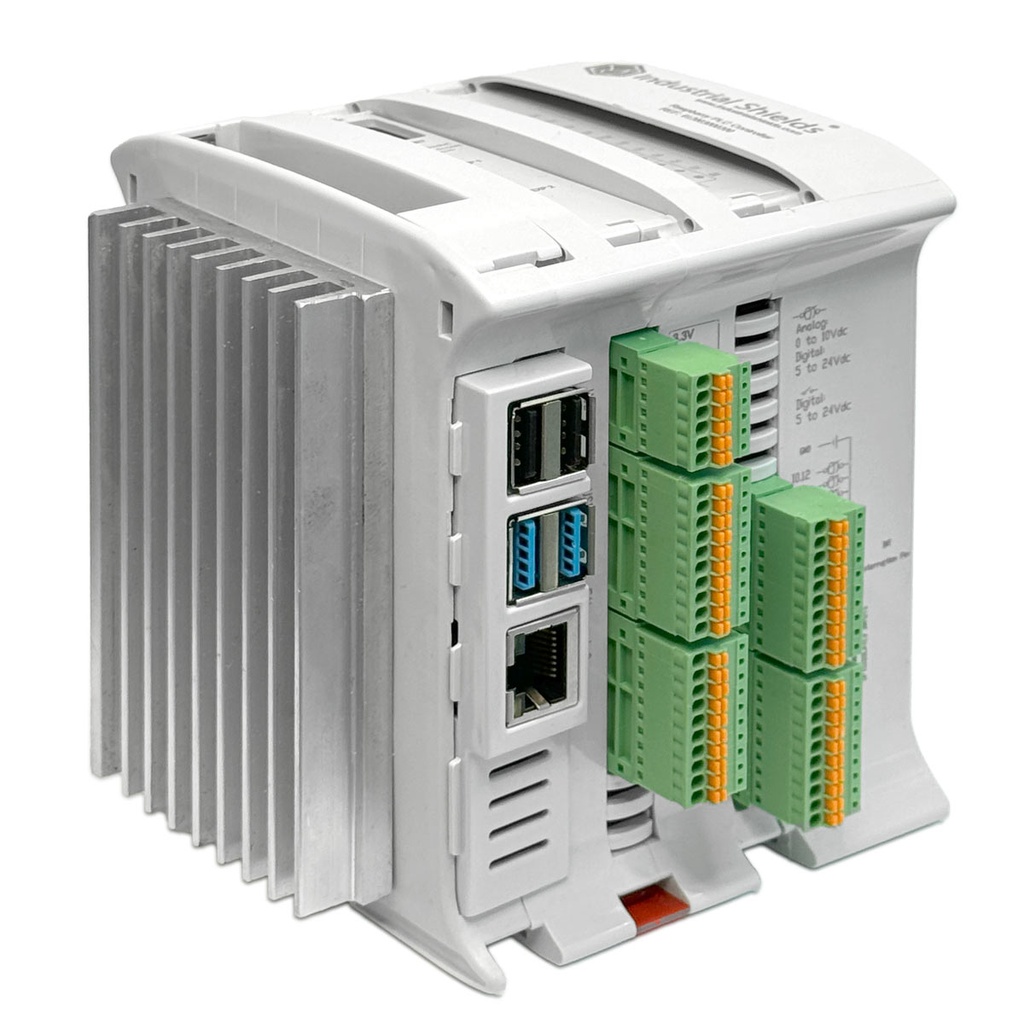
To change the factory address, or to use the two Ethernet ports of a Raspberry PLC, follow how to change the static IP of a Raspberry PLC.
Go back to DHCP
With NetworkManager, set the method to automatic and clear the fixed values:
sudo nmcli connection modify "Wired connection 1" ipv4.method auto ipv4.addresses "" ipv4.gateway "" ipv4.dns ""
sudo nmcli connection up "Wired connection 1"
With dhcpcd, delete the block that you added to /etc/dhcpcd.conf and reboot.
If it does not work
| What you see | Likely cause | What to do |
|---|---|---|
The change in dhcpcd.conf does nothing | The system is Bookworm or later | Use nmcli or nmtui |
nmcli says the connection does not exist | The name is different | Copy the name from nmcli connection show, in quotes |
| The SSH session stops | The address changed | Connect again to the new address |
| The address is set, but there is no internet | Wrong gateway or DNS | Check ip route and the DNS value |
| Connections fail at random | Another device has the same address | Choose a free address outside the DHCP range |
FAQ about static IP addresses on a Raspberry Pi
Can I still use /etc/network/interfaces?
Not for a normal setup. Raspberry Pi OS configures the network with dhcpcd (Bullseye and older) or NetworkManager (Bookworm and later). The files that the Industrial Shields image adds in /etc/network/interfaces.d/ only define the factory addresses.
Do I need to reboot after nmcli?
No. nmcli connection up applies the address at once, and it is saved for the next boot. With dhcpcd, reboot.
Which IP address should I choose?
One in the same subnet as the router and the other devices, not used by another device and outside the DHCP range. In a plant, ask the person who manages the network.
Can I have a static IP on Ethernet and DHCP on Wi-Fi?
Yes. Each connection has its own settings. Give a gateway only to the connection that goes to the router.
Related guides
- TCP client on a TouchBerry Pi or Raspberry PLC, part 1 and part 2
- TCP server with Node.js
- How to change the static IP of a Raspberry PLC
The TouchBerry Pi Panel PC comes in 7", 10.1" and 18.5" with Gigabit Ethernet. The Raspberry PLC family has two Ethernet ports and Debian Bookworm 64-bit preinstalled.
Take it further
A fixed address is the first step to connect a panel or a PLC with the rest of the machine. These pages show it in a real project.
Case study
Water bottling with a TouchBerry Pi Panel PC
A TouchBerry Pi 7" runs a water bottling station as PLC and HMI: conveyor, sensors, cylinder and pump on its own I/O.
Read the case study
PLC Solution Library
TCP socket between Python and Node-RED on a Raspberry PLC
A Python control process and a Node-RED dashboard exchange encoder data and start, stop and exit commands over TCP.
See the example