
To connect an ESP32 PLC to Home Assistant, install the ESPHome Device Builder app in Home Assistant, create a device for the PLC and replace the WiFi section of its YAML file with an ethernet: block for the W5500 chip of the PLC (SPI on GPIO18, GPIO23 and GPIO19, chip select on GPIO15). Flash it once over USB, and Home Assistant finds the PLC on the network through the ESPHome integration.
Home Assistant is an open source automation platform with a web dashboard, automations and history for many devices. ESPHome turns an ESP32 into a Home Assistant device that you configure with a YAML file instead of writing code. An ESP32 PLC has an ESP32 and an Ethernet port, so it can run ESPHome and report to Home Assistant over a cable, which is more stable than WiFi in an electrical cabinet.
This guide was checked against ESPHome 2026.10 and Home Assistant 2026. The screenshots are from 2024 (ESPHome 2024.3): some names have changed since then, and the text gives the current ones.
How does an ESP32 PLC connect to Home Assistant?
ESPHome compiles a firmware from your YAML file and flashes it to the ESP32 of the PLC. The PLC then runs the ESPHome native API on TCP port 6053, and the ESPHome integration of Home Assistant connects to it, reads the sensors and sends commands. The ESPHome firmware replaces any Arduino sketch that was on the PLC.
- Step 1Device BuilderInstall the ESPHome Device Builder app in Home Assistant
- Step 2YAMLCreate the device and set Ethernet for the W5500 chip
- Step 3First flashOver USB once, then updates over Ethernet
- Step 4Home AssistantAdd the PLC with the ESPHome integration
What you need
- A Home Assistant server with apps, which means Home Assistant OS. For a new server, see the Home Assistant installation guide. The dashboard is at
http://homeassistant.local:8123by default. - An ESP32 PLC with Ethernet, powered at 12 to 24 Vdc, and an Ethernet cable to the same network as Home Assistant.
- A USB cable for the first flash, and Chrome, Edge or a recent Firefox if you flash from the browser.
Install ESPHome Device Builder in Home Assistant
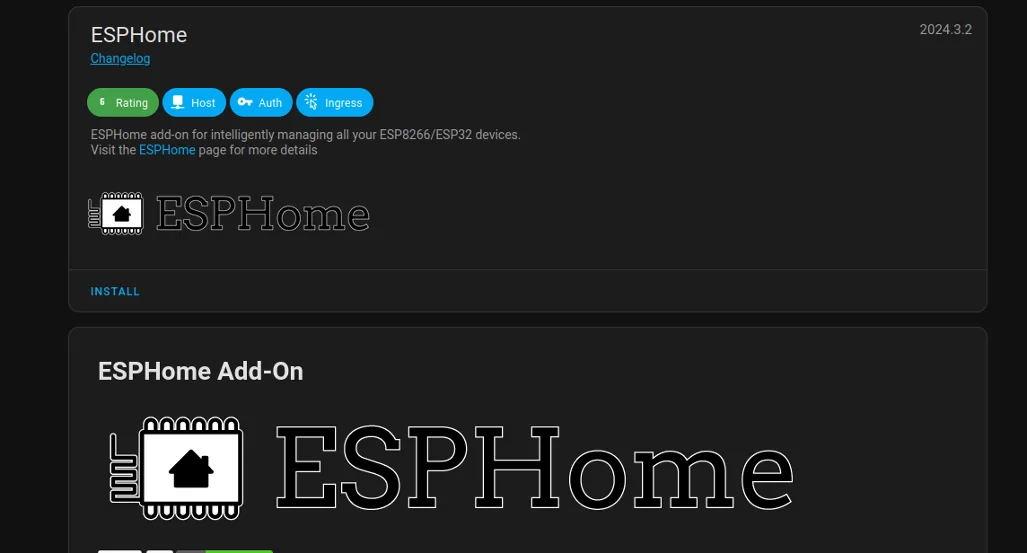
Since Home Assistant 2026.2, add-ons are called apps. Go to Settings > Apps > Install app, open ESPHome Device Builder, click Install, then Start and Open Web UI. In the 2024 screenshot below, the same app is still the "ESPHome add-on".
Create the ESP32 PLC device in ESPHome
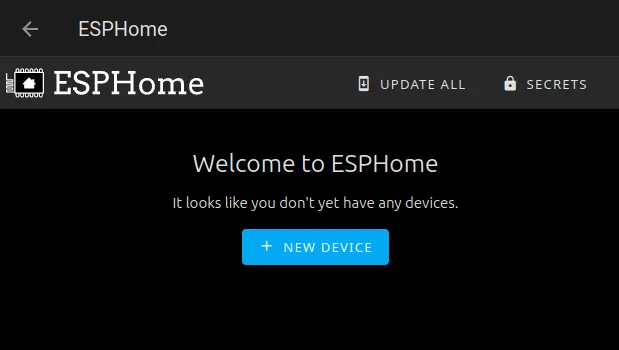
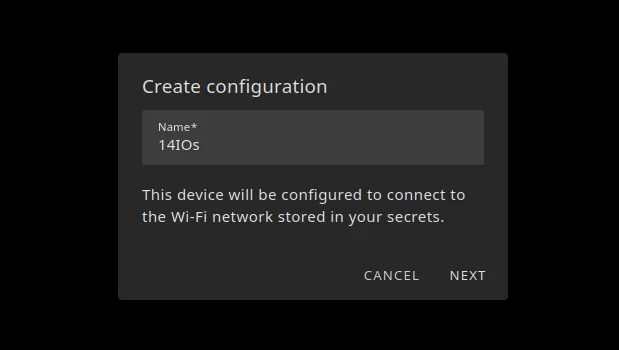
The Device Builder dashboard is empty the first time. Create a new device, give it a name (for example the model of the PLC) and choose ESP32 as the board. The wizard writes a first YAML file with WiFi settings, an API encryption key and an OTA password. Keep the key and the password: you need the key in Home Assistant.
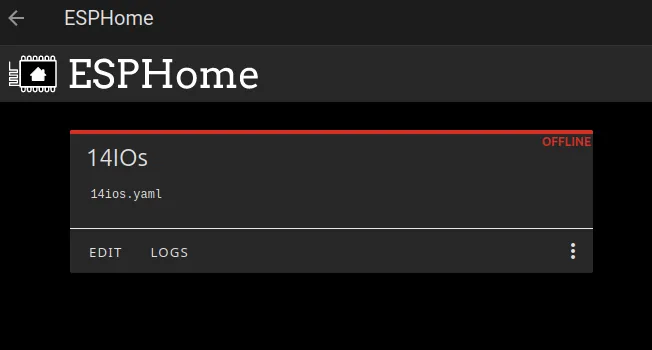
The new device appears on the dashboard as offline until you flash it.
Ethernet configuration for the W5500 of the ESP32 PLC
The default YAML connects the board to WiFi. On a PLC, use the Ethernet port: click Edit, delete the wifi: and captive_portal: sections and add the ethernet: block. The ESP32 PLCs use a W5500 Ethernet chip on the SPI bus. The SPI pins are the same on all models, and the chip select pin depends on the family (source: the variant files of the Industrial Shields ESP32 board package).
| PLC | clk_pin | mosi_pin | miso_pin | cs_pin |
|---|---|---|---|---|
| ESP32 PLC family (19R to 58) | GPIO18 | GPIO23 | GPIO19 | GPIO15 |
| ESP32 PLC 14 | GPIO18 | GPIO23 | GPIO19 | GPIO14 |
This is a complete YAML file for a PLC of the ESP32 PLC family. Keep the api key and the ota password that the wizard generated, and change cs_pin for the ESP32 PLC 14.
esphome:
  name: esp32-plc-21

esp32:
  board: esp32dev
  framework:
    type: esp-idf

logger:

api:
  encryption:
    key: "KEY_GENERATED_BY_THE_WIZARD"

ota:
  - platform: esphome
    password: "PASSWORD_GENERATED_BY_THE_WIZARD"

ethernet:
  type: W5500
  clk_pin: GPIO18
  mosi_pin: GPIO23
  miso_pin: GPIO19
  cs_pin: GPIO15   # ESP32 PLC family. GPIO14 on the ESP32 PLC 14
  # Optional static IP. Delete manual_ip to use DHCP.
  manual_ip:
    static_ip: 10.10.10.20
    gateway: 10.10.10.1
    subnet: 255.255.255.0

sensor:
  - platform: uptime
    name: "Uptime"

text_sensor:
  - platform: ethernet_info
    ip_address:
      name: "IP address"
The file passes esphome config with ESPHome 2026.10.0. The uptime sensor and the IP address are there only to see the PLC in Home Assistant from the first minute.
Keep the ESP-IDF framework. ESP-IDF is the default ESP32 framework since ESPHome 2026.1. Without interrupt_pin, ESPHome reads the W5500 in SPI polling mode (every 10 ms by default), which needs ESP-IDF 5.1.4 or later.
The GPIO15 warning. ESPHome warns that GPIO15 is a strapping pin. On the ESP32 PLC family it is the chip select of the W5500, as in the board package, so the warning is expected.
WiFi and Ethernet together. Older ESPHome versions could not use both. Current versions can on the ESP32, with a network priority list. For a PLC in a cabinet, Ethernet alone is simpler. Without manual_ip, the PLC takes an address from DHCP.
First flash over USB, then updates over Ethernet
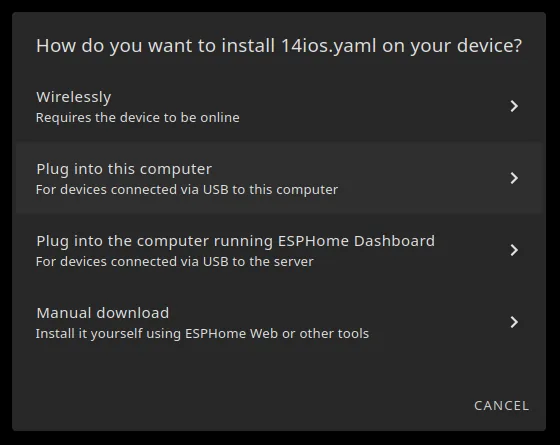
Save the file and click Install. The first install must go over USB, because the PLC does not run ESPHome yet. The options are:
- USB to the computer with the browser. The browser flashes the PLC with Web Serial, which works in Chrome, Edge and recent Firefox and needs HTTPS. If you open the dashboard over plain HTTP, ESPHome sends you to its web flasher. The flash itself is local over USB.
- USB to the Home Assistant server. Useful when the PLC is next to the server.
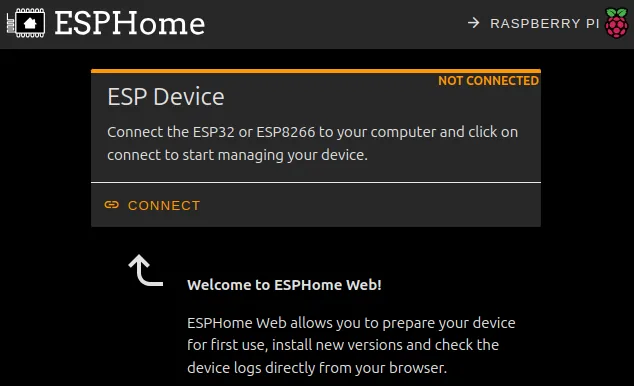
- Manual download. Download the compiled
.binfile and flash it with ESPHome Web (click Connect, choose the serial port and install the file) or with esptool. - Over the network (OTA). For all later changes, once the PLC runs ESPHome on Ethernet.
The labels of these options have changed in recent versions. The 2024 dialog below shows the same four paths.
Add the PLC to Home Assistant with the ESPHome integration
- When the PLC is on the network, Home Assistant discovers it by mDNS and shows a notification. Click Configure.
- If mDNS does not reach the PLC (different VLAN, static IP), go to Settings > Devices & services > Add integration > ESPHome and enter the IP address of the PLC, for example
10.10.10.20, and port 6053. - Paste the API encryption key from the YAML file when Home Assistant asks for it.
- Open the device page: the uptime and the IP address of the PLC appear as entities.
Where the ESP32 PLC I/O are for ESPHome
With ESPHome, the Industrial Shields Arduino libraries are not on the PLC, so the I/O are reached chip by chip. On the ESP32 PLC family, most inputs and outputs are on I2C expanders. This map comes from the board package of the ESP32 PLC 21, 42, 58 and 38AR:
| PLC I/O | Chip | Address or pin | ESPHome component |
|---|---|---|---|
| I2C bus | ESP32 | SDA GPIO21, SCL GPIO22 | i2c |
| I0.0 to I0.4 (digital inputs) | MCP23008 | 0x21 | mcp23008 |
| I0.5 and I0.6 (interrupt inputs) | ESP32 | GPIO27 and GPIO26 | gpio binary sensor |
| I0.7 to I0.12 (analog or digital inputs) | ADS1015 | 0x48 and 0x49 | ads1115 with 12-bit resolution |
| Q0.0 to Q0.7 (outputs, A0.5 to A0.7 analog) | PCA9685 | 0x40 | pca9685 |
The relay models (19R, 38R, 57R) and the ESP32 PLC 14 use other pins. Before you map an input or an output, check the input voltage range and the output type in the datasheet of your model, and test each channel with Home Assistant before you connect a load.
Home Assistant and a PLC: supervision, not the control loop
Home Assistant is good for dashboards, history, notifications and building automation: lights, HVAC zones, meters, alarms. Keep the logic that must work without the network on the PLC. ESPHome automations run on the device, so an interlock or a timer still works if Home Assistant restarts. For a SCADA or another PLC, Modbus TCP or MQTT over TLS are the usual options, and the ESP32 PLC supports both with the Arduino libraries.
See remote data from PLCs in a dashboard. The remote site telemetry simulator runs a day of a water network with pump stations, tanks and leak alarms. In the oil well case study, an ESP32 PLC reads pressure, temperature and flow and sends them over 4G.
FAQ about Home Assistant and the ESP32 PLC
Can an ESP32 PLC run ESPHome?
Yes. It has an ESP32 and a W5500 Ethernet chip, and ESPHome supports both. Use board: esp32dev, the ESP-IDF framework and the Ethernet pins of your model.
Does ESPHome support Ethernet with the W5500 chip?
Yes, with type: W5500 in the ethernet: section, the three SPI pins and the chip select pin. The interrupt pin is optional with ESP-IDF 5.1.4 or later.
Can I keep my Arduino program and use Home Assistant?
Not with ESPHome, because its firmware replaces the sketch. To keep the Arduino program, publish the data over MQTT and use the MQTT integration of Home Assistant.
Why does Home Assistant not find the PLC?
Check the cable and the link LED, the cs_pin of your model and the static IP. If the PLC is in another VLAN, mDNS does not pass: add it by IP address with the ESPHome integration.
How do I update the PLC after the first flash?
Edit the YAML in the Device Builder and click Install over the network. The OTA update goes over Ethernet with the password of the ota section.
More about the ESP32 PLC on the network
- Ethernet connection with an ESP32 PLC or an M-Duino PLC
- MQTT over TLS on an ESP32 PLC
- ESP32 PLC WiFi, Bluetooth and BLE guide
- Retrofit a legacy PLC for IIoT with an ESP32 PLC or GateBerry
- Choosing an industrial controller
Choose the model and the I/O mix in the ESP32 PLC family.