
Introduction
The Read Input Registers, Modbus RTU function (Modbus Function Code: 4), is used for reading from 1 to 125 contiguous input registers in a remote device.
In this blog post, we will be reading input registers between Arduino based PLC set as client - server > with industrial automation and an Arduino Programmable Logic Controller PLC.
Modbus RTU
To know more about Modbus RTU and how the library works, please visit the following blog post:
Hardware Requirements
- 2x M-Duino Arduino PLC >
- Power Supply >
- B type cable, to program the Arduino based PLC
- Two twisted pair cables, for RS485.
Software Requirements
Connections
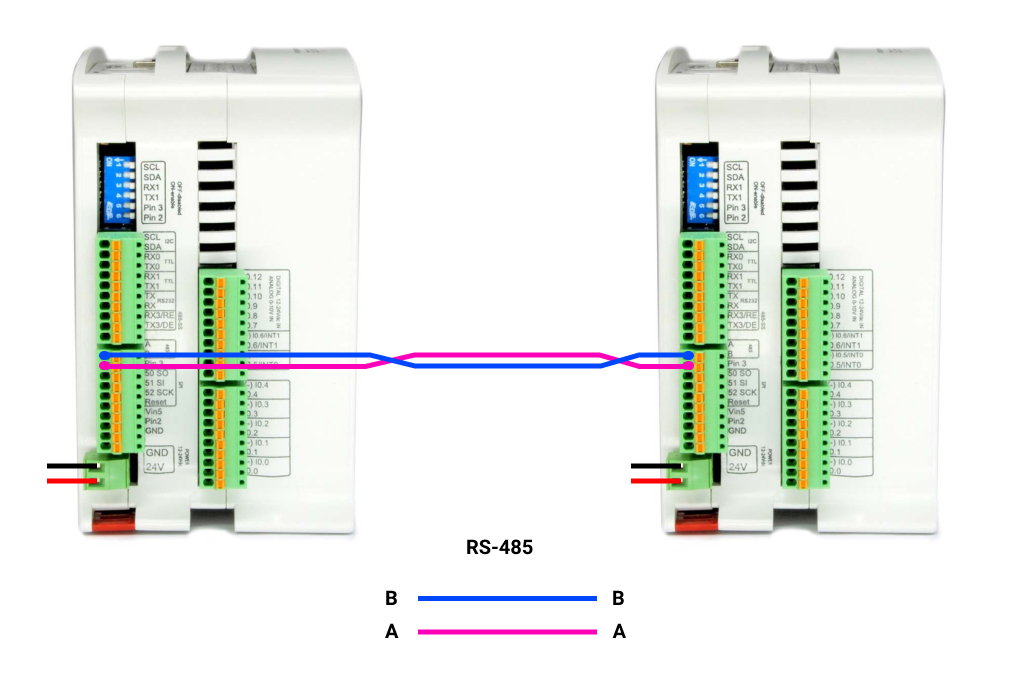
Now, in order to set a Modbus RTU communication, we are going to do the following:
1. Power the PLC between 12 and 24V.
2. Wire the cables through RS-485. This is based on a twisted pair cables, on cable from A+ to A+, and the other one from B- to B-.
3. Set the red switch to the Half-Duplex: HD
Modbus RTU Master Read Input Registers
In order to set an Arduino controller PLC industrial as a master and the other one as a slave, we will have to program both to execute each code. So, in order to program the master, we are going to do the following:
1. Go to the top bar, and click on: File > Examples > Modbus > and select the ModbusRTUMasterReadInputRegisters sketch. And change the 63rd line to:
    if (!master.readInputRegisters(31, 0, 1)) {
      // Failure treatment
    }
2. Click on Tools > Board > Industrial Shields boards > And select the M-Duino Arduino PLC family.
3. Then, select the controller PLC model by going to Tools > Model > And selecting the model. In our case: M-Duino 21+
4. Select the port by going to Tools > Port > And select the port of the Arduino board.
5. Finally, either click on the arrow to upload the sketch, or go to Sketch > Upload.
Modbus RTU Slave
Once the master is already programmed, we are going to do the same as with the Master PLC, but choosing the ModbusRTUSlave sketch. So:
1. Change the B type cable and connect it to the other M-Duino Arduino PLC.
2. Go to the top bar, and click on: File > Examples > Modbus > and select the ModbusRTUSlave sketch.
3. Once the sketch is opened, click on Tools > Board > Industrial Shields boards > And select the M-Duino Arduino PLC family.
4. Then, select the controller PLC model by going to Tools > Model > And selecting the model. In our case: M-Duino 21+
5. Select the port by going to Tools > Port > And select the port of the Arduino board.
6. Finally, either click on the arrow to upload the sketch, or go to Sketch > Upload.
Now, open the Serial Monitor from the Master, and read the first input register of the slave PLC!
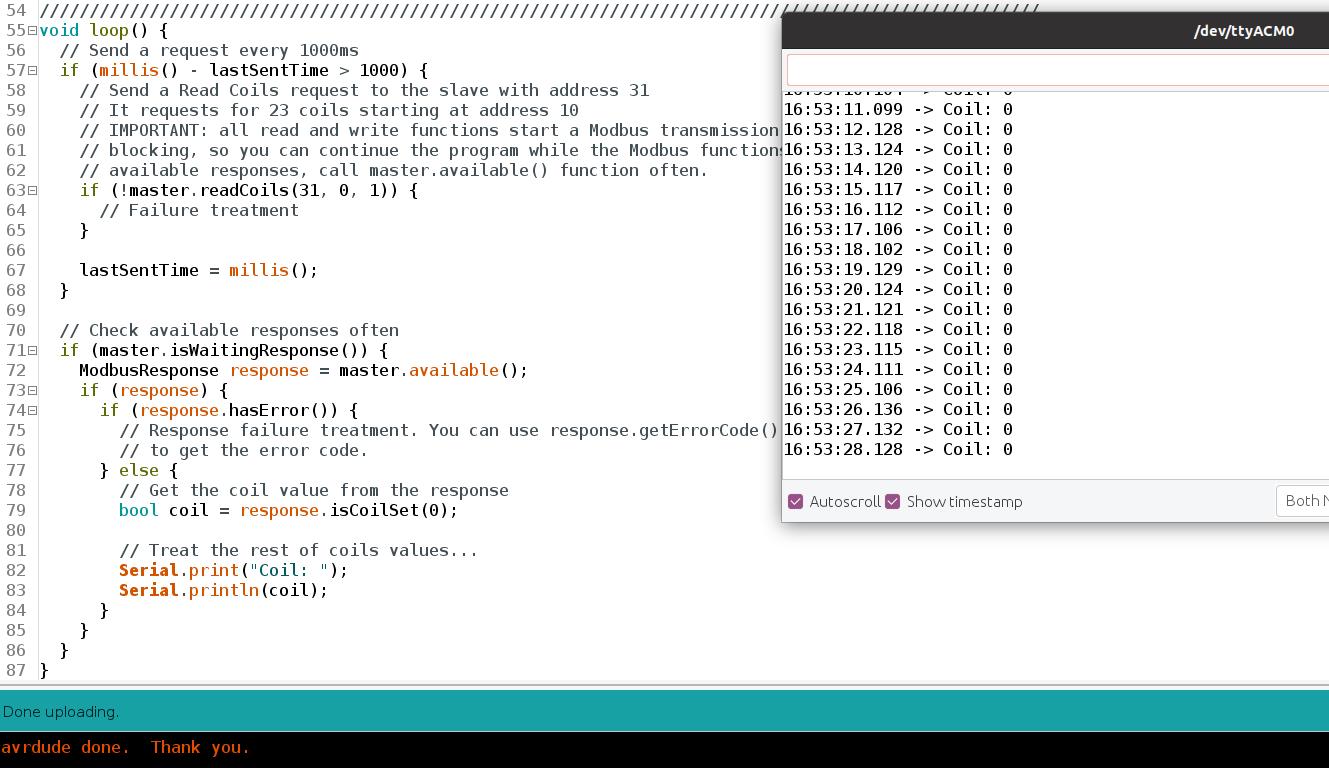
Tip: Wire the 5V pin of the slave M-Duino Arduino PLC to its I0.7 analog input to get a value different from 0