
BalenaOS is a lightweight, robust and reliable Linux based embedded
operating system, designed
specifically to run containers, which makes it easy to deploy code to fleets of connected devices. Paired with balenaCloud, you can monitor, manage, and update your fleet from anywhere.
Combined with the Raspberry PLC, it becomes a powerful tool for automating tasks, remotely controlling the PLCs and deploying applications. Follow this guide to get started on using the Raspberry Pi as an edge device with balenaOS.
Requirements
Hardware
Software


You can create an account in balenaCloud and use up to 10 devices with full features for free.
Deployment
In order to deploy BalenaOS to the Rasperry PLCs we have, in collaboration with Balena, prepared an example application with all the dependencies needed to take full advantage of the Raasberry PLC functionalities. This release can be found in the industrialshields-balena GitHub repository.
This release includes 2 containers:
- industrial-shields: contains the necessary dependencies for the PLC to work correctly.
- node-red: a ready to use node-red instance where you can install our node-red-librpiplc node to start programming the Raspberry PLC.
There are 2 ways of deploying the app, which are explained below.
Option 1. One-click deployment via balena Deploy
Use the button below to automatically create a fleet with the app release for the Raspberry PLC.

Option 2. Deploying via balena CLI
The traditional way of deploying of deploying applications to the balenaCloud Dashboard. The balena command line interface needs to be installed in your PC, if you do not have it already follow the balena CLi installation instructions.
To deploy the application, follow the steps:
- Sign up on balena.io.
- Create a new fleet on balenaCloud. Name it as you prefer and select "Raspberry Pi 4 (64 bits)" as device.
- Using a terminal, clone the app repository on your computer and enter it:
git clone https://github.com/Industrial-Shields/industrialshields-balena
cd industrialshields-balena - Push the app to the fleet on balenaCloud.
balena push <your-fleet-name>
Adding a device
Now that we have a fleet with the app release successfully built, we can start adding a device to it. A fleet is a group of managed devices running BalenaOS, allowing centralized deployment and remote management of applications.
1. Creating the device OS image
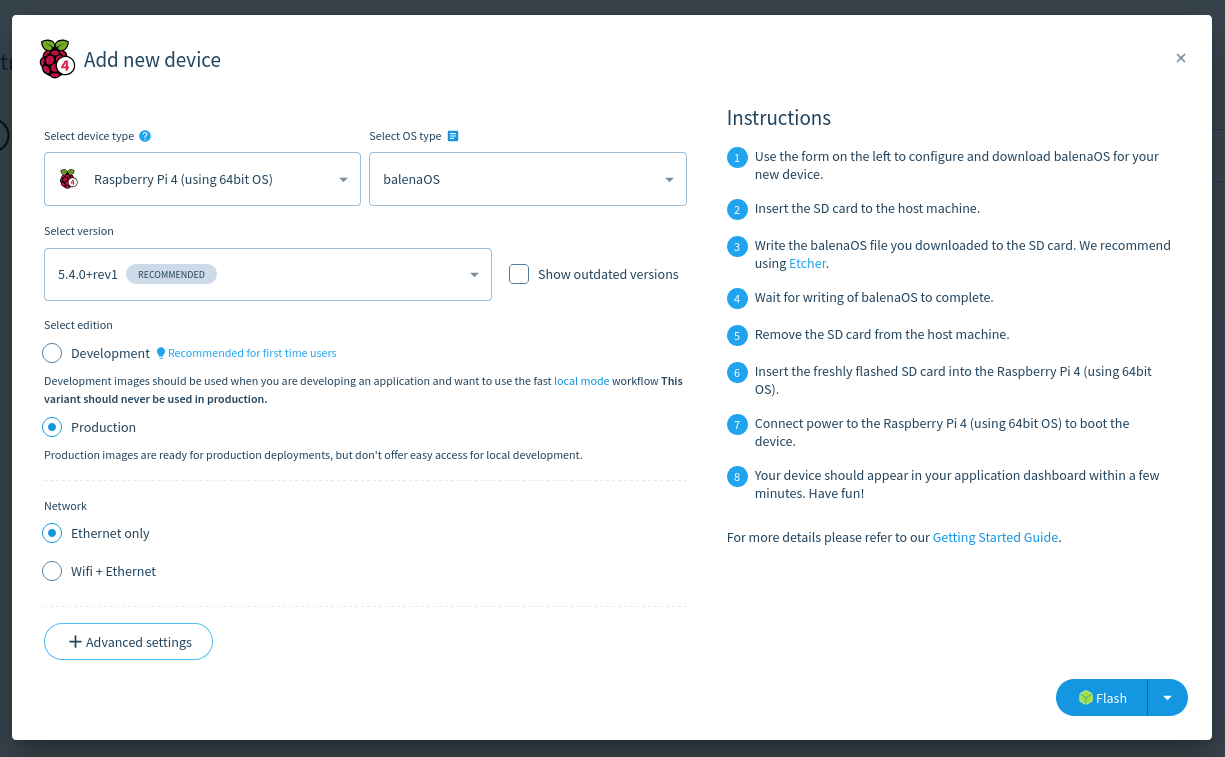
To add a Rasberry PLC to the fleet, go to the balenaCloud dashboard, access your fleet and click on Add device. A menu will open where you can choose the OS release and configure the Wi-Fi, should you want to. The device type will be the one we previously set when creating the fleet.
When you are done configuring, use balenaEtcher to flash the SD card with the balenaOS image.
2. Industrial Shields DTBO File
Now that the OS image is on the SD card, the Industrial Shields Raspberry Pi PLC DTBO overlay file needs to be added to the OS image:
- Download the custom overlay file for the PLC by clicking here.
- Acces the SD card through your computer, which should be named resin-boot, and paste the file into the overlays directory.
Once the file is properly saved, extract the SD card, put it onto the Rapsberry PLC and power it up.
3. DT Overlay configuration
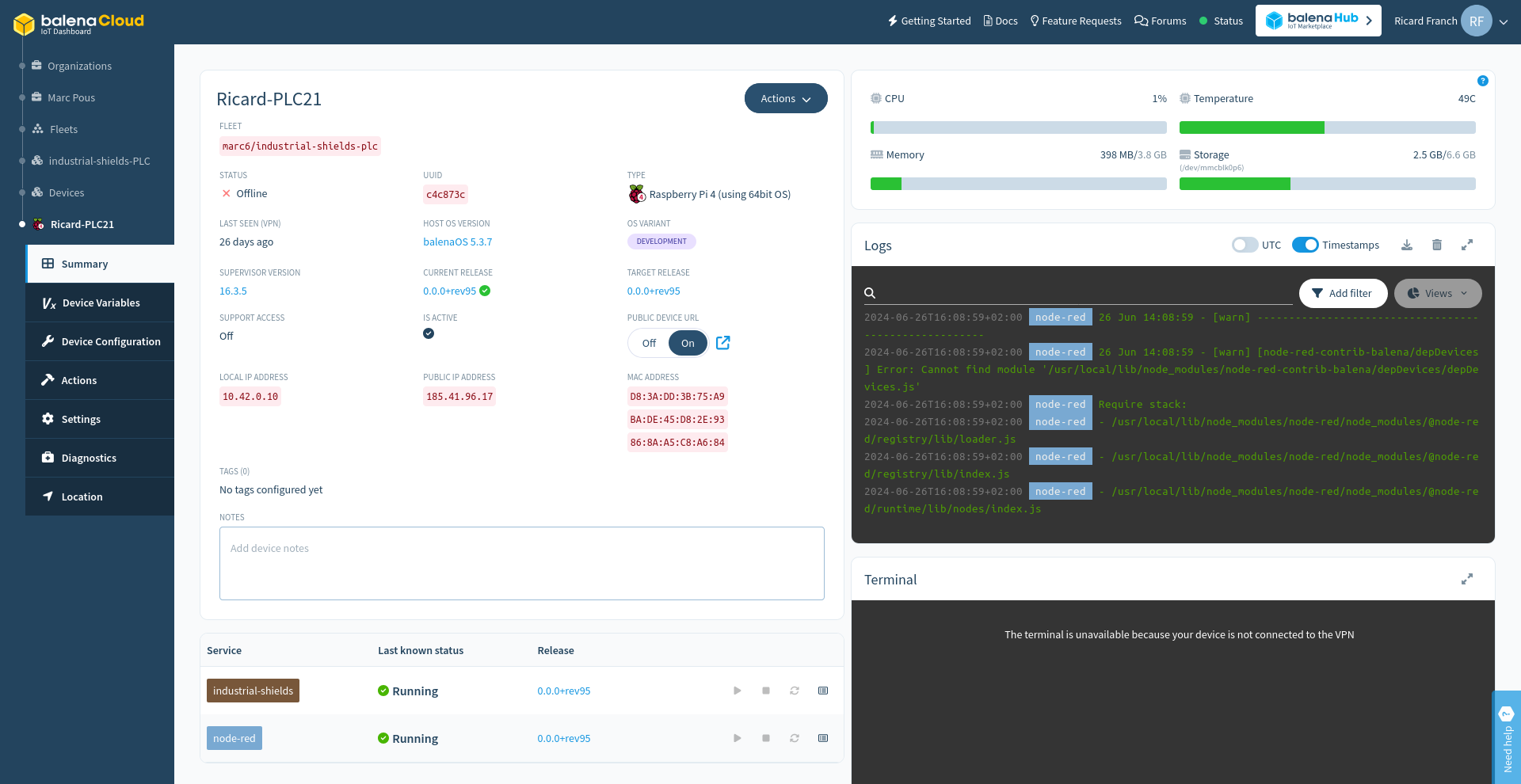
Once powered, the device will automatically start and try to connect to the balenaCloud dashboard. Once it does, it will appear on the devices pages. Form the device page we can see, its state, remotely connect to it and configure it.
To properly set up the PLC with full functionality, the DT overlays need to be configured.
- Go to the Device Configuration page.
-
Edit the Define DT overlays field and introduce these device tree overlays:
"vc4-kms-v3d","spi0-2cs,cs0_pin=7,cs1_pin=8","w5500,cs=0,int_pin=6,speed=10000000","i2c-rtc,ds3231","sc16is752-spi1-rpiplc-v4,xtal=14745600"
-
Edit the Define DT parameters for the default overlay with:
"spi=on","i2c_arm=on"
-
Edit the Allows GPIO pins to be set to specific modes and values at boot time. and add these parameters:
"8=pd","16=pu"
This way you configure the parameters for a specific device. In case you have a fleet of devices, you can set this configuration for all the devices through the Fleet Configuration section.
Finally, there are also some device variables which need to be created, through the Device Variables page. The USERNAME and PASSWORD variables need to be created in order to enter NodeRED.
Variable Name | Default | Description |
PORT | 80 | The port that exposes the Node-RED UI. |
USERNAME | balena | The Node-RED admin username. |
PASSWORD | balena | The Node-RED admin password. |
ENCRYPTION_KEY | balena | The encryption key used to store your credentials files. |
Run an application
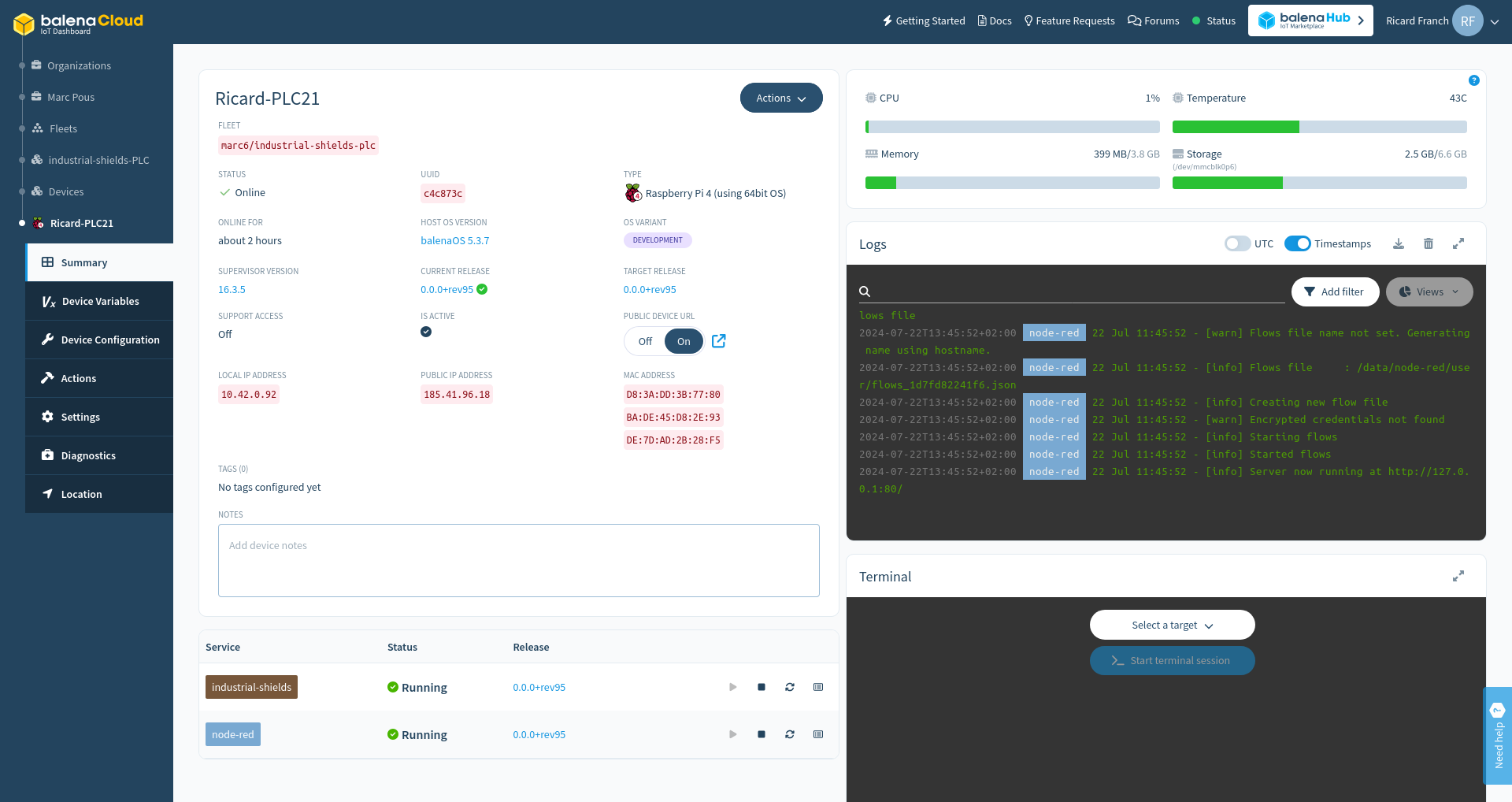
After applying these changes the device will be fully operative and ready to run your application. From the dashboard panel you can monitor the device: state, resources usage, logs, etc. The terminal window allows you to connect to the PLC using SSH, and you can also access web apps such as NodeRED through internet without the need of any networking, thanks to the public device URL that Balena can expose.
Now you can effectively deploy and manage your applications for the Rasberry PLC using balenaOS, use this example as a stepping stone to build your application. For more information about the Raspberry PLC or balenaOS, check out: