What is InfluxDB?
InfluxDB is an open source time series database (TSDB). It is designed to efficiently handle large volumes of time-stamped data, making it particularly well-suited for applications that involve collecting, storing, and querying time-series data.
Its latest version (3.X) focuses on providing a real-time buffer for data of all kinds that is compatible with SQL or InfluxQL.
Creating an Influx Data account
The first step is to create an account on InfluxData. After filling all the boxes, you will be asked to select a plan. We chose the Free plan, but you can select the plan that fits you the best.
Developing the code
As the PLC needs to send data over the internet, we used an ESP32 based PLC connected to WiFi, but an Arduino based PLC with Ethernet interface is also usable. To implement the code discussed later on, make sure to adapt the code to use Ethernet instead of WiFi, and check that the Arduino PLC can connect to internet just like the ESP32 based PLC before continuing.
After the account creation, head to InfluxDB Cloud. Then, go to Load Data, search and select Arduino and follow the steps. In the "Initialize Data", you are going to see a code example. In that step, you will also be asked to create a Bucket, so name it. In our case, we created the bucket "ESP32 Test".
As you see, there are a total of 4 "#defines" you will need to add to your Arduino IDE program: INFLUXDB_URL, INFLUXDB_TOKEN, INFLUXDB_ORG and INFLUXDB_BUCKET. This parameters are unique for every InfluxDB user, and should not be made public.
By now, the code should look like this:
#include <WiFiMulti.h>
#include <InfluxDbClient.h>
#include <InfluxDbCloud.h>

WiFiMulti wifiMulti;
#define WIFI_SSID "SSID"
#define WIFI_PASSWORD "PASSWORD"

#define INFLUXDB_URL ""
#define INFLUXDB_TOKEN ""
#define INFLUXDB_ORG ""
#define INFLUXDB_BUCKET "ESP32 Test"

// Declare InfluxDB client instance with preconfigured InfluxCloud certificate
InfluxDBClient client(INFLUXDB_URL, INFLUXDB_ORG, INFLUXDB_BUCKET, INFLUXDB_TOKEN, InfluxDbCloud2CACert);
To edit the API Token, head to Load Data, then API Token and finally select the previous generated API Token.Its name should start with "onboarding-arduinoWizard-token-....".
Sending the data
After the Bucket creation and adding the correspondent parameters to the code, lets continue with the sketch. Configure your Time Zone info. In our case, we will use the Spain one, but you can find your own here.
#define TZ_INFO "CET-1CEST,M3.5.0,M10.5.0/3"
Also, declare the data point whit the name of your choice. This point will store the measurements, so we will name it "Inputs":
Point sensor("Inputs");
For the setup function, use:
void setup() {
Serial.begin(115200);
pinMode(I0_0, INPUT);
pinMode(I0_1, INPUT);
WiFi.mode(WIFI_STA);
wifiMulti.addAP(WIFI_SSID, WIFI_PASSWORD);
Serial.print("Connecting to WiFI");
while (wifiMulti.run() != WL_CONNECTED) {
Serial.print(".");
delay(100);
}
Serial.println();
timeSync(TZ_INFO, "pool.ntp.org", "time.nis.gov");
if (client.validateConnection()) {
Serial.print("Connected to InfluxDB: ");
Serial.println(client.getServerUrl());
} else {
Serial.print("InfluxDB connection faied: ");
Serial.println(client.getLastErrorMessage());
}
sensor.addTag("device", DEVICE);
sensor.addTag("SSID", WiFi.SSID());
}
In this function, we do the following:
- Initialize Serial port at 115200 baud.
- Set pins I0_0 and I0_1 as INPUT.
- Connect to WiFi.
- Synchronize the time. This is necessary for certificate validation and writing in batches.
- Check server connection.
- Add tags "device" and "SSID". This tags will be used to obtain more information about the specific device that is publishing the data to the Bucket, as there can be multiple devices sending at the same time. This can be omitted, but it is useful for an introduction to the usage of "tags".
The loop function is:
void loop() {
// Clear fields for reusing the point. Tags will remain the same as set above
sensor.clearFields();
// Store measured value into point
sensor.addField("I0_0", digitalRead(I0_0));
sensor.addField("I0_1", digitalRead(I0_1));
// Print what are we exactly writing
Serial.print("Writing: ");
Serial.println(sensor.toLineProtocol());
// Check WiFi connection and reconnect if needed
if (wifiMulti.run() != WL_CONNECTED) {
Serial.println("WiFi connection lost");
}
// Write point
if (!client.writePoint(sensor)) {
Serial.print("InfluxDB write failed: ");
Serial.println(client.getLastErrorMessage());
}
Serial.println("Waiting 1 second");
delay(1000);
}
In the loop function we do:
- Clear fields to reuse the point. Tags will remain the same as set above in the setup function.
- Store measured values into the point. One field is used for each value. In this post we will store the values for inputs (defined in setup) I0_0 and I0_1.
- Useful print of what are we exactly writing.
- Check WiFi connection and reconnect if needed.
- Write point to InfluxDB.
After uploading the code to the ESP32 based PLC, the Serial port should print something like:
Writing: Inputs,device=ESP32,SSID=SSID I0_0=0i,I0_1=0i
In this case, we are reading from inputs I0_0 and I0_1, which are both in LOW state. As configured in the tags, we also see the device ID and the WiFi SSID where the PLC is connected to.
Visualizing the data
To view the data we are sending to the InfluxDB database, go to Data Explorer and select the bucket you used ("ESP32 test" in our case). Then, select the point "Inputs" and finally the fields "I0_0" and "I0_1".
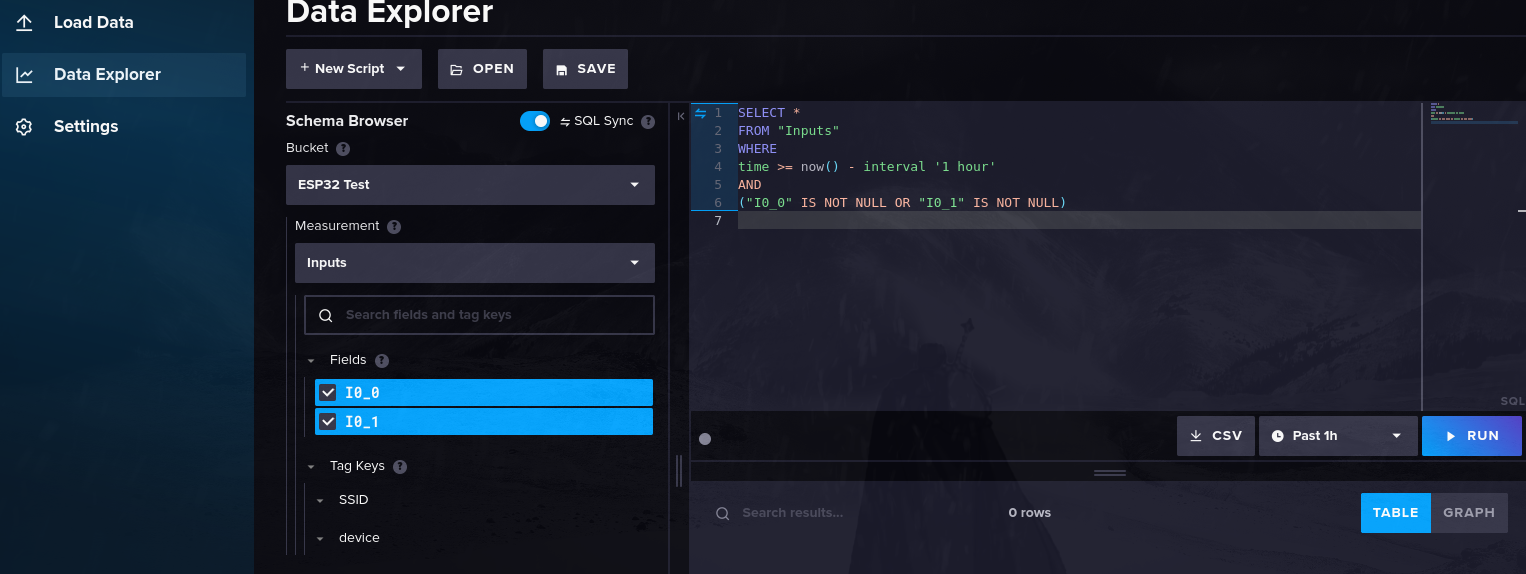
By clicking on the RUN button, you will see how all the data you have sent in the last hour is listed in a table, with its correspondent device, SSID and time.
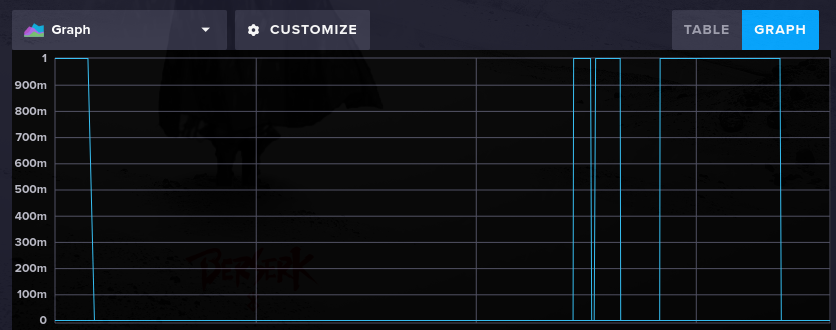
The data can also be plotted, but only one field at the time. To enter this mode, click on the Graph icon neat the table. In addition, the parameters can be changed to adapt the plot in almost every aspect.